
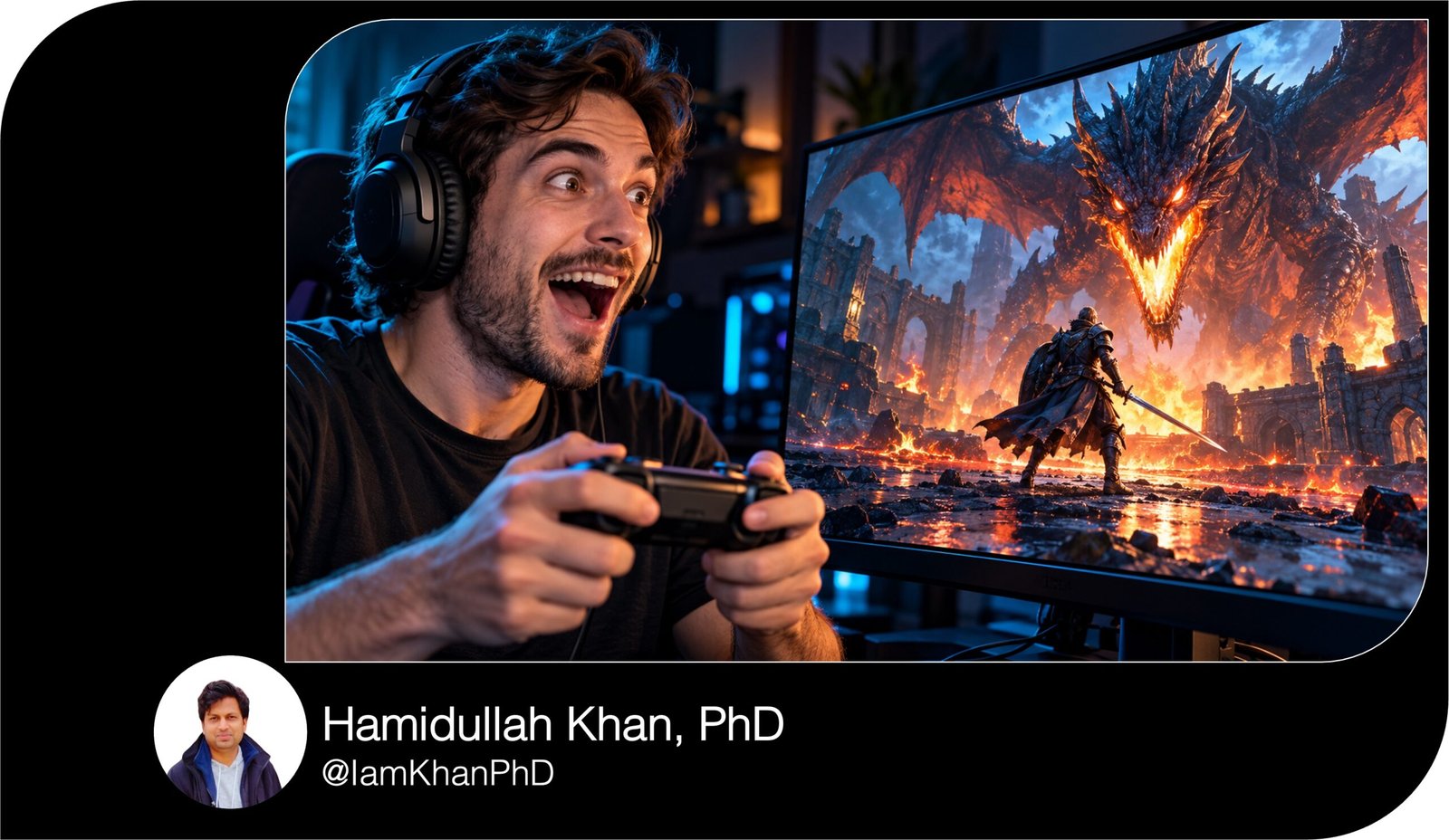
YouTube Gaming Thumbnail Prompt Pack: 10 Editable Designs
Create gaming thumbnail visuals with 10 detailed, editable AI prompts. Customize the game, characters, scene, colors, and headline to suit your video. Includes focused layouts for clutch wins, build reveals, horror encounters, boss battles, racing moments, rare loot, challenges, and more—plus simple instructions for beginners.
What this prompt pack does
- Provides 10 distinct thumbnail concepts with clear instructions for subject placement, lighting, backgrounds, and text space.
- Helps you customize each concept using your gameplay moments, screenshots, creator photos, and channel colors.
- Guides image-generation tools toward focused visuals with prominent subjects and short headlines.
Tips for this prompt pack
- Describe one specific moment from your video and attach a relevant screenshot when your image tool supports references.
- Keep headlines short—ideally two to four words—and preview the thumbnail at a small size to check readability.
- If AI-generated lettering looks wrong, request a blank headline area and add the text in your image editor.
How to use the prompt pack
- Choose a prompt that matches your video and replace every [bracketed field] with your details.
- Paste it into an AI image-generation tool, attach optional references, and select a 16:9 output if available.
- Review the image for accuracy, revise unwanted details, then add or correct the headline and export your finished thumbnail.
10 AI Thumbnail Generator Prompts I Editable Templates
10 YouTube Gaming Thumbnail AI Prompts
Before you start: Replace every field in [square brackets] with your details. Paste your completed prompt into an AI image-generation tool. If the tool supports reference images, attach your gameplay screenshots or creator photo.
These are editable text prompts. Generated images are not automatically layered design templates.
10 AI Thumbnail Prompts You Can Copy and Customize
1. Last-Second Battle Royale Clutch
Best for: Final-zone fights, close wins, and clutch highlights.
Prompt:
Create a 16:9 YouTube gaming thumbnail, aiming for 1280 × 720 pixels, for a video about [GAME NAME] titled [VIDEO TITLE]. Show the decisive moment when [PLAYER CHARACTER / SKIN] faces [NUMBER OF OPPONENTS] in [MAP LOCATION].
Use [ATTACHED GAMEPLAY SCREENSHOT / DETAILED SCENE DESCRIPTION] as the basis. Place my character large in the left foreground, aiming [WEAPON USED IN THE VIDEO] toward the opponent on the right. Keep the opponent’s silhouette clearly recognizable. Include an approaching storm or shrinking zone only if it appears in this match.
Use sharp rim lighting in [ACCENT COLOR] and a darker, simplified background. Freeze the action just before the outcome. Reserve the upper-left area for “[HEADLINE, e.g., 1 HP CLUTCH]” in bold, high-contrast lettering.
Keep the bottom-right corner visually quiet. Omit unrelated HUD panels, extra weapons, watermarks, and invented victory badges. If accurate lettering cannot be produced, leave the headline area empty.
10 Custom AI Thumbnail Generator Prompts
2. Massive Sandbox Build Reveal
Best for: Minecraft-style builds, base tours, and construction videos.
Prompt:
Create a 16:9 gaming thumbnail, aiming for 1280 × 720 pixels, featuring my [BUILD TYPE, e.g., floating castle] in [GAME NAME]. Base the structure on [ATTACHED BUILD SCREENSHOT / DESCRIPTION OF ITS SHAPE, MATERIALS, AND SCALE].
Show the finished build occupying roughly two-thirds of the image. Use a low three-quarter camera angle so its height and depth are easy to understand. Include [PLAYER AVATAR] small in the foreground, looking toward the structure as a scale reference.
Preserve the game’s [BLOCKY / STYLIZED / REALISTIC] appearance and the build’s actual features. Use [TIME OF DAY] lighting, a [SKY COLOR] sky, and a subtle glow around [MAIN BUILD FEATURE]. Simplify nearby terrain.
Leave open sky at the upper left for “[HEADLINE, e.g., I BUILT THIS!]” in thick lettering with a dark outline. Avoid extra buildings, duplicate avatars, unreadable signs, or features absent from the video. Leave the headline space blank if lettering is inaccurate.
10 Thumbnail Prompt Extractors I Editable AI Prompt Pack
3. Horror Game Near Encounter
Best for: Frightening encounters, chases, and horror playthroughs.
Prompt:
Design a 16:9 YouTube thumbnail, aiming for 1280 × 720 pixels, for my [GAME NAME] horror video about [ACTUAL ENCOUNTER].
Place [MY FACE FROM AN ATTACHED PHOTO / PLAYER CHARACTER] in the left foreground, showing [EXPRESSION, e.g., wide-eyed fear]. If using my photo, preserve my facial features. Position [MONSTER OR ENEMY] in the right midground, emerging from [DOORWAY / CORRIDOR / LOCATION FROM THE VIDEO]. Keep its silhouette recognizable while leaving part of it in shadow.
Use a flashlight beam or [IN-GAME LIGHT SOURCE] to connect the foreground subject to the threat. Build the palette around [DARK BASE COLOR] with one [WARNING COLOR] accent. Keep the face and enemy readable despite the dark setting.
Reserve the upper center for “[HEADLINE, e.g., IT FOUND ME]” in large lettering. Create suspense through proximity and lighting, without graphic gore. Omit extra monsters, unrelated symbols, excessive fog, and tiny text. Leave the headline space blank if necessary.
AI Thumbnail Maker Prompts: 10 Editable Templates
4. Racing Finish-Line Showdown
Best for: Close races, speed challenges, and driving highlights.
Prompt:
Create a 16:9 racing-game thumbnail, aiming for 1280 × 720 pixels, for [GAME NAME], showing [CAR MODEL AND COLOR] during [ACTUAL RACE MOMENT]. Use [ATTACHED GAMEPLAY SCREENSHOT / TRACK AND CAR DESCRIPTION] for accuracy.
Put the main car across the lower-left and center of the image, captured from a low front three-quarter angle. Position [RIVAL CAR] slightly behind on the right if a rival is part of this scene. Make [FINISH LINE / CORNER / JUMP] visible in the background to explain the moment instantly.
Keep the main car sharp. Restrict directional motion blur to the road and background. Use [LIGHTING CONDITIONS] and [ACCENT COLOR] highlights to separate the vehicles. Include tire smoke or sparks only when appropriate to the action.
Reserve the upper-left background for “[HEADLINE, e.g., PHOTO FINISH!]” in bold lettering. Avoid invented speed readings, distorted wheels, extra cars, dashboard clutter, and fake race results. Keep the lower-right corner simple. Leave the headline area empty if lettering is inaccurate.
10 YouTube Thumbnail Generator Prompts I Editable AI Templates
5. Giant Boss Battle
Best for: Difficult encounters, first attempts, and boss victories.
Prompt:
Generate a 16:9 YouTube gaming thumbnail, aiming for 1280 × 720 pixels, for my fight against [BOSS NAME] in [GAME NAME]. Use [ATTACHED BOSS SCREENSHOT / DESCRIPTION] to preserve the boss’s recognizable form.
Show [PLAYER CHARACTER] in the lower-left foreground, holding [WEAPON USED], facing the boss across [ACTUAL ARENA]. Let the boss dominate the upper-right half, with its [SIGNATURE FEATURE] clearly visible. Keep the player’s silhouette readable so the size difference creates tension.
Depict [SPECIFIC ATTACK FROM THE VIDEO] at the instant before impact. Use controlled effects that do not hide either character. Light the player with [COOL COLOR] and the boss with [WARM COLOR], grounded in the arena’s visual style.
Leave the upper-left area for “[HEADLINE, e.g., FINAL ATTEMPT]” in large, outlined lettering. Exclude unrelated enemies, fabricated health bars, incorrect weapons, and victory claims unless the video shows that outcome. Leave the text area empty if clean lettering cannot be produced.
10 Free Thumbnail Prompts You Can Copy & Edit
6. Beginner-to-Pro Comparison
Best for: Skill progression, training results, and gameplay improvement.
Prompt:
Create a split-screen, 16:9 gaming thumbnail, aiming for 1280 × 720 pixels, for [GAME NAME], comparing [BEGINNER MOMENT] with [IMPROVED MOMENT].
Use [BEFORE SCREENSHOT] on the left and [AFTER SCREENSHOT] on the right. If references are unavailable, use [BEFORE DESCRIPTION] and [AFTER DESCRIPTION]. Divide the image with one clean diagonal line.
Show the same [CHARACTER / VEHICLE / BUILD] at a comparable size on both sides so the improvement is easy to judge. Make the left side slightly muted with [VISIBLE BEGINNER MISTAKE]. Make the right side brighter with [VISIBLE IMPROVEMENT]. Preserve enough detail to explain what changed without filling either side with HUD elements.
Use only two large labels: “[LEFT LABEL, e.g., DAY 1]” and “[RIGHT LABEL, e.g., DAY 30]” at the top of their respective halves. Match them to the actual video timeline. Avoid invented ranks, scores, trophies, or statistics. Leave both label areas blank if lettering is unreliable.
10 Best Thumbnail Prompts for Content Creators
7. Rare Loot Reveal
Best for: Rare item drops, chest openings, and unlock reveals.
Prompt:
Design a 16:9 gaming thumbnail, aiming for 1280 × 720 pixels, for my [GAME NAME] video revealing [EXACT ITEM NAME].
Use [ATTACHED ITEM SCREENSHOT / DESCRIPTION OF ITS SHAPE, MATERIALS, AND COLORS] to reproduce its recognizable appearance. Make the item the largest focal point, centered slightly right, with a controlled [GLOW COLOR] halo behind it. Place [PLAYER CHARACTER / MY FACE FROM A PHOTO] smaller on the left, reacting with [EXPRESSION].
Include [CHEST / REWARD SCREEN / LOOT SOURCE] only if it appears in the video. Simplify it so it supports the item. Use a dark [BACKGROUND COLOR] background and a few bright particles.
Reserve the upper-left or upper-center space for “[HEADLINE, e.g., FINALLY GOT IT!]” in bold lettering. Include a rarity label only if supplied here: [VERIFIED RARITY LABEL OR NONE]. Do not invent drop rates, prices, quantities, or rewards. Avoid duplicate items, excessive sparkles, and small inventory text. Leave headline space empty if needed.
10 ChatGPT YouTube Thumbnail Prompts I Editable Pack
8. One-Rule Gaming Challenge
Best for: One-weapon runs, restricted builds, and unusual gameplay rules.
Prompt:
Create a 16:9 YouTube thumbnail, aiming for 1280 × 720 pixels, for my [GAME NAME] challenge: [EXACT RULE, e.g., win using only the starter pistol].
Show [PLAYER CHARACTER] large on the left, holding or using [ALLOWED WEAPON / TOOL]. Enlarge that same object as a clearly separated close-up on the right so the rule is understandable immediately. Use [MAP OR ENVIRONMENT FROM THE VIDEO] as a simplified background.
Add one restrained circle or glow around the allowed object. Convey [EMOTION, e.g., determined under pressure] through the character’s pose. Use [PRIMARY COLOR] with [CONTRAST COLOR] for strong separation.
Reserve the upper center for “[HEADLINE, e.g., PISTOL ONLY]” in thick lettering. Show only equipment permitted by the challenge. Depict the attempt unless an outcome is supplied here: [ACTUAL OUTCOME]. Do not invent a win, record, or completed objective. Omit unnecessary HUD, extra objects, and tiny captions. Keep a blank headline area if text generation is unreliable.
10 Editable AI Prompts for Roblox Thumbnail Generation
9. Game Update Before-and-After
Best for: Map changes, visual updates, and redesigned features.
Prompt:
Create a 16:9 gaming thumbnail, aiming for 1280 × 720 pixels, comparing [FEATURE OR LOCATION] before and after [GAME NAME]’s [UPDATE NAME].
Use the attached [BEFORE SCREENSHOT] and [AFTER SCREENSHOT] as the visual basis. If references are unavailable, use only these supplied details: [OLD APPEARANCE] and [NEW APPEARANCE].
Show the old version on the left and the new version on the right, with the same camera angle and similar scale. Separate them with one vertical divider. Make [SPECIFIC VISIBLE CHANGE] the focal point, using a subtle outline or circle on the changed area. Preserve the defining shapes and colors from each reference while simplifying surrounding scenery.
Use “[LEFT LABEL, e.g., BEFORE]” and “[RIGHT LABEL, e.g., AFTER]” as the only text, positioned at the top of each half. Do not add rumored features, fabricated patch numbers, extra structures, or changes absent from the references. Keep the bottom-right area uncluttered. Leave both label areas empty if accurate lettering is unavailable.
10 Roblox Studio Thumbnail Prompts You Can Copy and Customize
10. Perfectly Timed Funny Fail
Best for: Unexpected mistakes, chaotic co-op moments, and funny highlights.
Prompt:
Design a 16:9 YouTube gaming thumbnail, aiming for 1280 × 720 pixels, based on this actual funny moment in [GAME NAME]: [DESCRIBE THE FAIL AND WHY IT IS FUNNY].
Use [ATTACHED GAMEPLAY SCREENSHOT / SCENE DESCRIPTION] as the basis. Freeze the scene one instant before [VISIBLE CONSEQUENCE, e.g., the car falls off the bridge]. Place [MAIN CHARACTER / VEHICLE] large near the center-left, with [OBSTACLE OR CAUSE OF THE FAIL] clearly visible on the right.
If using my attached face photo, add a small reaction cutout in the upper-left corner with [EXPRESSION], preserving my facial features. Keep the scene understandable without small details. Use bright [PRIMARY COLOR] and [ACCENT COLOR], crisp outlines, and a slightly exaggerated sense of motion.
Add one arrow only if it clarifies the mistake. Reserve the upper-right area for “[HEADLINE, e.g., WRONG BUTTON!]” in bold lettering. Avoid extra characters, invented accidents, excessive stickers, and distorted anatomy. Leave the headline area blank if needed.

About author







Add comment