
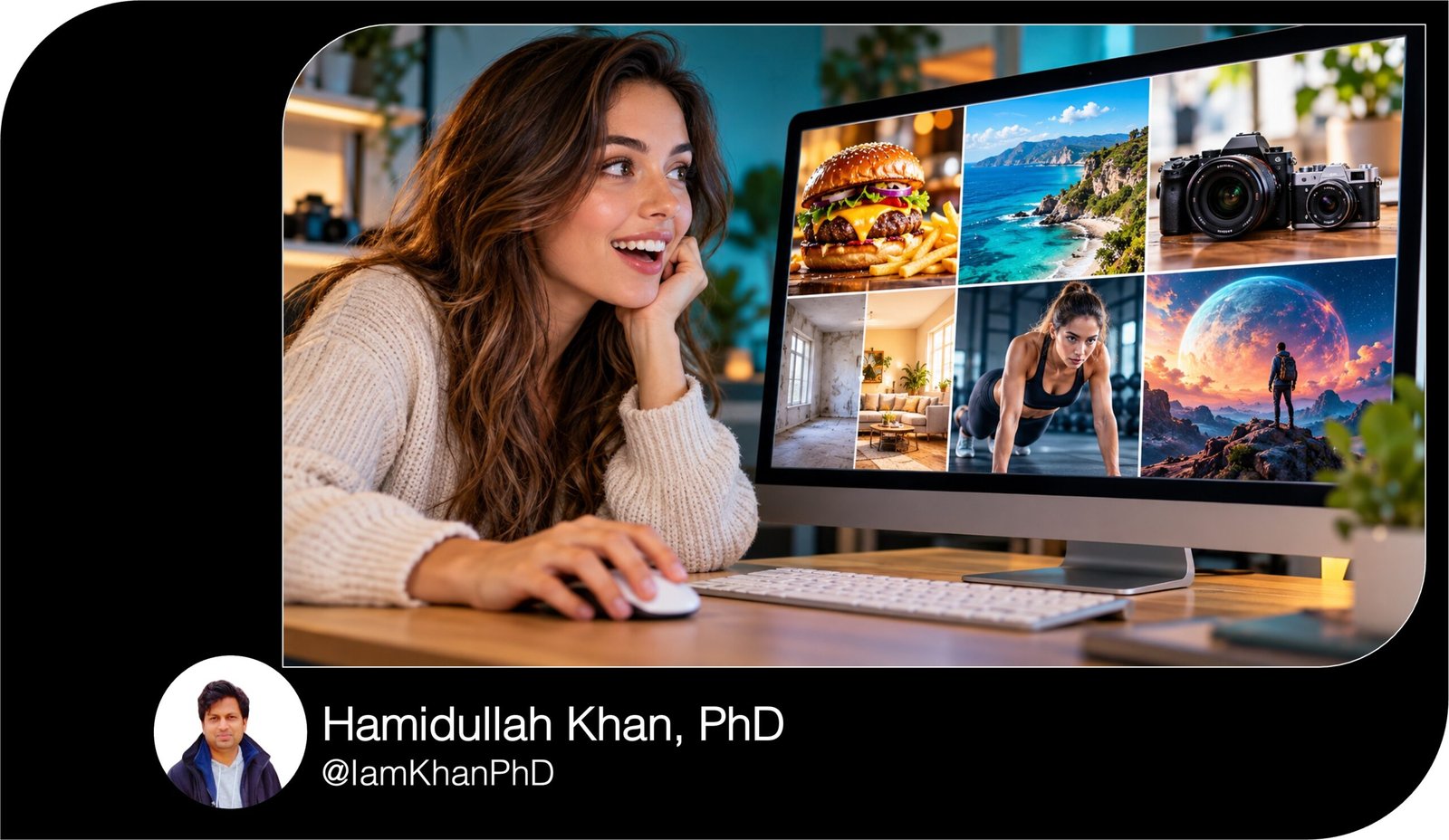
10 Free Thumbnail Prompts You Can Copy & Edit
Create thumbnails for your next video with 10 free, editable AI thumbnail prompts. Each template includes a specific layout, visual direction, and customizable headline for tutorials, reviews, comparisons, recipes, workouts, and travel content. Replace the bracketed details, paste your prompt into an AI image tool, and personalize the result.
What this prompt pack does
- Gives you 10 detailed thumbnail templates for different video topics and creator niches.
- Guides the image tool on subject placement, lighting, colors, headlines, and background details.
- Lets you customize each thumbnail using your topic, brand colors, and reference images.
Tips for this prompt pack
- Keep your headline short—around two to five words—and check readability at phone-screen size.
- Upload clear reference photos when your face, product, or destination needs to look accurate.
- If the AI misspells the headline, generate a version without text and add the wording in a design editor.
How to use the prompt pack
- Choose the template that matches your video and replace every bracketed placeholder.
- Paste the completed prompt into an AI image-generation tool and attach any relevant reference images.
- Generate your thumbnail, check the details and spelling, then download it in your platform’s required dimensions.
10 AI Thumbnail Generator Prompts I Editable Templates
Free AI Thumbnail Prompt Pack: 10 Editable Templates
Create thumbnails for tutorials, reviews, recipes, travel videos, and more using these detailed AI image prompts.
Before you start: Replace everything inside [square brackets] with your own details. These prompts use a landscape 16:9 layout for YouTube. Change the aspect ratio if your platform needs a different format.
For prompts featuring you or your product, upload a reference image you own or have permission to use. If the generated headline looks incorrect, ask for the same image without text and add your headline in a design editor.
10 AI Thumbnail Prompts You Can Copy and Customize
1. The “I Tested This AI Tool” Thumbnail
Best for: AI tool reviews, app demonstrations, and first-impression videos.
Copy and edit this prompt:
Create a YouTube thumbnail in a 16:9 landscape layout for a video testing [AI TOOL NAME] for [SPECIFIC TASK, such as turning a script into a video]. Use my uploaded portrait as the reference for the person, preserving my facial features. Place me on the left, looking toward the right with an expression of [curiosity / pleasant surprise / concentration]. On the right, show one large visual representing the actual result: [DESCRIBE THE OUTPUT]. Make the result the main visual focus alongside my face. Use a dark [BACKGROUND COLOR] background with [ACCENT COLOR] lighting around the subject. Add the exact headline “[SHORT HEADLINE, such as I TESTED IT]” in large, bold lettering across the upper-right area. Include one arrow connecting the person to the result. Keep the composition uncluttered, with no invented app interface, extra captions, watermark, or unrelated objects. Make the face and result recognizable at small size.
10 Custom AI Thumbnail Generator Prompts
2. The Before-and-After Transformation Thumbnail
Best for: Photo editing, room makeovers, design improvements, and restoration videos.
Copy and edit this prompt:
Create a 16:9 YouTube thumbnail showing the transformation of [SUBJECT, such as a home office or product photo]. Use the uploaded before-and-after images as references where provided. Split the thumbnail vertically into two equal sections, showing the same subject from the same angle and at the same scale. The left side should show [ACTUAL BEFORE CONDITION] with muted colors. The right side should show [ACTUAL AFTER CONDITION] with brighter lighting and clearer detail. Preserve the differences shown in my references; do not exaggerate the outcome. Add the word “BEFORE” above the left side and “AFTER” above the right side. Place a thick [ACCENT COLOR] arrow across the center pointing toward the improved version. Keep the background simple and the transformation easy to understand immediately. Avoid additional objects, extra text, tiny details, and watermarks.
10 Thumbnail Prompt Extractors I Editable AI Prompt Pack
3. The Beginner Tutorial Thumbnail
Best for: Software tutorials, creative workflows, and beginner lessons.
Copy and edit this prompt:
Design a clean 16:9 YouTube thumbnail for a beginner tutorial about [SPECIFIC SKILL, such as making a first digital planner]. Place a large, clear example of the finished result on the right: [DESCRIBE WHAT THE VIEWER WILL CREATE]. On the left, show [MY UPLOADED PORTRAIT / A CLOSE-UP OF HANDS USING THE RELEVANT TOOL]. Include three simple, oversized visual symbols along the bottom representing the actual workflow: [STEP 1 OBJECT], [STEP 2 OBJECT], and [STEP 3 OBJECT], connected by short arrows. Use a bright [BACKGROUND COLOR] background with [ACCENT COLOR] highlights. Add the exact headline “[SHORT HEADLINE, such as START HERE]” at the top-left. Make the finished result visually dominant and keep each step recognizable without small labels. Use generous spacing, strong contrast, and crisp edges. Do not add complex interface screenshots, paragraphs, decorative clutter, or a watermark.
AI Thumbnail Maker Prompts: 10 Editable Templates
4. The Two-Options Comparison Thumbnail
Best for: Product comparisons, software comparisons, and buying guides.
Copy and edit this prompt:
Create a balanced 16:9 YouTube thumbnail comparing [OPTION A] with [OPTION B] for [SPECIFIC USE CASE]. Use the uploaded reference images to preserve the appearance of both products. Place Option A on the left against [COLOR A] and Option B on the right against [COLOR B]. Show both at equal size with matching lighting and camera angles so neither looks unfairly better. Put a bold “VS” in the center. Above each item, include only its short name: “[SHORT NAME A]” and “[SHORT NAME B]”. Add the exact headline “[QUESTION, such as WHICH IS EASIER?]” across the top. Use a thin vertical divider and subtle shadows for depth. Keep logos accurate only when they are visible in the references. Avoid fabricated specifications, ratings, prices, winner badges, extra text, and watermarks. Make both options easy to distinguish on a phone screen.
10 YouTube Thumbnail Generator Prompts I Editable AI Templates
5. The Common-Mistake Thumbnail
Best for: Educational content about mistakes, troubleshooting, and practical fixes.
Copy and edit this prompt:
Create a 16:9 YouTube thumbnail for a video explaining [SPECIFIC MISTAKE, such as placing a microphone too far away] and how to fix it. Show a close-up of the incorrect setup on the left: [DESCRIBE THE VISIBLE ERROR]. Show the corrected setup on the right: [DESCRIBE THE VISIBLE FIX]. Keep the subject, viewing angle, and scale consistent between both sides. Place one large red X near the incorrect detail and one green check near the corrected detail. Use a neutral [BACKGROUND COLOR] background so the difference stands out. Add the exact headline “[SHORT HEADLINE, such as FIX YOUR AUDIO]” across the top. If using my uploaded portrait, place a small cutout of me near the bottom center without covering either setup. Keep the correction physically realistic and relevant to the video. Avoid additional warning symbols, tiny labels, exaggerated damage, and watermarks.
10 Best Thumbnail Prompts for Content Creators
6. The Top-Five Roundup Thumbnail
Best for: Lists of tools, equipment, resources, and creator essentials.
Copy and edit this prompt:
Create a 16:9 YouTube thumbnail for a video featuring five [ITEM CATEGORY, such as desk accessories] for [AUDIENCE OR PURPOSE]. Show these exact five items: [ITEM 1], [ITEM 2], [ITEM 3], [ITEM 4], and [ITEM 5]. Arrange them in a shallow arc, with [FEATURED ITEM] larger in the center and two smaller items on each side. Use uploaded product references when available. Keep each item separate and recognizable; do not merge their shapes or invent extra products. Place a large numeral “5” in the upper-left corner and the exact headline “[SHORT CATEGORY HEADLINE, such as DESK UPGRADES]” beside it. Use [BACKGROUND COLOR] with [ACCENT COLOR] highlights and soft shadows beneath the objects. Leave space between the headline and products. Avoid individual item labels, star ratings, price claims, unnecessary decorations, and watermarks.
YouTube Gaming Thumbnail Prompt Pack: 10 Editable Designs
7. The Budget-versus-Premium Thumbnail
Best for: Affordable alternatives, equipment tests, and value comparisons.
Copy and edit this prompt:
Create a 16:9 YouTube thumbnail comparing a budget [PRODUCT CATEGORY] with a premium version for [TASK OR USE CASE]. Use my uploaded references for [BUDGET PRODUCT] and [PREMIUM PRODUCT]. Position the budget item on the left and the premium item on the right, with equal size and equally clear lighting. Give the left half a [LEFT COLOR] background and the right half a [RIGHT COLOR] background. Above the budget item, add the exact verified price “[PRICE A WITH CURRENCY]”; above the premium item, add “[PRICE B WITH CURRENCY]”. Put the exact headline “[SHORT HEADLINE, such as WORTH THE EXTRA?]” across the bottom. Include a small question mark between the products. Keep the design polished and readable at small size. Do not invent savings, performance claims, luxury features, or a winning result. No extra text or watermark.
10 ChatGPT YouTube Thumbnail Prompts I Editable Pack
8. The Finished-Recipe Thumbnail
Best for: Cooking tutorials, meal preparation, and recipe videos.
Copy and edit this prompt:
Create a realistic 16:9 YouTube thumbnail for a recipe video featuring [DISH NAME]. Make the finished dish the main subject, positioned on the right in [BOWL / PLATE / SERVING DISH] and photographed from [45-DEGREE / OVERHEAD] view. Emphasize its real textures: [SPECIFIC DETAILS, such as crisp golden edges, creamy sauce, or fresh herbs]. Include only ingredients actually used in the recipe. On the left, leave a clean area for the exact headline “[SHORT HEADLINE, such as ONE-PAN DINNER]”. Use [BACKGROUND SURFACE], warm natural light, and a [COLOR PALETTE] palette. Add one relevant prop, such as [FORK / SPOON / CUTTING BOARD], without distracting from the food. Keep the serving realistic and appetizing. If a hand is included, show a natural pose and correct anatomy. Avoid unsupported cooking-time claims, health claims, excessive garnish, extra text, and watermarks.
10 Editable AI Prompts for Roblox Thumbnail Generation
9. The Follow-Along Workout Thumbnail
Best for: Home workouts, stretching sessions, and exercise demonstrations.
Copy and edit this prompt:
Create a 16:9 YouTube thumbnail for a follow-along [WORKOUT TYPE, such as beginner mobility] video. Use my uploaded portrait or full-body reference to preserve my identity and body proportions. Show me on the right demonstrating [EXERCISE ACTUALLY INCLUDED IN THE VIDEO], with natural anatomy and a realistic pose matching the reference. Use a clean [HOME ROOM / STUDIO / OUTDOOR SPACE] background with only the equipment used: [EQUIPMENT OR “NONE”]. Leave clear space on the left for the exact headline “[SHORT HEADLINE, such as GENTLE MOBILITY]”. Add the duration “[ACTUAL VIDEO LENGTH] MIN” in a simple badge beneath it. Use [BACKGROUND COLOR] and [ACCENT COLOR] for strong contrast. Keep the full movement visible and avoid cropping important body parts. Do not alter my physique or add weight-loss promises, transformation images, calorie claims, extra text, or watermarks.
10 Roblox Studio Thumbnail Prompts You Can Copy and Customize
10. The Destination Travel Thumbnail
Best for: Destination guides, travel vlogs, and itinerary videos.
Copy and edit this prompt:
Create a 16:9 YouTube travel thumbnail for a video about [DESTINATION], focusing on [ACTIVITY OR EXPERIENCE, such as exploring the old town]. Use my uploaded destination photograph as the main background and preserve its recognizable buildings, landscape, and geography. Enhance clarity and color while keeping the location believable. If I provide a portrait, place a cutout of me in the lower-left, looking toward [MAIN LANDMARK OR VIEW]. Keep the landmark large and visible on the right. Add the exact headline “[SHORT HEADLINE, such as FIRST DAY IN ROME]” in an uncluttered area of the sky or background. Use [ACCENT COLOR] for a thin text outline that improves readability. Match the person’s lighting to the scene. Avoid invented landmarks, fake crowds, altered signs, price claims, excessive saturation, extra captions, and watermarks.

About author






Add comment