
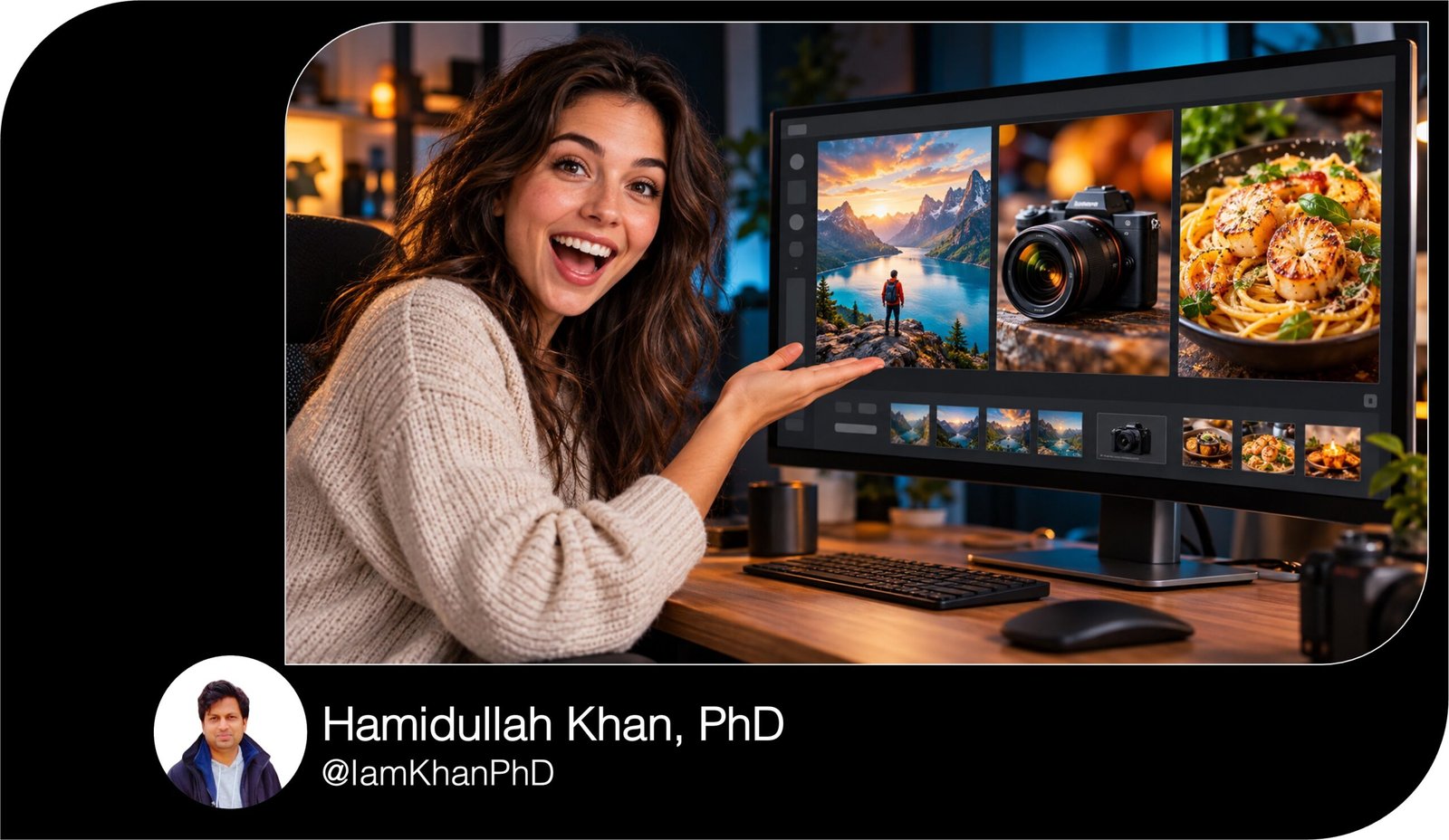
10 ChatGPT YouTube Thumbnail Prompts I Editable Pack
Create YouTube thumbnails with clearer layouts, readable headlines, and visuals that match your videos. This pack includes 10 detailed, editable ChatGPT prompt templates for tutorials, comparisons, transformations, reviews, challenges, travel, recipes, and more. Replace the placeholders with your details and customize each prompt for your channel.
What this prompt pack does
- Gives you 10 specific thumbnail templates with instructions for subjects, text placement, backgrounds, lighting, and colors.
- Helps you communicate your video’s main topic or benefit through a focused visual.
- Lets you customize the prompt text for your niche, brand, audience, and reference images.
Tips for this prompt pack
- Use a short headline of 2–4 words that accurately reflects the video.
- Attach a clear photo of yourself, your product, or your subject when you want it represented.
- Preview the result at a small size and check spelling, subject details, and headline readability.
How to use the prompt pack
- Choose the template closest to your video and replace every [square-bracketed field]; write “none” for optional details you do not need.
- Paste the completed prompt into a ChatGPT conversation with image generation available and attach any references named in the prompt.
- Review the thumbnail and request one specific revision at a time, such as “Enlarge the headline while keeping the scene and colors unchanged.”
10 AI Thumbnail Generator Prompts I Editable Templates
10 ChatGPT Prompts for YouTube Thumbnails
Replace the text inside [square brackets] with your details. Each prompt requests one thumbnail image. Use them in a ChatGPT conversation with image generation available; attach a reference photo when you want it included. You can then request edits in the same conversation.
10 AI Thumbnail Prompts You Can Copy and Customize
1. Tutorial Thumbnail: Show the Result Viewers Will Learn to Create
Create one YouTube thumbnail image in a horizontal 16:9 composition for this tutorial.
MY VIDEO DETAILS:
- Video title: [e.g., How to Create Your First Website with AI]
- Target audience: [e.g., beginners who have never built a website]
- Main result demonstrated in the video: [describe the actual finished result]
- Thumbnail headline: [2–4 words, e.g., BUILD YOUR FIRST SITE]
- Brand colors: [e.g., navy blue, white, and lime green]
- Creator photo: [attached / no photo]
- Result screenshot: [attached / no screenshot]
DESIGN:
Place the finished result prominently on the right, taking up roughly half the image. If I attached a screenshot, use it as the reference and preserve its important details. If no screenshot is supplied, create a simplified illustration of the result without inventing specific software features.Place my photo on the left if supplied; otherwise, use one relevant tool or object. Put the headline in the upper-left area using thick, easy-to-read lettering. Add one small visual cue connecting the subject to the result.
Use a clean background, strong contrast, and enough empty space to keep the design readable at a small size. Keep important elements away from the edges and bottom-right corner. Include only the supplied headline. Generate the thumbnail image.
10 Custom AI Thumbnail Generator Prompts
2. Comparison Thumbnail: Make Two Choices Instantly Recognizable
Create one horizontal 16:9 YouTube thumbnail for a comparison video.
MY VIDEO DETAILS:
- Video title: [e.g., Budget Microphone vs. Premium Microphone]
- Option A: [name and appearance]
- Option B: [name and appearance]
- Main difference explored: [e.g., voice clarity in a noisy room]
- Exact headline: [e.g., WHICH SOUNDS BETTER?]
- Option A label: [e.g., BUDGET]
- Option B label: [e.g., PREMIUM]
- Reference images: [attach and identify each image, or write none]
- Brand colors: [colors]
DESIGN:
Divide the image into two clear sections with a narrow diagonal separation. Place Option A on the left and Option B on the right. Give both options equal visual size, similar lighting, and comparable angles so neither looks artificially superior.Use a cool background color for the left section and a warm background color for the right. Place a small “VS” in the center. Position the headline across the top and each short option label beneath its subject.
Use reference images to preserve product shapes and recognizable details. If references are missing, use simplified illustrations rather than invented branded products.
Remove decorative clutter. Keep text large and the bottom-right corner clear. Do not add prices, ratings, winners, or performance claims I have not supplied. Generate the thumbnail image.
10 Thumbnail Prompt Extractors I Editable AI Prompt Pack
3. Before-and-After Thumbnail: Highlight a Real Transformation
Create one horizontal 16:9 YouTube thumbnail showing a before-and-after transformation.
MY VIDEO DETAILS:
- Video title: [e.g., Turning My Messy Desk into a Productive Workspace]
- Subject being transformed: [desk, room, artwork, garden, etc.]
- Actual starting condition: [describe]
- Actual finished condition: [describe]
- Before reference: [attached / none]
- After reference: [attached / none]
- Main headline: [e.g., DESK MAKEOVER]
- Color palette: [colors]
DESIGN:
Use a vertical split with the “BEFORE” scene on the left and the “AFTER” scene on the right. Keep the viewing angle and scale consistent so the change is easy to understand. Make the most meaningful improvement visible, such as a clearer work surface, better lighting, or a repaired object.Use slightly muted colors on the left and brighter, natural colors on the right. Keep both scenes realistic. Place the main headline at the top and small “BEFORE” and “AFTER” labels within their respective sections.
Use attached references as the factual basis. If none are attached, create an illustrative representation using only my descriptions.
Do not exaggerate the transformation or add improvements absent from the video. Avoid extra arrows, badges, and tiny details. Keep the bottom-right corner free of essential content. Generate the thumbnail image.
AI Thumbnail Maker Prompts: 10 Editable Templates
4. List Video Thumbnail: Make the Number and Theme Work Together
Create one horizontal 16:9 YouTube thumbnail for a numbered list video.
MY VIDEO DETAILS:
- Video title: [e.g., 7 AI Tools That Help Me Plan Content]
- Number of items: [e.g., 7]
- Category: [e.g., AI tools for content creators]
- Three representative items actually covered: [item 1, item 2, item 3]
- Viewer benefit: [e.g., organize ideas and draft content]
- Short headline without the number: [e.g., AI CONTENT TOOLS]
- Brand colors: [colors]
- Reference images: [attached and identified / none]
DESIGN:
Make the supplied number the largest element, positioned on the left and occupying roughly one-third of the composition. Place the headline beside it in two short lines.On the right, show three large, recognizable objects or visual symbols representing the supplied items. Arrange them in a loose triangle with clear space between them. Do not try to display every item in the list.
Use a simple background with a subtle light glow behind the objects. Apply one accent color to connect the number and objects visually.
If no product references are supplied, use category illustrations instead of invented app logos or interfaces. Include only the number and exact headline. Avoid unsupported claims such as “best,” “free,” or “guaranteed.” Keep important details away from the bottom-right corner. Generate the thumbnail image.
10 YouTube Thumbnail Generator Prompts I Editable AI Templates
5. Product Review Thumbnail: Keep the Product as the Main Attraction
Create one horizontal 16:9 YouTube thumbnail for an honest product review.
MY VIDEO DETAILS:
- Video title: [e.g., My Review of This Compact Travel Camera]
- Product: [exact name]
- Review focus: [e.g., portability and low-light footage]
- Feature visibly demonstrated: [describe]
- Review tone: [curious / impressed / mixed / disappointed]
- Exact headline: [e.g., WORTH PACKING?]
- Product photo: [attached / none]
- Creator photo: [attached / no photo]
- Background colors: [colors]
DESIGN:
Place the product prominently in the center-right with clear lighting and visible shape, texture, and important details. Use the supplied product photo as the reference. If no photo is provided, use a simplified product-category illustration without inventing model-specific details.Place my creator photo on the left if attached. Preserve my recognizable facial features and use a natural expression consistent with the review tone. If no creator photo is attached, use the left side for the headline.
Add one subtle visual detail supporting the review focus, such as a travel bag for portability. Keep it secondary to the product.
Use a clean studio-style background and large, bold headline text. Do not invent star ratings, awards, specifications, or endorsements. Keep essential content out of the bottom-right corner. Generate the thumbnail image.
10 Free Thumbnail Prompts You Can Copy & Edit
6. Challenge Thumbnail: Show the Constraint and the Stakes
Create one horizontal 16:9 YouTube thumbnail for a challenge video.
MY VIDEO DETAILS:
- Video title: [e.g., Cooking Every Meal on a $10 Daily Budget]
- Challenge activity: [describe]
- Main constraint: [time limit, budget, distance, quantity, or rule]
- Exact constraint badge: [e.g., $10 / DAY]
- Scene actually shown in the video: [describe]
- Main obstacle: [describe]
- Exact headline: [e.g., CAN I DO IT?]
- Creator photo: [attached / no photo]
- Brand colors: [colors]
DESIGN:
Build the thumbnail around one action scene connected to the challenge. Place the subject slightly left of center and the main challenge object on the right. Make their relationship obvious: a person preparing a meal beside limited ingredients, for example.Put the constraint badge in the upper-right area using large text inside a simple contrasting shape. Place the headline in the upper-left area without covering the subject.
Use energetic lighting and a clear foreground-background separation. Convey determination or uncertainty through the scene, while avoiding an exaggerated expression.
Show only objects and conditions consistent with my video. Do not reveal or invent the challenge outcome. Do not add fake countdown interfaces or extra numbers. Leave the bottom-right corner clear. Generate the thumbnail image.
10 Best Thumbnail Prompts for Content Creators
7. Mistakes Thumbnail: Point to One Specific Problem
Create one horizontal 16:9 YouTube thumbnail for an educational video about common mistakes.
MY VIDEO DETAILS:
- Video title: [e.g., 5 Mistakes That Make Your Indoor Plants Struggle]
- Audience: [e.g., new plant owners]
- One mistake featured in the video: [e.g., leaving roots in standing water]
- Visible sign of the problem: [e.g., a water-filled saucer]
- Correct approach discussed: [describe]
- Exact headline: [e.g., STOP DOING THIS]
- Subject reference: [attached / none]
- Brand colors: [colors]
DESIGN:
Use a close-up of the supplied mistake as the main subject. Make the problem visible without requiring viewers to read an explanation. Place one small red circle around the exact problem area; do not scatter warning symbols across the image.Position the headline on the opposite side against a simple, high-contrast background. Add a small secondary inset showing the correct approach only if it remains understandable at a small size.
Use realistic lighting and believable object details. If a reference is attached, preserve the subject and modify only what the composition requires.
Keep the mood helpful and educational. Do not invent damage, danger, or consequences beyond what my video explains. Include only the supplied headline, with no extra captions or labels. Keep essential content out of the bottom-right corner. Generate the thumbnail image.
YouTube Gaming Thumbnail Prompt Pack: 10 Editable Designs
8. Travel Thumbnail: Combine a Recognizable Place with a Specific Experience
Create one horizontal 16:9 YouTube thumbnail for a travel video.
MY VIDEO DETAILS:
- Video title: [e.g., My First Morning at Kyoto’s Nishiki Market]
- Destination: [specific city, region, or location]
- Experience featured: [e.g., exploring a market and trying breakfast]
- Main location reference: [attached / none]
- Traveler photo: [attached / no photo]
- One meaningful detail: [e.g., the food stall featured in the video]
- Exact headline: [e.g., KYOTO FIRST MORNING]
- Mood: [peaceful / adventurous / lively / curious]
DESIGN:
Use the destination as the background, with one recognizable location feature visible. Place the traveler in the foreground on the left if a photo is attached. Otherwise, use a close foreground detail associated with the supplied experience.Position the headline in the upper-right area against an uncluttered portion of the scene. Use warm, natural lighting and realistic colors appropriate to the location and time of day.
Make the meaningful detail visible without adding a collage of unrelated attractions. Preserve the geography and architecture shown in supplied references. If no location reference is supplied, use an illustrative scene without inventing a specific landmark.
Avoid fake crowds, unrelated monuments, and luxury elements absent from the video. Leave the bottom-right corner clear. Generate the thumbnail image.
10 Editable AI Prompts for Roblox Thumbnail Generation
9. Recipe Thumbnail: Make the Finished Dish Look Clear and Appetizing
Create one horizontal 16:9 YouTube thumbnail for a recipe video.
MY VIDEO DETAILS:
- Video title: [e.g., Crispy Air-Fryer Potato Wedges]
- Finished dish: [name]
- Key visual qualities: [e.g., golden edges, herb seasoning, fluffy center]
- Ingredients actually used: [list]
- Recipe photo: [attached / none]
- Exact headline: [e.g., EXTRA CRISPY]
- Optional factual badge: [e.g., 20 MINUTES, or write none]
- Background style: [light kitchen counter / dark tabletop / brand-colored backdrop]
DESIGN:
Make the finished dish occupy roughly two-thirds of the image. Use a close, three-quarter camera angle that shows its shape and texture. If appropriate, show one piece cut open to reveal the inside.Use soft directional lighting, natural food colors, and a simple plate or serving surface. Add no more than two supporting ingredients, and only choose ingredients from my supplied list.
Place the headline in the empty area beside the dish. Include the factual badge only if I supplied one, keeping it smaller than the headline.
Use the attached photo as the reference for the actual dish. Avoid invented garnishes, oversized portions, excessive steam, or ingredients absent from the recipe. Keep text away from the food’s most appealing detail and the bottom-right corner. Generate the thumbnail image.
10 Roblox Studio Thumbnail Prompts You Can Copy and Customize
10. Faceless Documentary Thumbnail: Create Curiosity Around One Visual Clue
Create one horizontal 16:9 YouTube thumbnail for a faceless documentary or explainer video.
MY VIDEO DETAILS:
- Video title: [e.g., Why This Once-Busy Railway Station Was Abandoned]
- Main subject: [place, object, event, or system]
- Central question explored: [describe]
- One visual clue discussed in the video: [e.g., unused tracks disappearing into vegetation]
- Verified scene details: [describe]
- Reference image: [attached / none]
- Exact headline: [e.g., WHY WAS IT ABANDONED?]
- Mood: [mysterious / reflective / investigative]
DESIGN:
Use one strong scene rather than a collage. Place the main subject slightly right of center, leaving dark or uncluttered space on the left for the headline. Make the supplied visual clue visible in the foreground or middle distance.Use cinematic lighting, controlled shadows, and one restrained accent color. Keep enough detail visible for viewers to recognize the subject immediately. Include no presenter face.
If a reference is attached, preserve the location’s recognizable structure. If none is supplied, make an illustrative scene based only on my verified details.
Do not invent historical evidence, documents, disasters, or conspiracy symbols. Build curiosity through composition and the supplied question. Include only the exact headline and keep the bottom-right corner free of essential content. Generate the thumbnail image.

About author






Add comment