
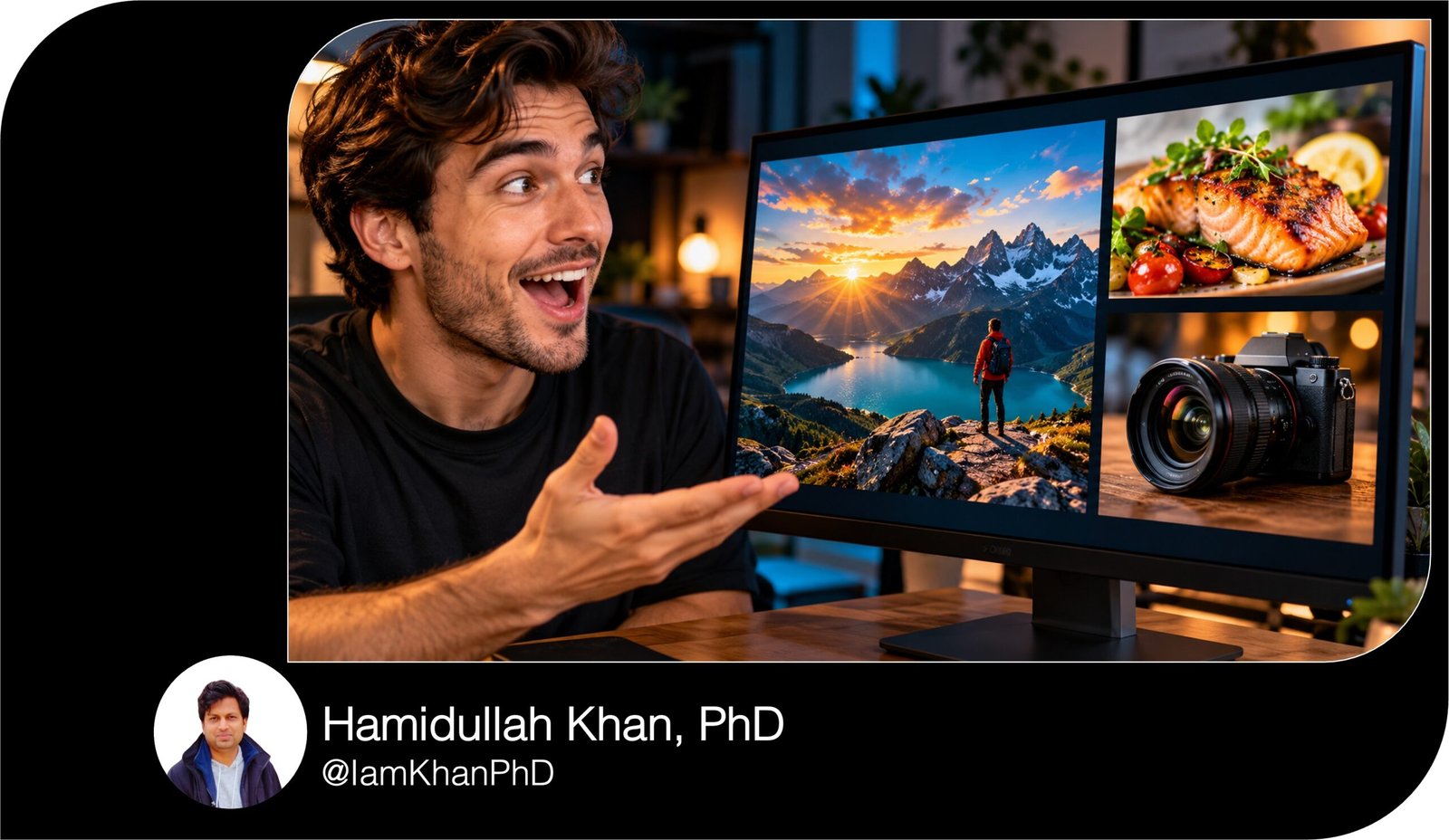
10 AI Thumbnail Prompts You Can Copy and Customize
Create clear, eye-catching YouTube thumbnails with 10 detailed, editable AI image prompts. This beginner-friendly collection covers tutorials, product reviews, comparisons, makeovers, recipes, travel, fitness, productivity, explainers, and personal stories. Customize the bracketed fields to match your video, visuals, and brand.
What this prompt pack does
- Guides your AI image tool with specific subjects, layouts, lighting, colors, and headline placement.
- Gives you 10 ready-to-customize thumbnail concepts for different video types.
- Helps you create focused visuals with space for readable text and fewer distracting elements.
Tips for these prompts
- Use a short headline of two to five words and check whether it is readable at a small size.
- Upload clear reference images when your thumbnail needs your face, an exact product, or a real location.
- Keep your brand colors consistent and change one visual element at a time when comparing versions.
How to use the prompts
- Choose the prompt that fits your video and replace every bracketed field with your details.
- Paste it into an AI image tool, attach any reference images, and select a horizontal 16:9 format.
- Review the generated image, correct any inaccuracies, and add or refine the headline in your image editor.
10 AI Thumbnail Generator Prompts I Editable Templates
10 Editable AI Thumbnail Prompts for Creators
These prompts are designed for YouTube thumbnails. Replace everything in [square brackets] with your own details, then paste the prompt into an AI image tool. Upload your photo or product image when a prompt calls for it. If the tool struggles with lettering, generate the image without text and add your headline in Canva or another editor.
10 Custom AI Thumbnail Generator Prompts
1. AI Tool Tutorial — “One Task, One Clear Result”
Create a YouTube thumbnail for a beginner tutorial about using [AI TOOL NAME] to [SPECIFIC TASK, e.g., turn meeting notes into a presentation].
Use a horizontal 16:9 composition. Place [MY UPLOADED PHOTO / A LAPTOP] on the left, occupying about one-third of the image. On the right, show a large, polished example of the finished result: [DESCRIBE THE OUTPUT, e.g., three presentation slides with charts and clean layouts]. Make the result understandable through its appearance, without tiny readable text.
Add one thick arrow connecting the subject to the result. Use a dark [BACKGROUND COLOR] background, bright [ACCENT COLOR] highlights, and clear separation between objects.
Reserve the upper-right area for this exact headline: “[HEADLINE, 2–4 WORDS, e.g., SLIDES IN MINUTES].” Use large, bold lettering.
Keep the layout focused on one task and one result. Avoid extra screens, floating icons, invented tool logos, watermarks, and clutter. If accurate lettering is unavailable, leave the headline area empty.
10 Thumbnail Prompt Extractors I Editable AI Prompt Pack
2. Product Review — “Is It Worth It?”
Create a realistic YouTube thumbnail for my review of [PRODUCT NAME AND MODEL].
Use the uploaded product image as the visual reference. Preserve its actual shape, color, buttons, and proportions. Place the product prominently on the right, taking up approximately half the frame. Show it at a three-quarter angle with sharp detail, soft reflections, and a subtle rim light.
Place [MY UPLOADED PHOTO WITH A CURIOUS EXPRESSION / A LARGE QUESTION MARK] on the left. Use a simple [BACKGROUND COLOR] studio background with a gentle glow behind the product.
Reserve the top-left area for “[HEADLINE, e.g., WORTH THE PRICE?].” Make the headline bold and readable on a phone screen.
Add one small supporting element related to the review: [BATTERY ICON / CAMERA DETAIL / COMFORT SYMBOL]. Avoid multiple feature badges.
Use a horizontal 16:9 layout. Do not invent product features, awards, prices, or accessories. Avoid watermarks and additional text. If lettering is inaccurate, leave the headline space empty.
AI Thumbnail Maker Prompts: 10 Editable Templates
3. Comparison — “Option A vs. Option B”
Create a split-screen YouTube thumbnail comparing [OPTION A] with [OPTION B] for [SPECIFIC USE CASE, e.g., editing short videos].
Divide the horizontal 16:9 frame into two equal sections. Use [COLOR A] for the left background and [COLOR B] for the right. Give both options equal visual size, lighting quality, and prominence so the image presents a fair comparison.
On the left, show [UPLOADED IMAGE OR REPRESENTATIVE OBJECT FOR OPTION A]. On the right, show [UPLOADED IMAGE OR REPRESENTATIVE OBJECT FOR OPTION B]. For software, use simple representative objects or supplied screenshots rather than inventing interfaces.
Place a large “VS” at the center where the two halves meet. Reserve a narrow area at the top of each half for the exact labels “[SHORT NAME A]” and “[SHORT NAME B].”
Use strong outlines and clear silhouettes. Avoid tiny feature lists, fabricated logos, winner badges, and unrelated objects. Leave label areas blank if accurate text cannot be rendered.
10 YouTube Thumbnail Generator Prompts I Editable AI Templates
4. Before-and-After Makeover — “Show the Change”
Create a before-and-after YouTube thumbnail for [PROJECT TYPE, e.g., a home office makeover].
Use my uploaded before and after images as references. Preserve the main features of the space or object so viewers can recognize that both sides show the same subject.
Build a horizontal 16:9 split composition. Put the “before” on the left and the “after” on the right. Match the camera angle, crop, and scale on both sides. Show the specific improvements: [CHANGE 1], [CHANGE 2], and [CHANGE 3].
Keep the before image recognizable and believable. Give the after image brighter, balanced lighting that reveals the changes without exaggerating them.
Add one simple arrow pointing from left to right. Reserve the bottom-left and bottom-right corners for “BEFORE” and “AFTER.” Reserve the top-center for “[SHORT HEADLINE, e.g., SMALL SPACE UPGRADE].”
Avoid invented damage, impossible transformations, extra labels, and distracting decorations. If lettering is inaccurate, leave the reserved text areas empty.
10 Free Thumbnail Prompts You Can Copy & Edit
5. Recipe Video — “Make the Food the Star”
Create a realistic food-photography YouTube thumbnail for my recipe video about [DISH NAME].
Make the finished dish the main subject, occupying roughly two-thirds of the horizontal 16:9 frame. Photograph it from [45-DEGREE ANGLE / OVERHEAD], showing its most appealing detail: [CRISPY EDGES / MELTED CHEESE / CREAMY TEXTURE / COLORFUL TOPPINGS].
Place the dish on [PLATE OR BOWL TYPE] against a simple [BACKGROUND COLOR OR SURFACE]. Use warm side lighting, natural food colors, and sharp detail on the main serving.
Include one action that reveals texture: [A FORK LIFTING A BITE / A SLICE BEING PULLED AWAY / SAUCE BEING POURED]. Show only ingredients and garnishes that belong in the recipe.
Leave the upper-left area uncluttered for “[HEADLINE, e.g., EASY ONE-PAN DINNER].” Use large [TEXT COLOR] lettering with strong contrast.
Avoid unrelated ingredients, excessive steam, duplicate utensils, messy hands, watermarks, and tiny text. Leave the headline area blank if needed.
10 Best Thumbnail Prompts for Content Creators
6. Travel Guide — “One Destination, One Strong View”
Create a cinematic YouTube thumbnail for my travel guide to [DESTINATION], focused on [VIDEO ANGLE, e.g., a first-time visitor’s weekend itinerary].
Use my uploaded destination photo as the main reference. Preserve the actual buildings, landscape, and recognizable features. Make [SPECIFIC LANDMARK OR VIEW] the dominant background element.
Place [MY UPLOADED PHOTO / A SUITCASE / A MAP PIN] in the lower-left foreground without covering the landmark. Use [GOLDEN-HOUR / BRIGHT DAYLIGHT / EVENING] lighting and a [WARM / COOL] color palette suited to the scene.
Reserve the upper-right area for “[HEADLINE, e.g., YOUR FIRST TOKYO TRIP].” Keep the lettering large and limit it to two lines.
Use a horizontal 16:9 composition with a clear foreground and background. Avoid combining unrelated landmarks, inventing local signs, adding crowds that block the view, or using fake price claims. If the location cannot be depicted accurately, use the supplied photo as the background. Leave text space empty if needed.
YouTube Gaming Thumbnail Prompt Pack: 10 Editable Designs
7. Fitness Tutorial — “Show the Exercise Clearly”
Create a YouTube thumbnail for a beginner fitness video about [WORKOUT OR EXERCISE, e.g., a standing mobility routine].
Show [MY UPLOADED PHOTO / AN ADULT FITNESS MODEL] demonstrating one clearly recognizable movement: [DESCRIBE THE POSE]. Use a camera angle that makes the body position easy to understand. Keep anatomy, joint positions, and equipment realistic.
Place the subject on the right side of a horizontal 16:9 frame. Use a simple [HOME WORKOUT SPACE / GYM / SOLID STUDIO BACKGROUND] with [BACKGROUND COLOR] and [ACCENT COLOR].
Include only the equipment actually used in the video: [YOGA MAT / DUMBBELLS / NONE]. Add a subtle outline around the subject for separation.
Reserve the left side for “[HEADLINE, e.g., BEGINNER MOBILITY].” Add “[DURATION] MIN” only if it matches the video.
Avoid body-transformation comparisons, exaggerated muscles, invented results, multiple poses, and clutter. If lettering is inaccurate, leave the text area blank.
10 ChatGPT YouTube Thumbnail Prompts I Editable Pack
8. Productivity Video — “From Overload to Organization”
Create a YouTube thumbnail for my productivity video about [SPECIFIC METHOD, e.g., planning the week with three daily priorities].
Use a horizontal 16:9 composition showing the same desk in two contrasting states. On the left, show a believable busy setup with [THREE RELEVANT ITEMS, e.g., loose notes, an open notebook, and scattered pens]. On the right, show an organized setup centered on [THE ACTUAL SYSTEM, e.g., a weekly planner with three large task blocks].
Make the organized side slightly larger and brighter. Keep both sides visually connected through the same desk surface and main objects.
Use [MUTED COLOR] on the busy side and [BRAND ACCENT COLOR] on the organized side. Add one arrow between them.
Reserve the top-center for “[HEADLINE, e.g., PLAN YOUR WEEK].” Planner markings should be simple blocks rather than tiny readable writing.
Avoid invented app interfaces, excessive clutter, fake performance statistics, watermarks, and extra captions. Leave headline space empty if needed.
10 Editable AI Prompts for Roblox Thumbnail Generation
9. Educational Explainer — “Make One Idea Visible”
Create an illustrated YouTube thumbnail for a beginner explainer about [TOPIC, e.g., how cloud storage works].
Represent the idea using this specific visual relationship: [OBJECT A] connects to [OBJECT B] through [ONE SIMPLE CONNECTION, e.g., a laptop sending a file toward a cloud symbol]. Show no more than three main objects so viewers can understand the image quickly.
Place the visual explanation on the right two-thirds of a horizontal 16:9 frame. Reserve the left third for “[HEADLINE, e.g., WHERE FILES GO].”
Use a clean [FLAT VECTOR / SOFT 3D / CUT-PAPER] illustration style, a [BACKGROUND COLOR] background, and [TWO ACCENT COLORS]. Give each main object a distinct silhouette.
Keep the visual metaphor consistent with the explanation provided here: [ONE-SENTENCE SUMMARY OF THE CONCEPT].
Avoid decorative circuit patterns, fake charts, invented statistics, tiny labels, and unnecessary symbols. If accurate lettering is unavailable, leave the headline space blank for manual editing.
10 Roblox Studio Thumbnail Prompts You Can Copy and Customize
10. Personal Story — “Capture the Turning Point”
Create a cinematic YouTube thumbnail for my personal story video about [EVENT, e.g., leaving my job to start a small business].
Use my uploaded photo as the identity reference. Preserve my recognizable facial features. Show a natural [THOUGHTFUL / RELIEVED / UNCERTAIN / EXCITED] expression that matches the story.
Place me on the left half of a horizontal 16:9 frame. On the right, include one object that represents the turning point: [PACKED WORK BAG / FIRST CUSTOMER ORDER / HOUSE KEY / FINISHED CREATIVE PROJECT].
Use a simple [SETTING] background with soft depth of field. Apply [WARM / COOL] lighting and one subtle [ACCENT COLOR] highlight around the important object.
Reserve the upper-right area for “[HEADLINE, e.g., MY FIRST BIG STEP].” Keep the words large and easy to read.
Build curiosity through the expression and object. Avoid invented events, fake messages, exaggerated distress, extra props, and watermarks. Leave the headline area empty if text rendering is inaccurate.

About author






Add comment