
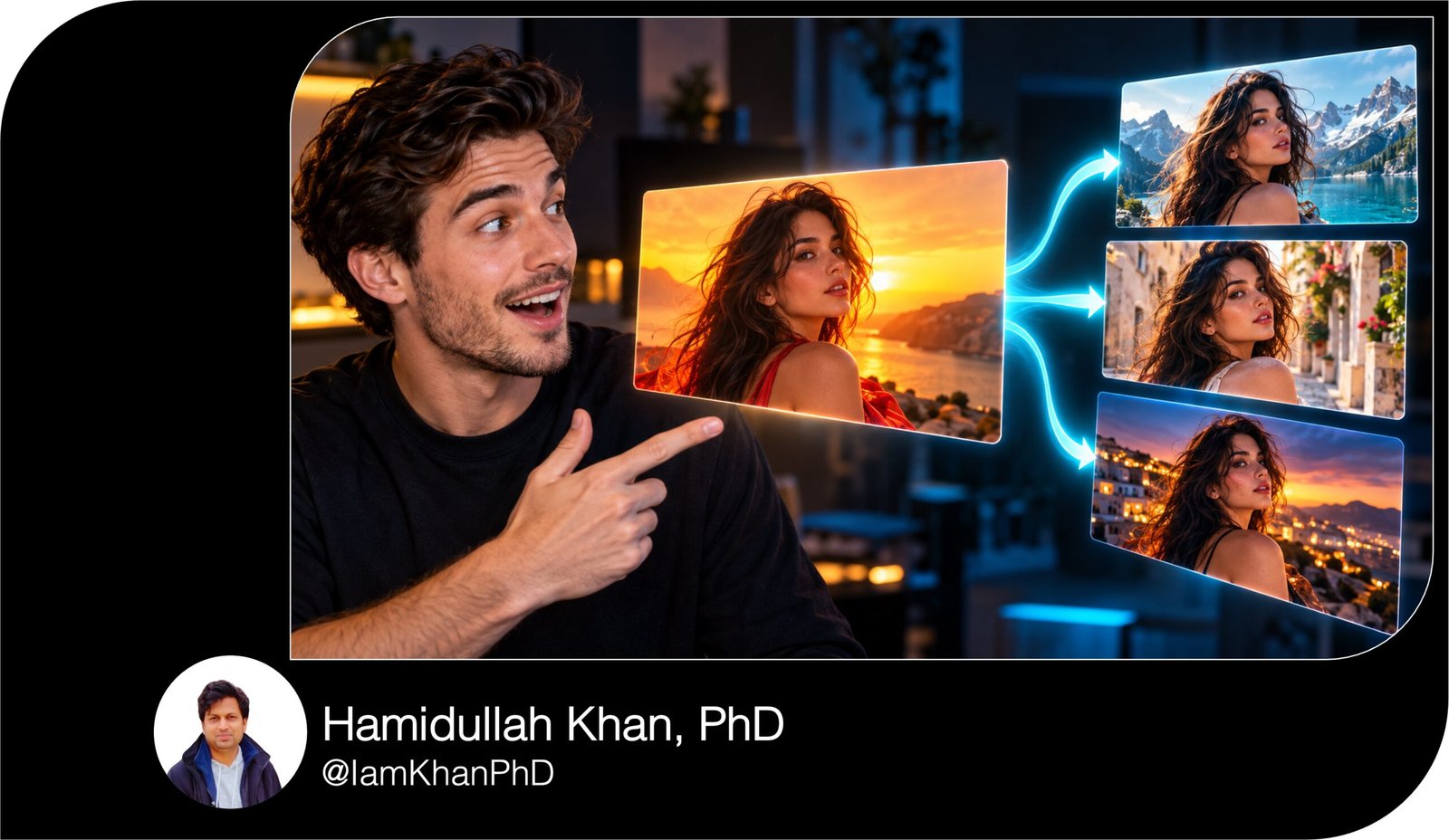
10 Thumbnail Prompt Extractors I Editable AI Prompt Pack
Turn thumbnail references into detailed, reusable AI image prompts with this pack of 10 editable templates. Extract layouts, expressions, text styles, colors, backgrounds, and effects, then adapt them to your own content. Designed for beginners using an AI assistant that can analyze uploaded images.
What this prompt pack does
- Breaks down uploaded thumbnails into specific visual instructions.
- Creates editable image prompts using your topic, subject, headline, and colors.
- Helps you build reusable thumbnail templates for consistent content.
Tips for this prompt pack
- Upload a clear reference so the AI can identify small details and text.
- Keep your headline short enough to fit the extracted layout.
- Generate a text-free version and add lettering manually if the image tool struggles with spelling.
How to use the prompt pack
- Upload a reference thumbnail to an AI assistant that supports image analysis.
- Choose an extractor, replace its bracketed fields, and submit the prompt.
- Copy the resulting image prompt into your preferred image-generation tool, then refine the result.
10 AI Thumbnail Generator Prompts I Editable Templates
10 Thumbnail Prompt Extractors I Editable AI Prompt Pack
Turn thumbnail references into detailed, editable AI image prompts. These prompts are designed for an AI assistant that can analyze uploaded images.
Before you start: Upload the reference thumbnail and replace the text inside [square brackets] with your details. Each extractor should produce a reusable prompt you can paste into your preferred AI image tool.
10 AI Thumbnail Prompts You Can Copy and Customize
1. Complete Thumbnail-to-Prompt Extractor
Analyze the thumbnail I uploaded and turn its visual design into a detailed, editable AI image-generation prompt.
My new thumbnail details:
- Topic: [your video or post topic]
- Main subject: [person, product, or object]
- Headline: [exact text, or “no text”]
- Brand colors: [colors, or “use the reference palette”]
- Format: [16:9 landscape, 9:16 vertical, or 1:1 square]
First, break down the reference into:
- Main subject, pose, expression, and placement.
- Background elements and depth.
- Composition, including approximate subject size and empty space.
- Lighting direction, shadows, and contrast.
- Dominant colors and accent colors.
- Text placement, lettering style, outlines, and shadows.
- Supporting elements such as arrows, circles, badges, or props.
Then write one complete image-generation prompt that adapts those design choices to my new topic. Describe where each major element belongs instead of using vague phrases like “make it eye-catching.”
Use editable placeholders for any details I have not supplied. If something is unclear in the reference, label it as uncertain rather than inventing it.
Finish with a short “Avoid” list covering clutter, unreadable text, awkward cropping, and unwanted extra objects.
10 Custom AI Thumbnail Generator Prompts
2. Layout and Composition Extractor
Study the uploaded thumbnail and extract its layout as a reusable composition template.
My replacement details:
- Topic: [topic]
- Main subject: [subject]
- Supporting object: [object, or “none”]
- Headline: [text, or “none”]
- Output format: [aspect ratio]
Focus on the position and size of elements rather than their original identities.
Describe:
- Whether the layout is centered, split-screen, diagonal, or asymmetrical.
- The approximate percentage of the frame occupied by the main subject.
- Where the subject, headline, and supporting object sit.
- The direction the subject faces or looks.
- Foreground, middle-ground, and background layers.
- Areas of empty space that help separate the elements.
- Any cropping at the edges.
Provide a layout map in a table with columns for element, position, approximate size, and purpose.
Then create a ready-to-copy image prompt using my replacement details. Include practical placement instructions such as “subject fills the right third” or “reserve the upper-left area for the headline.”
If my chosen aspect ratio differs from the reference, explain how to rearrange the layout while preserving its visual hierarchy. Keep all measurements approximate.
AI Thumbnail Maker Prompts: 10 Editable Templates
3. Facial Expression, Pose, and Subject Extractor
Analyze how the main person or character is presented in the uploaded thumbnail. Extract the visible expression, pose, framing, and lighting so I can use them with a different subject.
My new subject:
- Appearance or character description: [description]
- Clothing: [clothing]
- Intended reaction: [surprise, curiosity, excitement, concern, confidence]
- Object they interact with: [object, or “none”]
- Background: [background]
- Format: [aspect ratio]
Describe the reference subject’s:
- Visible facial cues, including eyebrows, eyes, and mouth.
- Head angle and gaze direction.
- Hand placement and body posture.
- Camera angle and crop.
- Position and size within the frame.
- Light direction and separation from the background.
- Outline, glow, or cutout treatment, if present.
Distinguish visible facial cues from your interpretation of the emotion.
Write one detailed image prompt for my new subject using the extracted presentation. Preserve the composition and intensity of the reaction while using the appearance I supplied.
If there is no person or character in the reference, explain that and extract the main object’s angle, framing, and presentation instead.
10 YouTube Thumbnail Generator Prompts I Editable AI Templates
4. Headline and Typography Extractor
Analyze the headline design in the uploaded thumbnail and turn it into an editable text-layout prompt.
My new details:
- Exact headline: [headline]
- Optional second line: [text, or “none”]
- Text colors: [colors, or “match the reference”]
- Background behind the text: [description]
- Format: [aspect ratio]
Extract:
- Visible wording, marking unclear letters instead of guessing.
- Uppercase or lowercase treatment.
- Lettering characteristics: bold, condensed, rounded, handwritten, or another visible style.
- Number of lines and approximate line lengths.
- Text position and alignment.
- Relative size of the headline compared with the subject.
- Fill color, outline, shadow, glow, and any text backing panel.
- Words given extra emphasis.
Do not claim an exact font name unless it can be verified. Describe its visual characteristics instead.
Provide:
- A brief typography breakdown.
- A prompt using my exact wording and the extracted text treatment.
- A separate text-free image prompt that reserves the correct space for adding the headline manually.
- Simple editing instructions describing text placement, line breaks, outline, and shadow.
If my headline is too long for the layout, suggest three shorter alternatives without changing its meaning.
10 Free Thumbnail Prompts You Can Copy & Edit
5. Color Palette and Lighting Extractor
Extract the color and lighting recipe from the uploaded thumbnail, then adapt it to my new content.
My details:
- New topic: [topic]
- Main subject: [subject]
- Brand colors: [colors, or “keep the reference palette”]
- Desired mood: [energetic, dramatic, clean, mysterious, playful]
- Format: [aspect ratio]
Identify:
- Dominant background color.
- Main subject colors.
- Accent colors used for text or graphics.
- Approximate color proportions.
- Overall saturation and contrast.
- Light direction, softness, and brightness.
- Rim light, glow, reflections, or colored light.
- How color separates the main subject from the background.
Provide a compact palette table with color role, plain-language color name, and an approximate hex code. Make clear that the codes are visual estimates.
Then write a detailed image-generation prompt using this color and lighting recipe with my new subject.
If I supplied brand colors, assign each one a specific role rather than scattering them across the image. Preserve enough contrast for the subject and headline to remain distinct.
Finish with three specific color or lighting mistakes to avoid for this design.
10 Best Thumbnail Prompts for Content Creators
6. Background and Scene Extractor
Analyze the background of the uploaded thumbnail and convert it into a reusable scene prompt.
My replacement details:
- New topic: [topic]
- Main subject: [subject]
- Desired setting: [setting, or “adapt the reference setting”]
- Headline location: [left, right, top, bottom, or “match the reference”]
- Format: [aspect ratio]
Separate the background into:
- Base layer: solid color, gradient, room, landscape, or another setting.
- Environmental details: furniture, scenery, screens, textures, or props.
- Depth cues: perspective, blur, haze, and foreground overlap.
- Graphic additions: rays, shapes, grids, patterns, or light streaks.
- Areas kept simple for the subject and headline.
For each major element, explain its position and whether it supports the focal point or adds decoration.
Create two ready-to-copy prompts:
- A background-only prompt with empty space reserved for my subject and headline.
- A complete thumbnail prompt that integrates my subject into that background.
Keep only background details that support my new topic. Specify which areas should remain low-detail so they do not compete with the main subject.
Do not add readable background text unless I explicitly requested it.
YouTube Gaming Thumbnail Prompt Pack: 10 Editable Designs
7. Effects, Arrows, and Graphic Elements Extractor
Study the uploaded thumbnail and extract the graphic effects that direct attention.
My details:
- New topic: [topic]
- Main subject: [subject]
- Detail viewers should notice: [specific object or feature]
- Headline: [text, or “none”]
- Effect intensity: [subtle, moderate, bold]
- Format: [aspect ratio]
Identify visible effects such as:
- Subject outlines or colored borders.
- Drop shadows and outer glows.
- Arrows, circles, and highlight boxes.
- Badges, labels, and number markers.
- Motion blur, speed lines, particles, or light bursts.
- Floating objects and overlapping cutouts.
For every effect, state its color, approximate thickness or size, location, and what it draws attention to. If an effect is absent, do not invent it in the extraction.
Then write an image-generation prompt applying the relevant effects to my new content. Give every arrow or highlight a specific target.
Also provide a short manual-editing checklist for effects that would be easier to add after generating the base image.
Keep the requested intensity consistent. Avoid decorative elements that obscure the subject, cover important text, or point toward nothing.
10 ChatGPT YouTube Thumbnail Prompts I Editable Pack
8. Multiple-Thumbnail Pattern Extractor
Analyze the [number] thumbnail references I uploaded and extract their shared design system.
My new content:
- Topic: [topic]
- Main subject: [subject]
- Headline: [text]
- Brand colors: [colors, or “use the shared palette”]
- Format: [aspect ratio]
Label the references A, B, C, and so on.
Compare them in a table covering:
- Subject position and size.
- Headline position and lettering treatment.
- Color palette.
- Background complexity.
- Lighting and contrast.
- Expressions or poses.
- Arrows, badges, and other graphic effects.
Separate recurring patterns from choices that appear in only one reference. Do not assume that a visual feature improves clicks simply because it appears repeatedly.
Create an editable thumbnail template based on the clearest shared patterns.
Then write three complete prompt variations for my new content:
- Variation 1: Closest to the shared layout.
- Variation 2: Simpler, with fewer competing elements.
- Variation 3: Stronger emphasis on the main subject.
Give each variation a clear layout and specific visual instructions. If only one image is available, state that comparison is not possible and extract a single-reference template.
10 Editable AI Prompts for Roblox Thumbnail Generation
9. Reference-to-Brand Thumbnail Extractor
Analyze the uploaded reference thumbnail and adapt its design structure to my brand.
My brand details:
- Brand or channel name: [name]
- Audience: [who the content is for]
- Content topic: [topic]
- Main subject: [subject]
- Headline: [exact text]
- Primary color: [color]
- Secondary color: [color]
- Accent color: [color]
- Brand personality: [friendly, premium, playful, technical, bold]
- Format: [aspect ratio]
First, extract the reference’s layout, focal point, text hierarchy, lighting, and background treatment.
Then explain how to adapt each feature to my brand. Assign specific roles to my colors, adjust the lettering style to fit my brand personality, and replace the original subjects and branding with my supplied details.
Write one complete image-generation prompt that follows those decisions. Specify subject placement, headline space, background complexity, and accent placement.
For a logo, reserve a small area in [preferred corner] for adding my own logo afterward.
Finish with three reusable consistency rules I can apply to future thumbnails, such as stable headline placement, a recurring subject outline, or a fixed accent-color role.
10 Roblox Studio Thumbnail Prompts You Can Copy and Customize
10. Editable Thumbnail Template Builder
Convert the uploaded thumbnail into a reusable, fill-in-the-blanks prompt template for someone with basic AI experience.
The template will be used for:
- Platform or format: [platform and aspect ratio]
- Content niche: [niche]
- Preferred image style: [photographic, illustrated, 3D, or “match the reference”]
Analyze the reference and separate:
- Fixed design choices that define its structure.
- Changeable details that should become editable fields.
Keep the fixed choices specific: subject placement, framing, light direction, background depth, headline position, and graphic treatment.
Use these editable fields where relevant:
[TOPIC]
[MAIN SUBJECT]
[SUBJECT APPEARANCE]
[POSE OR EXPRESSION]
[BACKGROUND]
[HEADLINE]
[PRIMARY COLOR]
[ACCENT COLOR]
[SUPPORTING OBJECT]
[ASPECT RATIO]Deliver:
- A brief description of the extracted design.
- One complete reusable prompt with the editable fields placed naturally inside it.
- A field guide explaining what to enter for each placeholder.
- One fully filled example for [example topic].
- A short “Avoid” list tailored to the reference.
Do not leave vague instructions such as “use a great composition.” Translate the visible design into concrete directions. If a detail cannot be determined from the image, preserve it as an editable field.
About author






Add comment