
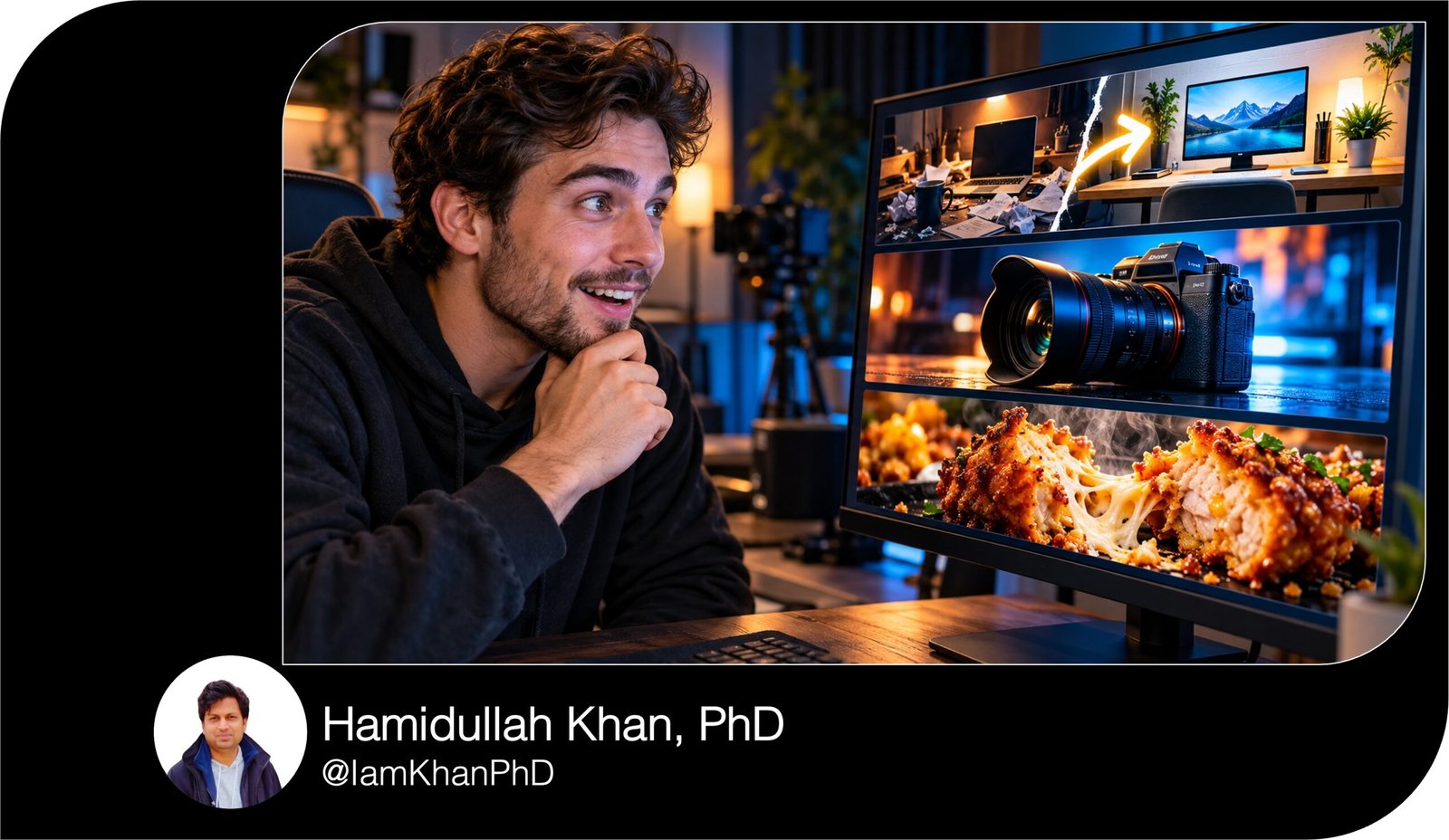
10 Custom AI Prompts Idea for YouTube Thumbnails
Create eye-catching YouTube thumbnail concepts with 10 detailed, editable AI image prompts. Customize the subject, headline, colors, and layout to suit your video. Includes ideas for tutorials, reviews, comparisons, transformations, challenges, travel, food, and more.
What This Prompt Pack Does
- Provides 10 distinct thumbnail concepts with specific instructions for composition, lighting, subject placement, and text.
- Helps you personalize each design using clearly marked, editable fields.
- Guides you toward clear thumbnail visuals that remain easy to understand at a small size.
Tips for This Prompt Pack
- Use a short headline and one main visual idea so the thumbnail is easy to scan.
- Upload your own face, product photo, screenshot, or result image when your AI tool supports references.
- If the AI misspells your headline, regenerate with an empty text area and add the wording in your image editor.
How to Use the Prompt Pack
- Choose the thumbnail concept that best matches your video and copy its complete prompt.
- Replace every bracketed field with your details, then paste the edited prompt into an AI image tool.
- Generate the image, check text and visual accuracy, and preview it at a small size before exporting.
10 Thumbnail Ideas for YouTube: Editable AI Prompts
Replace each [bracketed field] with your own details before using a prompt. The examples inside the brackets show what to enter. If your AI tool supports reference images, upload your photo or product image when needed.
Each prompt creates one thumbnail. Keep thumbnail headlines short—ideally two to four words.
1. The Before-and-After Transformation
Best for: Room makeovers, photo editing, website redesigns, organization, and creative projects.
Create a YouTube thumbnail for a video about [TRANSFORMATION: turning a cluttered desk into an organized workspace]. Use a horizontal 16:9 composition, ideally 1280 × 720 pixels if supported.
Divide the image into two equal sections showing the same [SUBJECT: desk] from the same camera angle. On the left, show the actual starting condition: [BEFORE DETAILS: tangled cables, scattered papers, crowded surface]. Use slightly muted colors and flat lighting. On the right, show the actual finished result: [AFTER DETAILS: organized cables, clear surface, matching storage]. Use brighter lighting and richer colors.
Add a clean vertical divider and one bold arrow pointing from left to right. Make the improvement immediately recognizable without inventing changes that are absent from the video.
Place the exact headline “[HEADLINE: DESK TRANSFORMED]” across the upper center in large, bold, high-contrast lettering. Keep important details away from the lower-right corner. Avoid tiny decorations, extra captions, watermarks, and unrelated objects.
2. The Surprising Discovery
Best for: Hidden features, unusual finds, experiments, and unexpected results.
Create a YouTube thumbnail for a video revealing [DISCOVERY: a hidden feature inside a free editing app]. Use a horizontal 16:9 layout, ideally 1280 × 720 pixels if supported.
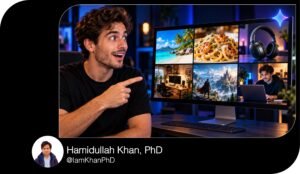
Place [PRESENTER: the person in my uploaded reference photo] on the left, framed from the chest up. Give them a natural expression of surprise, with their gaze directed toward the discovery on the right. Preserve their recognizable facial features if a reference photo is provided.
On the right, show one large, clear representation of [REVEAL OBJECT: the app screen displaying the feature]. Use my supplied screenshot when available. Highlight [IMPORTANT DETAIL: the specific feature button] with one bright circle and one short arrow.
Use a dark [BACKGROUND COLOR: navy] background with a subtle glow behind the reveal object. Place the exact headline “[HEADLINE: THIS WAS HIDDEN?]” at the top in bold lettering.
Keep the discovery understandable at a small size. Avoid random interface text, multiple arrows, exaggerated facial distortion, and unrelated icons.
3. The Mistake-and-Fix Thumbnail
Best for: Tutorials, troubleshooting, beginner mistakes, and practical advice.
Create a YouTube thumbnail for a video explaining [MISTAKE: placing a microphone too far from your mouth] and demonstrating [FIX: positioning it closer at the correct angle]. Use a horizontal 16:9 composition, ideally 1280 × 720 pixels if supported.
Show two close-up demonstrations side by side. On the left, clearly illustrate [WRONG SETUP DETAILS: a microphone positioned across the desk]. Use a muted red background and a large red X. On the right, illustrate [CORRECT SETUP DETAILS: a microphone positioned near the speaker, slightly off-center]. Use a clean teal background and a large check mark.
Keep the person, equipment, camera angle, and object sizes consistent so the setup difference is easy to understand. Use realistic equipment shapes and natural hand positions.
Place the exact headline “[HEADLINE: FIX YOUR AUDIO]” across the upper area in thick, readable lettering. Make the setup difference visually obvious without adding technical diagrams or small labels. Avoid extra text, clutter, watermarks, and objects covering the microphone.
4. The Product Review Close-Up
Best for: Gadgets, cameras, tools, beauty products, and accessories.
Create a YouTube thumbnail for a review of [PRODUCT: a compact wireless microphone]. Use a horizontal 16:9 layout, ideally 1280 × 720 pixels if supported.
Make the product the main focal point on the right, occupying roughly half the image. Show it from [VIEWING ANGLE: a three-quarter front angle] with sharp detail, realistic materials, and soft studio reflections. If I upload a product photo, preserve its actual shape, color, controls, and visible branding. Do not invent specifications or accessories.
Place [PRESENTER: the reviewer in my reference photo] on the left, looking thoughtfully toward the product. Use a subtle [BACKGROUND COLOR: deep charcoal] gradient with an accent glow in [ACCENT COLOR: electric blue].
Place the exact headline “[HEADLINE: WORTH IT?]” above the presenter in large, bold lettering. Add a price badge reading “[PRICE: $79]” only if I supply a verified price; otherwise omit it.
Avoid fake ratings, invented awards, tiny product labels, duplicate products, and excessive glow.
5. The Head-to-Head Comparison
Best for: Software comparisons, equipment choices, workflows, and product alternatives.
Create a YouTube comparison thumbnail for [OPTION A: a phone camera] versus [OPTION B: a dedicated camera]. Use a horizontal 16:9 composition, ideally 1280 × 720 pixels if supported.
Place Option A prominently on the left against [LEFT COLOR: blue] and Option B prominently on the right against [RIGHT COLOR: orange]. Give both options equal visual size and equally strong lighting so neither appears favored before the viewer watches the comparison.
Use uploaded reference images to preserve the actual appearance of each option. Separate the halves with a clean diagonal divider and place a large “VS” in the center.
Add the exact headline “[HEADLINE: WHICH ONE WINS?]” across the top. If the options require identification, add only these short labels: “[LABEL A: PHONE]” and “[LABEL B: CAMERA]”.
Keep the background simple and the silhouettes distinct. Avoid invented performance scores, fake brand logos, extra comparison categories, and details that become unreadable on a phone.
6. The Time-Limited Challenge
Best for: Learning challenges, creative experiments, habits, and project diaries.
Create a YouTube thumbnail for a documented challenge: [CHALLENGE: practicing digital drawing for seven days]. Use a horizontal 16:9 layout, ideally 1280 × 720 pixels if supported.
Place [PRESENTER: the creator in my uploaded photo] in the center, holding or interacting with [CHALLENGE OBJECT: a drawing tablet]. Use a focused, determined expression.
On the left, show a small but clear example of the real starting point: [STARTING RESULT: my first practice sketch]. On the right, show a larger example of the actual final result: [FINAL RESULT: my day-seven sketch]. Use supplied images for both results when available. Do not invent a dramatic improvement.
Place a large duration badge reading “[DURATION: 7 DAYS]” in the upper-left area. Put the exact headline “[HEADLINE: CAN I IMPROVE?]” across the top or in the available upper-right space.
Use [COLOR PALETTE: purple, yellow, and white], strong subject separation, and a simple background. Avoid extra calendar pages, tiny daily labels, misleading results, and clutter.
7. The Beginner Tutorial
Best for: First-time lessons, simple workflows, software guides, and how-to videos.
Create a welcoming YouTube thumbnail for a beginner tutorial on [TASK: removing a photo background]. Use a horizontal 16:9 composition, ideally 1280 × 720 pixels if supported.
On the right, display the clear finished outcome: [FINAL OUTPUT: a clean portrait cutout on a bright background]. Make it large enough to understand immediately. On the left, place [PRESENTER OR TOOL: the instructor pointing toward the result, or a simple editing-tool symbol].
Show one small visual cue for the action, such as [ACTION CUE: a cursor selecting the background]. If I upload a screenshot, simplify around the relevant area while preserving the actual controls. Do not generate a busy dashboard full of invented interface text.
Use a clean [BACKGROUND COLOR: pale blue] background, soft lighting, and generous empty space. Place the exact headline “[HEADLINE: REMOVE BACKGROUNDS]” at the top in bold, dark lettering.
Add a small “BEGINNER” badge only if it fits clearly. Avoid technical jargon, crowded menus, multiple arrows, and extra captions.
8. The Numbered List
Best for: Tips, tools, recommendations, resources, and idea collections.
Create a YouTube thumbnail for a list video featuring [NUMBER: 5] [LIST SUBJECT: useful desk accessories]. Use a horizontal 16:9 layout, ideally 1280 × 720 pixels if supported.
Place a very large “[NUMBER: 5]” on the left, taking up roughly one-third of the image height. On the right, arrange three representative items from the actual video: [ITEM 1: a desk lamp], [ITEM 2: a cable organizer], and [ITEM 3: a laptop stand]. Use different heights and slight overlap to create depth, while keeping each item recognizable.
Make [HERO ITEM: the laptop stand] the largest object. Use realistic materials, soft shadows, and a simple [BACKGROUND COLOR: cream] background with [ACCENT COLOR: orange] accents.
Place the exact headline “[HEADLINE: DESK UPGRADES]” beside or beneath the number. The number must match the actual list length, even though only three representative items are pictured.
Avoid showing unrelated products, adding tiny item names, creating extra digits, or filling every empty space.
9. The Destination Reveal
Best for: Travel guides, local discoveries, destination reviews, and day-trip videos.
Create a YouTube travel thumbnail for a video about [DESTINATION: a coastal town] featuring [MAIN ATTRACTION: a cliffside viewpoint]. Use a horizontal 16:9 composition, ideally 1280 × 720 pixels if supported.
Use my supplied destination photo as the main scene when available. Preserve the real landscape, architecture, and landmark positions. Emphasize [VISUAL FEATURE: the curved coastline and turquoise water] with natural color enhancement and clear atmospheric depth.
Place [TRAVELER: the person in my reference photo] in the lower-left foreground, turned slightly toward the view. Keep them large enough to recognize while allowing the destination to occupy most of the frame.
Leave open sky or another uncluttered area at the top for the exact headline “[HEADLINE: WORTH THE TRIP?]”. Use bold lettering with a subtle shadow for contrast.
Create [LIGHTING MOOD: warm late-afternoon light]. Avoid fabricated landmarks, oversized aircraft, invented flags, excessive saturation, and text covering the main attraction. Keep the lower-right corner free of essential details.
10. The Irresistible Food Close-Up
Best for: Recipes, cooking tutorials, taste tests, and food reviews.
Create a YouTube thumbnail for a video about [DISH: crispy homemade potato wedges]. Use a horizontal 16:9 layout, ideally 1280 × 720 pixels if supported.
Make the finished dish dominate the right two-thirds of the frame. Show [FOOD DETAILS: golden edges, visible seasoning, and a fluffy interior] in sharp, realistic detail. Use a close three-quarter camera angle and warm side lighting to emphasize texture without making the food look artificial.
Add one purposeful action: [ACTION: a hand lifting a wedge beside a small dipping bowl]. Keep fingers natural and utensils correctly shaped. Use a simple [SURFACE: dark wooden tabletop] with only [SUPPORTING PROPS: one sauce bowl and a folded napkin].
Leave clean space on the left for the exact headline “[HEADLINE: EXTRA CRISPY]” in large, bold lettering using [TEXT COLOR: warm white].
Represent the actual recipe and ingredients. Avoid unrelated garnishes, excessive steam, duplicated food pieces, crowded table settings, and unsupported cooking-time claims.


About author




Add comment