
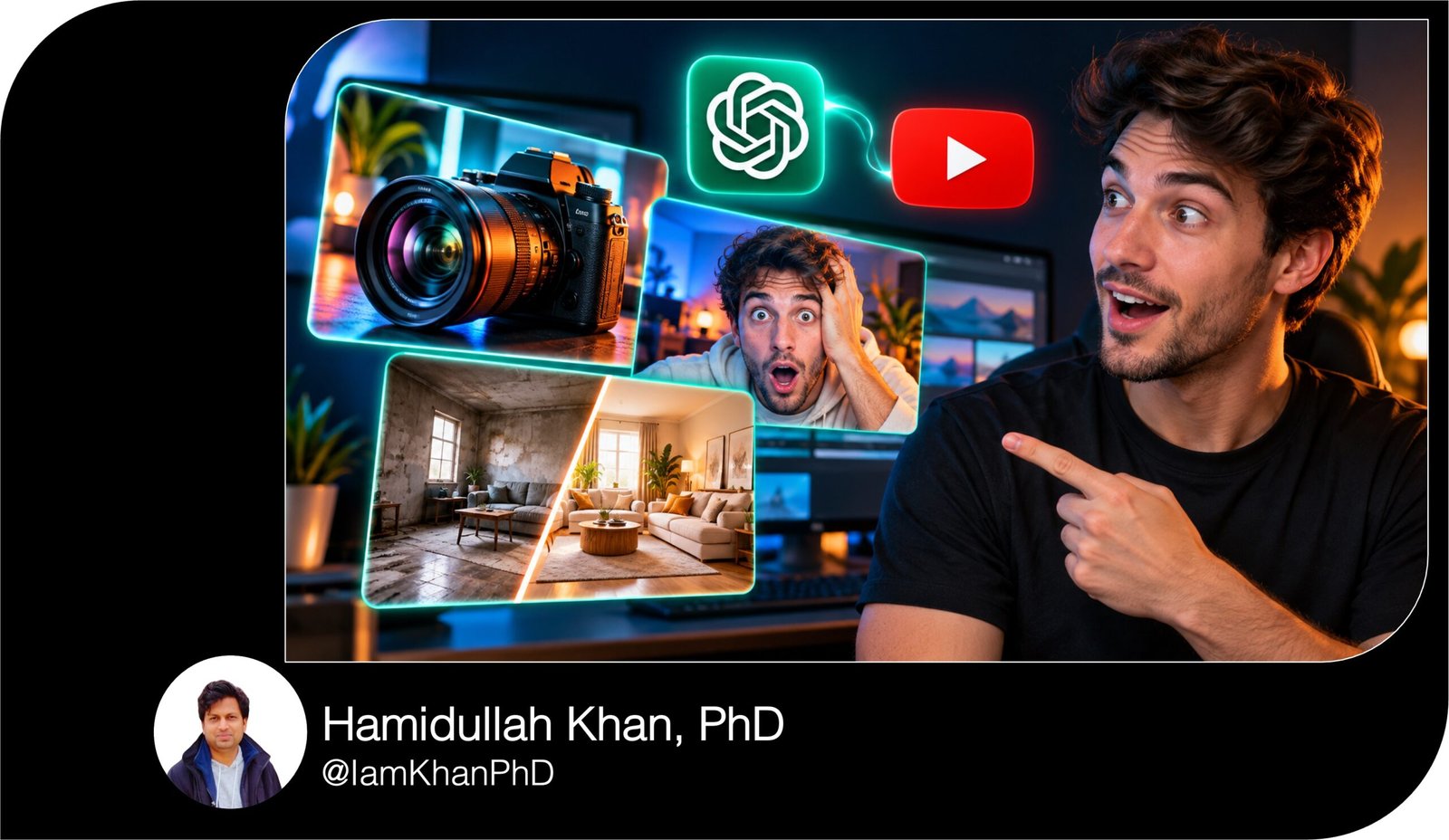
10 Best ChatGPT Prompts for YouTube Thumbnails
Create clearer, more engaging YouTube thumbnails with 10 detailed, editable ChatGPT prompts. Customize the topic, headline, colors, subjects, and layout for tutorials, reviews, comparisons, challenges, and more. Beginner-friendly instructions and examples make every prompt easy to adapt to your channel.
What This Prompt Pack Does
- Gives you 10 distinct thumbnail prompts with specific layouts, visual details, and editable fields.
- Helps turn your video’s main idea into a clear thumbnail with a focused subject and short headline.
- Provides reusable starting points for different video formats and channel styles.
Tips for This Prompt Pack
- Use a short headline—usually 2–4 words—and choose one main visual that viewers can recognize quickly.
- Attach your own photo, product image, or evidence screenshot when accuracy matters.
- Preview the thumbnail at a small size; simplify any text or details that become difficult to understand.
How to Use the Prompt Pack
- Choose the prompt that matches your video and replace every bracketed field with your details.
- Paste the completed prompt into ChatGPT with image generation available, attaching any reference images you want it to use.
- Review the result, request specific changes, and add the headline in a design editor if you need editable text.
10 Best ChatGPT Prompts for YouTube Thumbnails
Create thumbnails for tutorials, reviews, comparisons, challenges, and more with these 10 detailed, customizable prompts.
Before you begin: Replace anything inside [square brackets] with your details. The examples show what to enter. The prompts are editable; generated images may not contain editable layers. For editable headlines, ask for the image without text and add your wording in a design editor.
1. The “Show Me How” Tutorial Thumbnail
Best for: Tutorials, beginner guides, and step-by-step videos.
Copy and customize this prompt:
Create a YouTube thumbnail for a beginner tutorial using these details:
- Video topic: [example: How to edit your first video in CapCut]
- Main subject: [example: a beginner creator holding a smartphone]
- Visible result: [example: a polished video preview on the phone]
- Exact headline: [example: EDIT LIKE THIS]
- Background color: [example: deep navy]
- Accent color: [example: bright yellow]
- Reference image: [attach one, or enter “none”]
Use a horizontal 16:9 composition. Place the main subject on the right, cropped from the chest upward, looking toward the result with an interested expression. Make the finished result large enough to recognize without zooming. Place the headline on the left in bold lettering, with strong contrast against the background.
Use one arrow pointing directly to the result. Keep the background simple, with subtle shapes related to the topic. Avoid tiny interface details, extra captions, and unrelated icons. The thumbnail should communicate “you can learn this” at a glance.
Use only the supplied headline. If a reference photo is attached, preserve the person’s recognizable appearance.
2. The Clear Before-and-After Thumbnail
Best for: Makeovers, editing demonstrations, room transformations, and creative projects.
Copy and customize this prompt:
Create a before-and-after YouTube thumbnail using:
- Video topic: [example: Transforming a small bedroom on a budget]
- Before condition: [example: cluttered desk, plain walls, poor lighting]
- After condition: [example: organized desk, warm lighting, coordinated decor]
- Main object or setting: [example: the same bedroom viewed from the doorway]
- Exact headline: [example: SMALL ROOM UPGRADE]
- Accent color: [example: warm orange]
- Reference photos: [attach before and after images, or enter “none”]
Divide the horizontal 16:9 image into two equal sections with a clean vertical divider. Show the before on the left and the after on the right. Keep the camera angle, object position, and scale consistent so the change is immediately understandable.
Give the before section muted colors and flatter lighting. Give the after section brighter lighting and richer colors. Place the headline across the upper center on a solid contrasting strip.
Use a small arrow across the divider to guide the viewer from before to after. Preserve the supplied transformation accurately. Do not add improvements that the video does not show.
3. The A-versus-B Comparison Thumbnail
Best for: Comparing tools, products, methods, or creative options.
Copy and customize this prompt:
Create a comparison thumbnail for this YouTube video:
- Video topic: [example: Smartphone camera versus DSLR camera]
- Option A: [example: a smartphone]
- Option B: [example: a DSLR camera]
- Main comparison question: [example: Which is better for beginner creators?]
- Exact headline: [example: WHICH WINS?]
- Left background color: [example: electric blue]
- Right background color: [example: orange]
- Product references: [attach images, or enter “none”]
Build a horizontal 16:9 thumbnail with a balanced split-screen layout. Place Option A prominently on the left and Option B prominently on the right. Make both subjects equally large and clearly recognizable.
Place a bold “VS” in the center, with the headline above it. Use clean lighting and crisp edges to separate the products from their backgrounds. Include only the headline and “VS”; avoid feature lists and small labels.
Make the comparison feel competitive without implying a winner. Use accurate product shapes from the references. If no references are supplied, avoid inventing detailed branding or model-specific features.
4. The “Stop Making This Mistake” Thumbnail
Best for: Common mistakes, troubleshooting, and practical advice.
Copy and customize this prompt:
Create a YouTube thumbnail that clearly illustrates one mistake:
- Video topic: [example: Why your indoor photos look blurry]
- Main mistake: [example: moving the camera during a low-light shot]
- Visible consequence: [example: a visibly blurred portrait]
- Main subject: [example: a hand holding a camera beside the blurred photo]
- Exact headline: [example: STOP THE BLUR]
- Background color: [example: charcoal gray]
- Warning accent: [example: red]
Use a horizontal 16:9 layout. Put the visual evidence of the mistake on the right, taking up about half the frame. Make the consequence recognizable even when the image is small.
Place the headline on the left in large, high-contrast lettering. Add one red circle around the problem area and one simple warning symbol nearby. Keep these markers away from the headline.
Use dramatic but realistic lighting. Show the specific mistake rather than a generic shocked face. Avoid multiple arrows, exaggerated disaster imagery, extra warnings, and details too small to read. The thumbnail should help viewers recognize a problem they may already have.
5. The Honest Product Review Thumbnail
Best for: Reviews, unboxings, and first impressions.
Copy and customize this prompt:
Create a YouTube product review thumbnail with these details:
- Product: [example: compact wireless microphone]
- Video angle: [example: testing whether it is useful for beginner vloggers]
- Reviewer reaction: [example: curious and slightly skeptical]
- Exact headline: [example: WORTH IT?]
- Background color: [example: dark teal]
- Accent color: [example: lime green]
- Product image: [attach one, or enter “none”]
- Reviewer photo: [attach one, or enter “none”]
Use a horizontal 16:9 composition. Make the product the largest visual element, positioned slightly right of center. If a reviewer photo is supplied, place the reviewer on the left, looking toward the product. Otherwise, use a close-up hand holding the product.
Place the headline in the upper-left area with generous spacing. Use a soft spotlight behind the product and a clean edge highlight to separate it from the background.
Show accurate product details from the reference. Do not add ratings, prices, award badges, or endorsements unless I supply them. Keep the image focused on the product and the review question.
6. The Challenge Thumbnail
Best for: Time-limited experiments, creative challenges, and personal projects.
Copy and customize this prompt:
Create a YouTube thumbnail for a challenge video:
- Challenge: [example: drawing every day for 30 days]
- Main subject: [example: an artist holding a sketchbook]
- Challenge duration: [example: 30 DAYS]
- Visible challenge detail: [example: a desk with several completed sketches]
- Exact headline: [example: CAN I IMPROVE?]
- Background color: [example: purple]
- Accent color: [example: bright yellow]
- Reference image: [attach one, or enter “none”]
Use a horizontal 16:9 layout with the person on the right and the headline on the left. Give the person a determined expression and an active pose related to the challenge.
Display the duration inside one large badge near the upper center. Include one clear supporting detail, such as the sketchbook, to show what the challenge involves. Use directional lighting and a slightly angled composition to create energy.
Include only the supplied headline and duration. Do not invent a successful outcome, a final score, or a transformation. Make the image communicate effort, stakes, and curiosity about what happens.
7. The Numbered List Thumbnail
Best for: Tool roundups, recommendations, resources, and idea lists.
Copy and customize this prompt:
Create a YouTube thumbnail for a numbered list video:
- Video topic: [example: 7 useful tools for beginner creators]
- Number of items: [example: 7]
- Exact headline: [example: CREATOR TOOLS]
- Three representative items: [example: microphone, editing timeline, camera]
- Background color: [example: midnight blue]
- Accent color: [example: cyan]
- Style: [example: clean, realistic product cutouts]
Use a horizontal 16:9 layout. Make the list number the dominant element on the left, occupying roughly one-third of the image. Place the headline beside or beneath it in large, bold lettering.
On the right, arrange only the three representative items in a loose triangular composition. Give each item clear separation, consistent lighting, and enough size to recognize easily.
Use subtle shadows to create depth. Keep the background uncluttered. Do not attempt to show every item from the video. Include only the supplied number and headline, with no miniature labels, unreadable screenshots, or decorative text. The result should communicate the topic and list size immediately.
8. The Myth-versus-Reality Thumbnail
Best for: Testing assumptions, explaining misconceptions, and educational videos.
Copy and customize this prompt:
Create a myth-versus-reality YouTube thumbnail using:
- Video topic: [example: Does expensive gear automatically improve videos?]
- Common belief: [example: a large expensive camera guarantees a great video]
- Reality demonstrated: [example: lighting and composition make the bigger difference]
- Myth visual: [example: large camera beside a poorly lit scene]
- Reality visual: [example: simple camera beside a well-lit scene]
- Exact headline: [example: GEAR ISN’T EVERYTHING]
- Colors: [example: muted red on the left, bright blue on the right]
Use a horizontal 16:9 split-screen composition. Put the myth visual on the left and the reality visual on the right. Use similar subject sizes and framing so the comparison is easy to understand.
Add a small “MYTH” label to the left and “REALITY” to the right. Place the headline across the top, keeping it clear of both subjects.
Show the specific contrast described above. Avoid visual claims that go beyond what the video demonstrates. Use a simple divider, strong lighting differences, and minimal background detail.
9. The Real Results Thumbnail
Best for: Case studies, progress updates, and experiment results.
Copy and customize this prompt:
Create a YouTube results thumbnail based only on the information below:
- Video topic: [example: Testing a new posting schedule for 30 days]
- Verified result: [example: average views increased from 800 to 1,200]
- Exact headline: [example: WHAT CHANGED?]
- Metric to display: [example: 800 → 1,200 VIEWS]
- Evidence image: [attach a screenshot, or enter “none”]
- Main subject: [example: creator pointing toward the result]
- Colors: [example: dark navy background with green accents]
Use a horizontal 16:9 layout. Put the headline on the left and the verified metric in a large, simple result card on the right. If an evidence screenshot is attached, use a cropped section as a secondary visual behind the card. Hide unrelated personal information.
Make the supplied numbers clearly readable. If no screenshot is available, use a plain result card without imitating a platform dashboard.
Do not invent percentages, dates, additional metrics, or causes. Match the subject’s expression to the actual result. Keep the layout focused on one measurable outcome.
10. The Story and Reveal Thumbnail
Best for: Personal stories, discoveries, behind-the-scenes videos, and unexpected outcomes.
Copy and customize this prompt:
Create a story-driven YouTube thumbnail using:
- Video topic: [example: Finding an old camera at a flea market]
- Main subject: [example: creator holding the camera]
- Object connected to the reveal: [example: a memory card found inside it]
- Genuine emotion: [example: surprise and curiosity]
- Exact headline: [example: WHAT WAS INSIDE?]
- Setting: [example: a simple workbench]
- Colors: [example: warm amber lighting with a dark blue background]
- Reference image: [attach one, or enter “none”]
Use a horizontal 16:9 layout. Position the main subject on the right, looking toward the reveal object near the center. Make that object large enough to identify, using a close-up inset if necessary.
Place the headline on the left. Use a focused pool of light around the object, with a darker background to create curiosity. Include one arrow only if the object needs emphasis.
Show a real element from the story while leaving its meaning unresolved. Avoid unrelated mystery objects, fake evidence, and exaggerated reactions that misrepresent the video.


About author






Add comment