
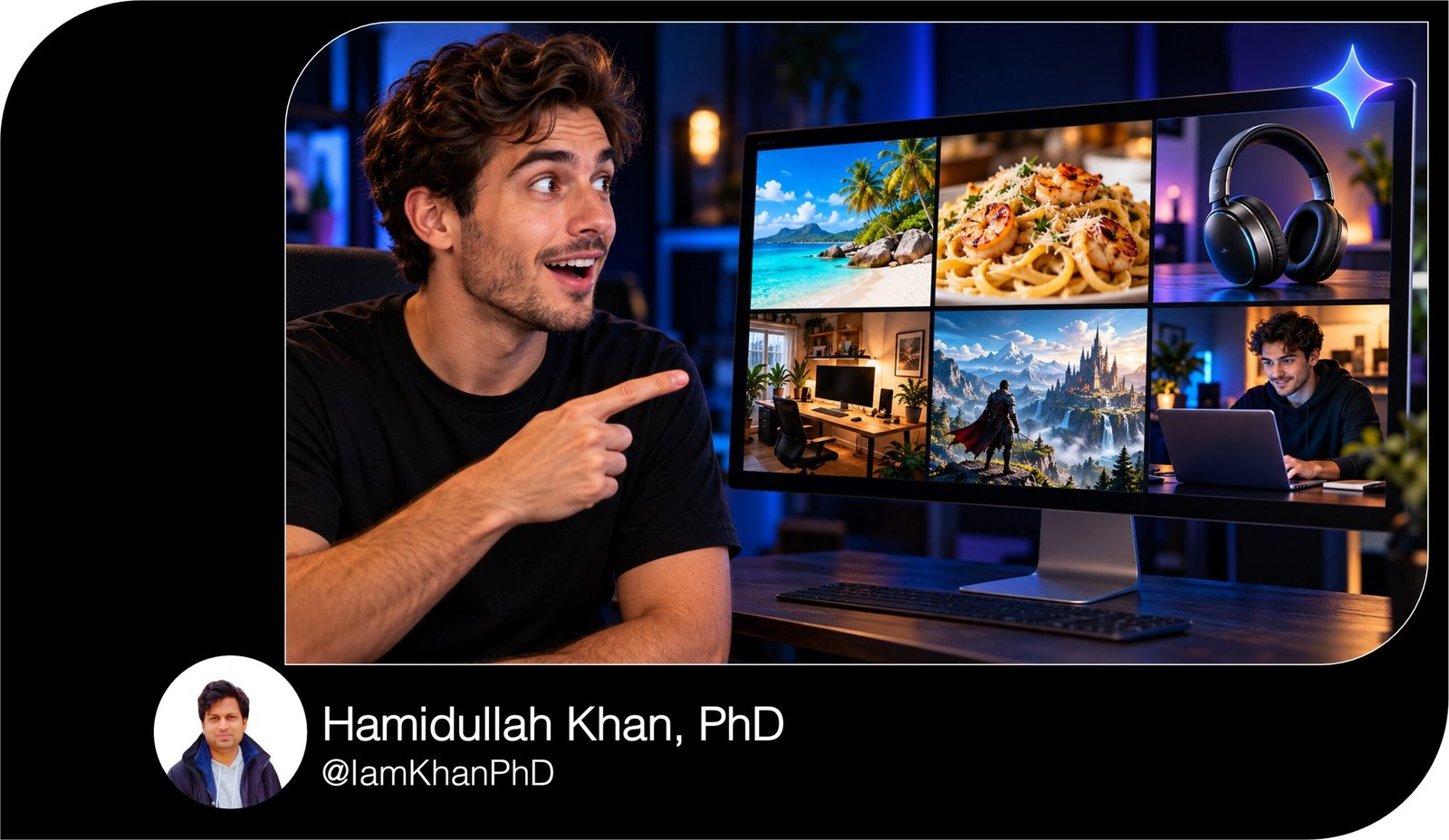
10 Editable Gemini Prompts for YouTube Thumbnails
Create YouTube thumbnails with 10 detailed, editable Gemini prompts made for beginners. Customize the topic, headline, colors, and photo references to design thumbnails for tutorials, reviews, comparisons, travel, food, gaming, and more. Each prompt includes a specific layout and clear visual instructions—ready to copy, personalize, and paste.
What this prompt pack does
- Guides Gemini to create 10 distinct thumbnail styles matched to common YouTube video formats.
- Provides editable examples for subjects, headlines, colors, layouts, and optional photo references.
- Helps you communicate one clear video idea with a prominent subject and short, readable text.
Tips for this prompt pack
- Use a 2–4-word headline that accurately matches your video; keep the full video title outside the image.
- Upload a clear face, product, dish, location, or gameplay reference when visual accuracy matters.
- Review the image at phone size. If text is misspelled, request a correction or generate a text-free version and add the headline in Canva or another editor.
How to use the prompt pack
- Choose the prompt that matches your video. Replace every bracketed example with your details and remove the brackets.
- Open Gemini’s image generation feature, attach any relevant reference photos, paste the completed prompt, and generate the image.
- Request specific edits, check the headline and visual accuracy, then download. Crop or resize in an editor if the output does not match your intended 16:9 layout.
10 Gemini Prompts for YouTube Thumbnails
Before you start: Replace the examples inside square brackets with your own details, then remove the brackets. For example, change [HEADLINE: EDIT IN MINUTES] to EDIT LIKE A PRO.
Your headline is the short text displayed on the thumbnail—not your full video title. Attach any reference photos mentioned in your chosen prompt, or select its no-photo option.
1. Beginner Tutorial — Show the Finished Result
Best for: Software tutorials, AI demonstrations, and how-to videos.
Copy and edit this prompt:
Create one finished YouTube thumbnail image in landscape 16:9 for my tutorial, [VIDEO TOPIC: how to edit a video in CapCut]. The viewer should immediately understand the result: [VISIBLE RESULT: a polished video timeline with a finished video preview].
Place a large laptop showing this result on the right half. If I upload a screenshot, use it as the screen reference; otherwise create a simplified illustrative interface with large recognizable shapes and no invented small text. On the left, show [PRESENTER: me from my uploaded photo / no person]. If using my photo, preserve my recognizable facial features and show a friendly, confident expression, looking toward the result.
Use a dark navy background, [ACCENT COLOR: electric blue], crisp lighting, and a subtle glow around the laptop. Put the exact headline “[HEADLINE: EDIT IN MINUTES]” in the upper-left area using large, bold white letters. Keep the headline to 2–4 words. Include one curved arrow pointing toward the finished preview.
Keep important elements away from the edges and the bottom-right corner. Avoid tiny interface details, extra captions, and background clutter. Generate the image now.
2. A vs. B Comparison — Make the Choice Visible
Best for: Tool comparisons, product comparisons, and buying guides.
Copy and edit this prompt:
Create one landscape 16:9 YouTube thumbnail for [VIDEO TOPIC: comparing two video editing apps]. Divide the composition into two equal vertical halves. On the left, show [OPTION A: a laptop displaying Editor A]; on the right, show [OPTION B: a laptop displaying Editor B]. Give both subjects the same size, viewing angle, and lighting so the comparison feels balanced.
Use [LEFT COLOR: deep blue] behind Option A and [RIGHT COLOR: rich orange] behind Option B, with a thin bright divider between them. If I upload product photos or screenshots, use them as visual references and preserve recognizable details. Without references, use simplified illustrations and do not invent logos or detailed interfaces.
Place a large “VS” at the center. Put the exact labels “[LEFT LABEL: EDITOR A]” and “[RIGHT LABEL: EDITOR B]” above their respective subjects, then the exact headline “[HEADLINE: WHICH WINS?]” across the upper center. Use bold lettering with strong contrast.
Do not suggest a winner unless I specify one. Keep labels inside generous margins and the bottom-right corner clear. Avoid extra badges and tiny feature lists. Generate the image now.
3. Before and After — Show a Real Makeover
Best for: Room makeovers, desk setups, restoration, and creative projects.
Copy and edit this prompt:
Create one landscape 16:9 YouTube thumbnail for [VIDEO TOPIC: transforming a cluttered desk into a clean workspace]. Show a before-and-after split of the same [SUBJECT: home office desk], keeping the camera angle, perspective, and main objects aligned across both sides.
The left side should show [BEFORE DETAILS: tangled cables, scattered papers, dim desk lighting]. The right side should show [AFTER DETAILS: organized cables, a clean surface, warm lamp lighting, and a small plant]. If I upload before-and-after photos, use the actual changes shown in those photos; do not invent additional improvements. Without photos, create an illustrative makeover concept.
Use muted gray tones on the left and [AFTER ACCENT COLOR: warm amber] on the right. Place a clear arrow between the two sides. Add only the labels “BEFORE” and “AFTER” above each half and the exact headline “[HEADLINE: DESK MAKEOVER]” across the upper center.
Make the result visible through the objects themselves. Keep important details away from the lower-right corner. Avoid unrelated decorations and exaggerated changes. Generate the image now.
4. Product Review — Make the Product the Hero
Best for: Tech reviews, unboxings, and hands-on product videos.
Copy and edit this prompt:
Create one landscape 16:9 YouTube thumbnail for my review of [PRODUCT: wireless headphones]. Make the product the largest object, positioned on the right and occupying approximately half the image. Show it from [ANGLE: a three-quarter front view] so [FEATURE: the ear cushions and folding hinge] are clearly visible.
If I upload a product photo, preserve its actual shape, color, and visible branding. Without a photo, create a generic illustration of this product category and avoid invented brand details. On the left, show [PRESENTER: me from my uploaded photo / no person]. If included, preserve my facial features and use a thoughtful, curious expression.
Use [BACKGROUND COLOR: charcoal gray] with a soft [ACCENT COLOR: lime green] glow behind the product, realistic highlights, and a subtle grounding shadow. Place the exact headline “[HEADLINE: WORTH IT?]” in large, bold letters in the upper-left space.
Add no price, rating, award, or claim unless I supply it. Keep the bottom-right corner free of essential details. Avoid extra accessories and sales-style clutter. Generate the image now.
5. Challenge Video — Show the Task and Time Limit
Best for: Timed challenges, creative experiments, and build videos.
Copy and edit this prompt:
Create one landscape 16:9 YouTube thumbnail for [CHALLENGE: building a website in one hour]. Communicate the task through one main object: [MAIN OBJECT: a laptop showing a partially built website]. Position it on the right, with a large simple timer graphic just above it.
The timer must display exactly “[TIME LIMIT: 60 MIN]”; show no additional numbers. On the left, include [PRESENTER: me from my uploaded photo / no person]. If using my photo, preserve my recognizable features and give me a focused, slightly surprised expression, looking toward the task.
Use [BACKGROUND COLOR: deep purple], [ACCENT COLOR: bright yellow], strong lighting, and a few subtle diagonal shapes to suggest urgency. Put the exact headline “[HEADLINE: CAN I FINISH?]” across the upper-left area in bold white letters with a dark outline.
Show the challenge in progress without inventing a successful outcome. Keep hands anatomically natural if visible, and keep key content away from the edges and bottom-right corner. Avoid money graphics, unrelated objects, and multiple arrows. Generate the image now.
6. Travel Discovery — Highlight One Memorable Place
Best for: Destination guides, travel vlogs, and local discoveries.
Copy and edit this prompt:
Create one landscape 16:9 YouTube thumbnail for [VIDEO TOPIC: discovering a quiet beach in Bali]. Make [MAIN LOCATION: a small beach with turquoise water and a curved shoreline] the dominant subject, using [VIEWPOINT: an elevated view from a nearby hillside]. Keep the horizon straight and the location easy to recognize.
If I upload a location photo, use that real scene as the visual foundation and preserve its geography. Without a reference, create an illustrative scene based on my description; do not invent a recognizable landmark. Include [TRAVELER: me from my uploaded photo / no person] in the lower-left area, taking up no more than one-quarter of the frame.
Use [COLOR MOOD: turquoise water, warm sand, and fresh green foliage], natural sunlight, and realistic detail. Reserve uncluttered sky or darker foliage in the upper-left for the exact headline “[HEADLINE: BALI’S QUIET SIDE]” in large white letters with a subtle dark shadow.
Keep the bottom-right corner unobstructed. Avoid crowds, fake review badges, added landmarks, and overly saturated skies. Generate the image now.
7. Recipe Thumbnail — Let the Food Sell the Idea
Best for: Cooking tutorials, quick recipes, and food videos.
Copy and edit this prompt:
Create one landscape 16:9 YouTube thumbnail for [RECIPE: creamy garlic pasta]. Show one large serving of the finished dish on the right two-thirds of the frame, photographed from [ANGLE: a close three-quarter angle]. Emphasize [FOOD DETAILS: glossy sauce, curled pasta, chopped parsley, and a light dusting of cheese].
If I upload a dish photo, preserve the actual ingredients and appearance while improving the lighting and composition. Without a photo, create a realistic food image using only the ingredients I describe. Add [SUPPORTING PROP: one fork lifting a small bite] and keep the remaining props minimal.
Use warm side lighting, a softly blurred [BACKGROUND: dark kitchen counter], and [ACCENT COLOR: golden yellow]. Leave the left third uncluttered for the exact headline “[HEADLINE: CREAMY GARLIC PASTA]” in large, bold lettering.
Add a small “[BADGE: 15 MIN]” badge only if that cooking time is accurate for my recipe; otherwise omit it. Keep text separate from the food and away from the bottom-right corner. Avoid extra dishes, oversized steam clouds, and unrelated ingredients. Generate the image now.
8. Gaming Highlight — Freeze the Decisive Moment
Best for: Gaming highlights, boss battles, and gameplay challenges.
Copy and edit this prompt:
Create one landscape 16:9 YouTube thumbnail for [VIDEO TOPIC: surviving the final boss fight in my game]. Use [MAIN MOMENT: the player character dodging a large enemy attack] as the central action. Place the player in the left foreground and the enemy on the right, with a clear gap between their silhouettes.
If I upload a gameplay screenshot, use it as the foundation: preserve the recognizable characters, environment, and actual situation. Reframe and enhance lighting without inventing achievements, rewards, or a different outcome. Without a screenshot, create an original [GAME STYLE: stylized fantasy action] scene rather than pretending it is an authentic screenshot from a named game.
Use [COLOR PALETTE: deep blue shadows and orange attack effects]. Keep effects around the action without hiding the characters. Place the exact headline “[HEADLINE: ONE HIT LEFT]” across the upper-left area only if it matches the gameplay; otherwise use my replacement headline.
Keep the bottom-right corner clear. Avoid tiny interface text, fake scores, extra enemies, and excessive motion blur. Generate the image now.
9. Common Mistakes — Point to One Visible Problem
Best for: Educational videos, troubleshooting, and practical advice.
Copy and edit this prompt:
Create one landscape 16:9 YouTube thumbnail for [VIDEO TOPIC: common mistakes in home video lighting]. Show one specific mistake: [VISIBLE PROBLEM: a bright window behind a presenter making their face too dark]. Use a simple studio scene with the incorrectly lit subject on the right and enough contrast to make the problem obvious.
If I upload a photo of the setup, use it as the reference and preserve the actual equipment arrangement. Without a photo, create a realistic illustrative setup. Place one red circle around [PROBLEM AREA: the bright window] and one short arrow pointing to the dark face. Do not add other warning symbols.
Use a neutral dark background with [ACCENT COLOR: red]. Reserve the left third for the exact headline “[HEADLINE: FIX YOUR LIGHTING]” in large, bold white letters. Add a small “[COUNT: 3 MISTAKES]” label only if the video covers that exact number.
Make the scene understandable without extra explanation. Keep labels inside generous margins and essential content out of the bottom-right corner. Avoid unrelated equipment and exaggerated facial expressions. Generate the image now.
10. Faceless Explainer — Turn an Abstract Topic into a Visual
Best for: AI explainers, educational channels, and faceless videos.
Copy and edit this prompt:
Create one landscape 16:9 YouTube thumbnail for [VIDEO TOPIC: how AI turns a text prompt into an image]. Use a simple left-to-right visual metaphor with three elements: [INPUT OBJECT: a plain text card], [PROCESS OBJECT: a glowing processor], and [OUTPUT OBJECT: a colorful landscape picture].
Make the processor the largest element, centered slightly to the right. Connect the input card to the processor and the processor to the picture with two thick, clean arrows. The card should contain only three short decorative lines, not readable text. This is a conceptual illustration, so do not present it as a real software interface.
Use [VISUAL STYLE: polished 3D illustration], [BACKGROUND COLOR: midnight blue], and [ACCENT COLORS: cyan and violet]. Leave the upper-left area clear for the exact headline “[HEADLINE: HOW AI CREATES]” in large, bold white lettering.
Do not include a person. Keep all objects easy to distinguish when viewed small, with no essential content in the bottom-right corner. Avoid code blocks, tiny labels, robot faces, and extra icons. Generate the image now.


About author






Add comment