
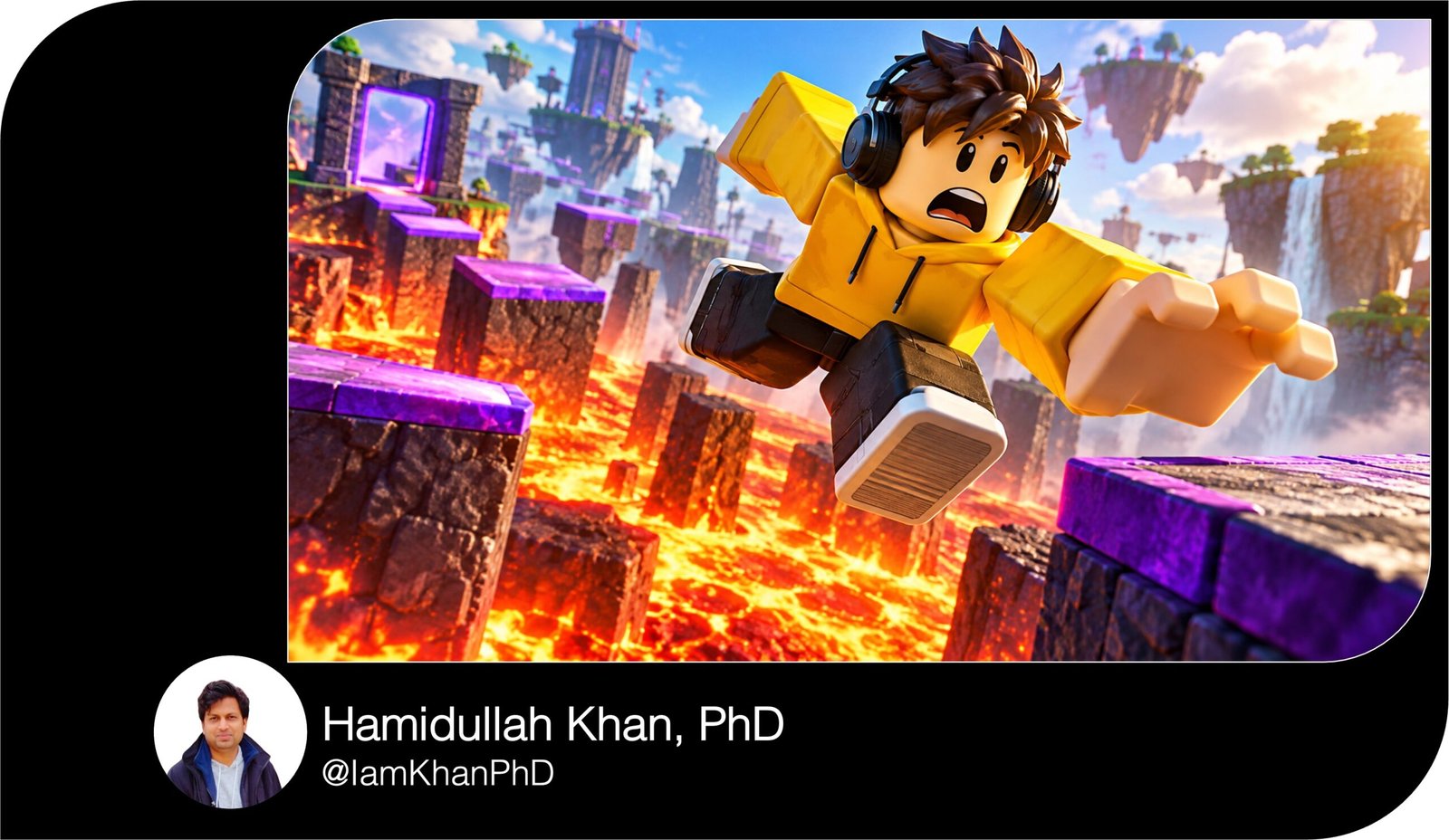
10 Roblox Studio Thumbnail Prompts You Can Copy and Customize
Create custom thumbnail artwork for Roblox Studio projects with 10 detailed, editable AI image prompts. Explore obbies, tycoons, horror games, pet simulators, racing, roleplay, boss battles, updates, tutorials, and build transformations. Each template includes clear placeholders, scene direction, and a suggested headline. Copy, personalize, and generate using your preferred AI image tool.
What This Prompt Pack Does
- Gives you 10 distinct thumbnail concepts for Roblox games and Studio content.
- Guides the AI on character placement, camera angles, lighting, colors, and backgrounds.
- Lets you customize each scene around your own avatar, game build, and content topic.
Tips for This Prompt Pack
- Attach your own game or avatar screenshots when reference images are supported, then check the result for accuracy.
- Keep one main subject and a short headline; review the thumbnail at a small size before using it.
- Add the suggested headline in your image editor afterward for control over spelling, font, and placement.
How to Use the Prompt Pack
- Pick a template and replace every bracketed example with details from your project.
- Paste the edited prompt into your AI image tool, attach optional references, and select the requested aspect ratio.
- Generate the artwork, refine any mismatched details, then add your headline and export for your intended placement.
10 AI Thumbnail Generator Prompts I Editable Templates
10 Editable AI Thumbnail Prompts for Roblox Studio
Replace the details in [square brackets] with your own choices. Attach your game or avatar screenshots if your AI image tool supports references.
These prompts generate thumbnail artwork for Roblox Studio projects. Each uses a wide 16:9 layout and leaves space for a headline you can add afterward.
10 AI Thumbnail Prompts You Can Copy and Customize
1. Obby Thumbnail: The Almost-Impossible Jump
Customize: Avatar, obstacles, hazard, and colors.
Create a 16:9 thumbnail for my Roblox obby, featuring [AVATAR: a blocky avatar wearing a yellow hoodie and black headphones] attempting [CHALLENGE: a jump between two narrow floating platforms] above [HAZARD: a glowing lava pit].
If I attach a reference, preserve the avatar’s outfit and the obstacle course’s actual design. Place the avatar in the right half, frozen mid-jump with arms spread and a startled expression. Use a low camera angle so the gap feels dramatic while both landing platforms remain visible.
Show only three or four obstacles in the distance to communicate the course without clutter. Use [COLORS: orange lava, purple platforms, and cyan sky], with bright edge lighting around the avatar. Keep the blocky character proportions and crisp 3D game appearance.
Leave a clean dark area in the upper-left for text I will add later. Keep the face, feet, and landing platform sharp. Avoid extra limbs, floating accessories, tiny UI elements, logos, watermarks, and generated text.
Suggested headline: CAN YOU MAKE IT?
10 Custom AI Thumbnail Generator Prompts
2. Tycoon Thumbnail: Starter Base vs. Dream Factory
Customize: Tycoon theme, buildings, avatar, and colors.
Create a 16:9 thumbnail for my Roblox [TYCOON THEME: robot factory] game. Use a clear diagonal split: the left side shows [STARTER BASE: a small workshop with one conveyor], and the right side shows [ADVANCED BASE: a large factory with three glowing production lines].
Use only upgrades that exist in my game. If reference screenshots are attached, retain their building shapes, materials, and equipment. Place [AVATAR: a blocky builder wearing blue overalls] near the center, looking excited and pointing toward the advanced factory.
Make the starter side muted and simple; make the advanced side bright with [COLORS: electric blue and gold]. Use matching camera angles so the progression is easy to understand. Add one broad arrow between the buildings, without covering the avatar or key machines.
Leave a quiet band across the top for my headline. Use crisp 3D rendering and recognizable blocky geometry. Avoid cash amounts, fake rewards, unreadable labels, crowded machines, logos, watermarks, and generated text.
Suggested headline: BUILD YOUR EMPIRE
10 Thumbnail Prompt Extractors I Editable AI Prompt Pack
3. Horror Thumbnail: Something Is Behind You
Customize: Location, avatar, creature, and warning light.
Create a suspenseful 16:9 thumbnail for my Roblox horror game set in [LOCATION: an abandoned school hallway]. In the right foreground, show [AVATAR: a blocky explorer wearing a green jacket] turning toward the camera with wide eyes while holding a flashlight.
In the left background, place [THREAT: my game’s tall shadow creature with two pale glowing eyes] partly behind a doorway. If references are attached, match the character and creature designs; do not substitute a monster from another game.
Aim the flashlight diagonally across the scene to connect the avatar and doorway. Use cool blue shadows, a small [WARNING LIGHT: red emergency lamp], and light fog near the floor. Keep the avatar’s face bright enough to read at a small size.
Leave open space across the top for my headline. Create tension through distance, shadow, and expression. Use blocky 3D styling. Avoid gore, excessive darkness, additional monsters, distorted hands, logos, watermarks, and generated text.
Suggested headline: DON’T LOOK BACK
AI Thumbnail Maker Prompts: 10 Editable Templates
4. Pet Simulator Thumbnail: The Rare Pet Reveal
Customize: Pet, egg or reveal item, avatar, setting, and glow.
Create a cheerful 16:9 thumbnail for my Roblox pet simulator. Make [PET: a small blocky crystal fox with turquoise ears and a curled tail] the main subject in the center-right, emerging from [REVEAL ITEM: a cracked purple egg] with an excited expression.
Beside it, show [AVATAR: a blocky player in a white hoodie] reacting with raised arms. If I provide a pet reference, preserve its silhouette, markings, and colors. Use [SETTING: a grassy island with rounded trees] as a simplified background.
Add a controlled ring of [GLOW: turquoise and violet light] around the pet, with a few large sparkles that do not obscure its face. Keep the pet larger than any background object. Use smooth 3D materials, bright daylight, and readable blocky forms.
Leave the upper-left clear for a short headline. Depict a pet and reveal method that exist in my game. Avoid rarity odds, fake rewards, excessive particles, duplicate pets, logos, watermarks, and generated text.
Suggested headline: RARE PET REVEAL
10 YouTube Thumbnail Generator Prompts I Editable AI Templates
5. Racing Thumbnail: The Final-Corner Overtake
Customize: Cars, track, vehicle colors, and lighting.
Create a fast-paced 16:9 thumbnail for my Roblox racing game. Show [MAIN VEHICLE: a lime-green blocky sports car] dominating the lower-right foreground as it drifts through [TRACK: a sharp corner on a neon city circuit].
Place [RIVAL VEHICLE: a red racing coupe] slightly behind in the middle-left so the overtake is clear. Match attached vehicle and track references when provided. Use a low camera close to the road, with the main car angled toward the viewer and its front wheels visibly turned into the corner.
Add short tire smoke trails and background motion blur, but keep the main car’s shape sharp. Use [LIGHTING: blue evening light with orange streetlights] to separate both vehicles from the track. Include visible barriers and a clear road surface.
Leave the upper-left quiet for my headline. Preserve the chunky Roblox game style. Avoid real automotive logos, impossible wheel positions, excessive smoke, fake speed readings, UI overlays, watermarks, and generated text.
Suggested headline: LAST-SECOND OVERTAKE
10 Free Thumbnail Prompts You Can Copy & Edit
6. Roleplay Thumbnail: Your Dream House Reveal
Customize: House, avatar, entrance feature, and time of day.
Create a welcoming 16:9 thumbnail for my Roblox roleplay game’s house reveal. Show [HOUSE: a two-story modern home with white walls, wood panels, and a glass balcony] across the center and right, using a slightly low three-quarter camera angle that reveals the entrance and one side of the building.
Place [AVATAR: a blocky character in a pink sweater] in the lower-left, gesturing toward [FEATURE: a brightly lit front doorway]. If I attach a build screenshot, preserve the house’s proportions, window locations, and exterior colors.
Use [TIME OF DAY: warm sunset] with glowing interior windows and soft outdoor shadows. Keep landscaping simple: two trees, a short path, and a few flowers. Make the house the largest subject and keep the avatar’s silhouette distinct.
Reserve the upper-left sky for my headline. Use polished blocky 3D styling. Avoid unrequested pools, vehicles, or extra floors, crowded furniture, unreadable signs, logos, watermarks, and generated text.
Suggested headline: MY DREAM HOUSE
10 Best Thumbnail Prompts for Content Creators
7. Boss Battle Thumbnail: Tiny Player, Huge Enemy
Customize: Boss, player, weapon or tool, and arena.
Create an action-focused 16:9 thumbnail for my Roblox boss battle. Show [BOSS: a giant blocky stone golem with glowing orange cracks] occupying the left two-thirds, leaning toward [PLAYER: a small blue-armored avatar] in the lower-right. The player holds [WEAPON OR TOOL: a glowing ice staff] in a ready stance.
Use attached references to match the boss, avatar, and equipment. Place them in [ARENA: a circular stone platform surrounded by lava], with a clear gap between their silhouettes.
Use a low camera behind and slightly beside the player so the boss feels enormous while the player’s face remains partly visible. Add one controlled energy effect around the staff and a few stone fragments near the boss’s feet. Use warm boss lighting and cool blue light around the player.
Keep the central confrontation sharp. Leave the upper-right clear for text. Avoid gore, crowded enemies, overlapping limbs, fake damage numbers, health bars, logos, watermarks, and generated text.
Suggested headline: CAN WE BEAT IT?
YouTube Gaming Thumbnail Prompt Pack: 10 Editable Designs
8. Game Update Thumbnail: Reveal the New Feature
Customize: New feature, familiar location, mascot, and colors.
Create a 16:9 announcement thumbnail for an update to my Roblox game. Make [NEW FEATURE: a glowing portal leading to a floating winter island] the largest visual element on the right.
Show [FAMILIAR LOCATION: my game’s central town square] on the left so existing players recognize the game. Place [AVATAR: my usual mascot wearing a red scarf] in the lower-center, pointing toward the new feature with an excited expression.
If reference screenshots are attached, preserve the existing map and the actual feature design. Frame the scene with a slightly wide camera that shows both the familiar location and the new addition clearly.
Use [COLORS: icy cyan, deep navy, and small orange highlights], with the brightest light coming from the new feature. Add only a few snow particles. Leave an uncluttered upper-left area for my update headline. Use crisp blocky 3D styling. Avoid unrelated additions, fake rewards, invented release dates, cluttered UI, logos, watermarks, and generated text.
Suggested headline: NEW WORLD UPDATE
10 ChatGPT YouTube Thumbnail Prompts I Editable Pack
9. Roblox Studio Tutorial Thumbnail: Show the Result
Customize: Tutorial topic, starting object, working result, and creator avatar.
Create a clear 16:9 thumbnail for my Roblox Studio tutorial about [TOPIC: making a door open when a player approaches].
On the left, show [STARTING OBJECT: a closed gray blocky door] in a simple scene. On the right, show [WORKING RESULT: the same door open with a smiling avatar walking through]. Keep the door frame, camera position, and environment consistent across both sides.
If I attach screenshots, preserve the build’s structure and the demonstrated behavior. Put [CREATOR AVATAR: a blocky builder wearing an orange hoodie] near the center-bottom, gesturing toward the working result. Use one broad curved arrow to connect the two states.
Use [COLORS: charcoal, orange, and bright cyan], with brighter lighting on the completed result. Keep the background simple and the door mechanism visually readable. Leave space across the upper-left for my tutorial headline. Avoid fake code, invented interface panels, tiny toolbar labels, unrelated features, logos, watermarks, and generated text.
Suggested headline: MAKE AN AUTO DOOR
10 Editable AI Prompts for Roblox Thumbnail Generation
10. Build Transformation Thumbnail: Empty Map to Finished World
Customize: Map theme, starting state, finished build, and builder avatar.
Create a 16:9 before-and-after thumbnail for my Roblox Studio map build. Divide the scene into two equal halves showing [MAP THEME: a fantasy village] from exactly the same three-quarter camera angle.
On the left, show [BEFORE: an empty gray baseplate with three basic block structures]. On the right, show [AFTER: the finished village with timber houses, a stone path, lanterns, and a large oak tree].
Use my attached before-and-after screenshots when available; preserve the layout and only show improvements present in the finished build. Place [BUILDER AVATAR: a blocky character wearing a tool belt] near the bottom-center, small enough that both map states remain visible.
Use flat cool lighting on the starting side and warm golden lighting on the finished side. Keep the split clean, without extra borders or decorative clutter. Leave a quiet top band for my headline. Use crisp blocky 3D rendering. Avoid invented buildings, crowded particles, distorted structures, logos, watermarks, and generated text.
Suggested headline: FROM EMPTY TO EPIC
About author








Add comment