
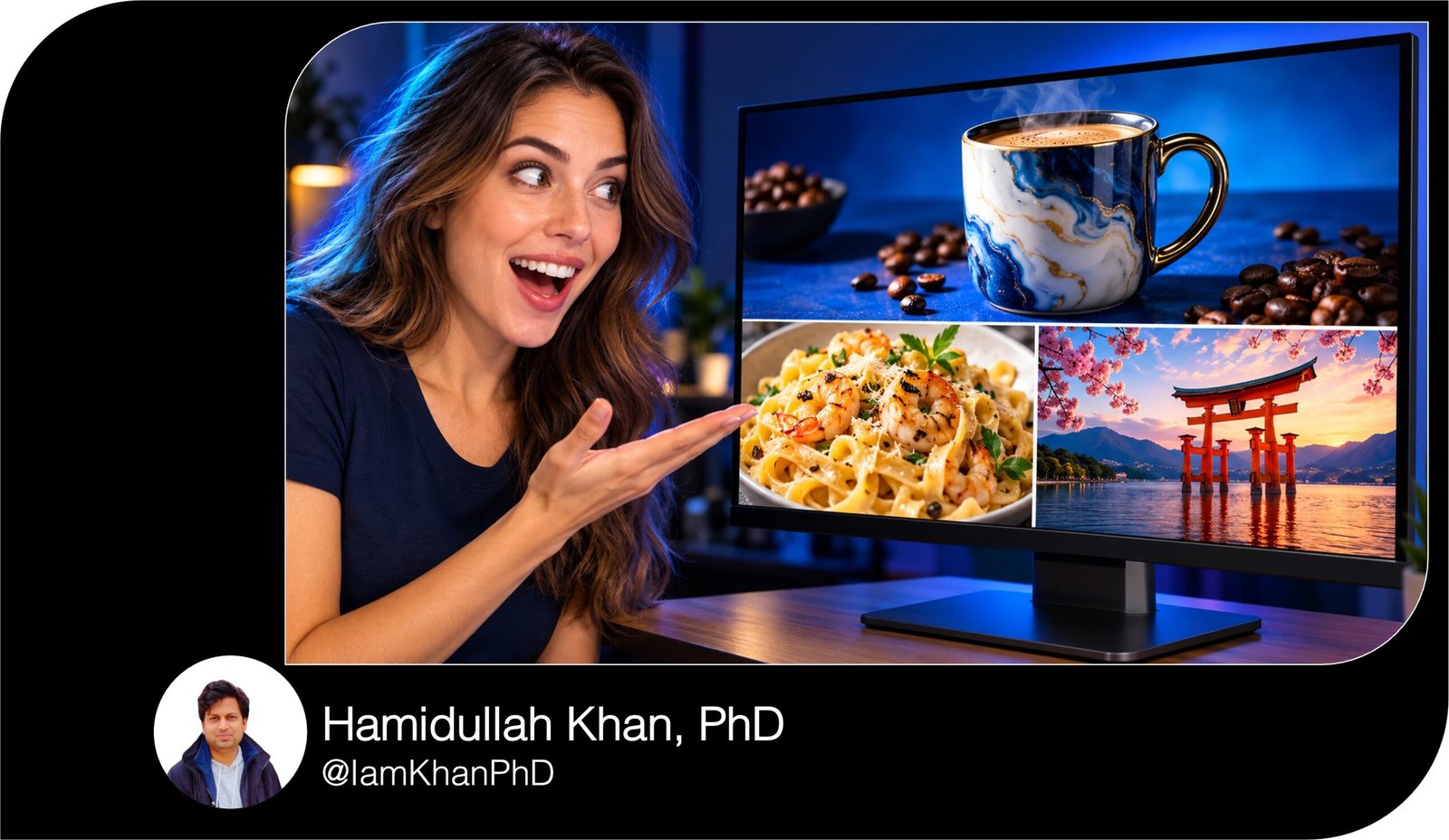
10 Gemini Thumbnail Prompts You Can Copy and Customize
Create eye-catching thumbnail concepts with 10 detailed, editable prompts for Gemini. This beginner-friendly pack includes layouts for AI tutorials, before-and-after edits, product comparisons, recipes, travel, gaming, education, productivity, beauty, and storytelling. Customize the topics, headlines, colors, and reference photos to match your content and brand.
What this prompt pack does
- Guides Gemini with specific composition, lighting, text placement, and visual priorities for 10 thumbnail styles.
- Lets you personalize each design through easy-to-replace fields and optional reference images.
- Helps you create a clear thumbnail concept that reflects your video’s topic and main hook.
Tips for this prompt pack
- Use a 2–4-word headline and check readability with the thumbnail reduced to phone-screen size.
- Upload clear reference photos when you need recognizable faces, products, locations, or gameplay details.
- Check spelling and the final crop; if text looks wrong, request a text-free version and add the headline in Canva or another editor.
How to use the prompt pack
- Choose the prompt closest to your video and replace every bracketed field; delete any optional element you do not need.
- Open Gemini’s image-generation feature, upload any reference images, and paste the completed prompt to generate a thumbnail.
- Review the result, request one specific change at a time, then download and crop or resize it for your publishing platform.
10 AI Prompts for Work Productivity
10 Gemini Thumbnail Prompts I Editable AI Prompt Pack
10 Copy-and-Paste AI Photo Prompt Bundle
1. AI Tutorial: Show the Tool and the Result
Create one 16:9 thumbnail for a beginner tutorial about [AI tool: Gemini]. The video teaches [specific task: turning a rough product photo into a clean store image]. The target viewer is [audience: small business owners with no design experience].
Use my uploaded portrait as the creator reference; preserve my facial features, hairstyle, and skin tone. Place me on the left third, looking toward the result with an interested, natural expression. If no portrait is attached, use a close-up laptop instead. On the right, show one large example of [finished result: a ceramic mug on a clean studio background]. Add a small inset of [starting input: the same mug photographed on a cluttered desk] with one arrow pointing toward the result.
Use a dark navy background, [accent color: electric blue], soft light on the creator, and bright lighting on the finished result. Place the exact headline “[headline: ONE PROMPT FIX]” across the upper center in bold white lettering. Keep the headline to 2–4 words, clear of the face and product.
Keep essential elements inside a 5% edge margin and the bottom-right corner uncluttered. Avoid tiny interface text, extra arrows, fake tool logos, and invented performance claims. Generate the thumbnail image, not a written design plan.
10 Copy-and-Paste Gemini AI Miniature Image Prompts
2. Before-and-After Photo Edit: Make the Change Obvious
Create one 16:9 thumbnail for a photo-editing tutorial showing [edit: removing distracting objects from a room photo]. Use uploaded image 1 as the original and uploaded image 2 as the finished edit. If only the original is attached, create the edited side by applying only [requested changes: remove laundry and cables; brighten the room].
Divide the thumbnail vertically into two equal panels. Show the original on the left and edited result on the right, using identical framing, camera angle, and subject scale so the difference is easy to compare. Preserve [details that must stay: furniture, windows, wall color, and room proportions]. Do not add new furniture or alter the layout.
Use a thin [divider color: yellow] line between panels. Put “BEFORE” at the upper-left and “AFTER” at the upper-right in small but readable bold labels. Add the exact headline “[headline: CLEAN IN SECONDS]” in a dark band along the lower-left and center.
Keep the bottom-right corner clear. Use realistic textures and lighting; the improvement should come from the requested edit. Avoid exaggerated damage, extra decorations, mismatched crops, and any other text. Generate the final image.
10 Copy-and-Paste Gemini AI Prompts for Image Trends
3. Product Comparison: Two Choices, One Clear Question
Create one 16:9 thumbnail for an honest comparison of
and. The video compares [main difference: portability versus recording quality].Use uploaded image 1 for product A and image 2 for product B. Preserve their shapes, colors, controls, and visible branding; do not invent labels. Without references, depict clearly illustrative versions based on
.Place product A large on the left against [left color: deep blue] and product B large on the right against [right color: warm orange]. Give them equal visual weight and matching camera angles. Separate them with a narrow diagonal divider and a simple “VS” at the center. Light both products like a studio shoot, with crisp edges and subtle shadows.
Place the exact headline “[headline: WHICH ONE WINS?]” across the top in bold, high-contrast lettering. Optional prices: [verified prices, or NONE]. Show prices only when supplied.
Keep all essential elements away from the edges and bottom-right corner. Avoid star ratings, winner badges, fake specifications, extra products, and unsupported claims. Generate one image, not a collage of alternate designs.

10 Copy-and-Paste Gemini AI Prompts for Couple Photos
4. Recipe Tutorial: Make the Finished Dish the Hero
Create one 16:9 thumbnail for [recipe: creamy garlic pasta], aimed at [audience: beginners cooking quick weeknight dinners]. The video’s real hook is [hook: one-pan preparation]. Use my uploaded finished-dish photo as the food reference if provided; preserve the actual ingredients and serving style.
Place a large close-up of the finished dish on the right two-thirds, photographed from a slightly elevated angle. Show [appetizing detail: sauce clinging to twisted pasta with chopped parsley] in sharp focus. Add one fork lifting a small bite, with physically realistic food and utensil placement. Use a softly blurred [setting: warm home kitchen] behind it. Keep the left third darker and visually quiet for text.
Use warm window light, natural food colors, and [accent color: golden yellow] for the headline. Render only the exact words “[headline: ONE PAN PASTA]” on the left in large, bold lettering.
Include “[verified cooking time: 20 MIN]” as a small badge only if a verified time is supplied; otherwise omit it. Keep the bottom-right corner unobstructed. Avoid unrelated ingredients, excessive steam, plastic-looking food, floating utensils, and additional text. Generate the thumbnail image.
10 Gemini AI Portrait Prompts for Men I Suits, Travel, Fitness & More
5. Travel Guide: Show a Recognizable Destination
Create one 16:9 thumbnail for a travel guide to [destination: Kyoto, Japan], focusing on [angle]. The main attraction is [specific location: the red torii gates at Fushimi Inari]. Use my uploaded destination photo as the location reference and my uploaded portrait as the traveler reference, if available.
Make the landmark fill the center and right of the frame, with a strong path leading the viewer’s eye into the scene. Keep architecture, signs, and surroundings faithful to the location reference. Place the traveler in the left foreground, waist-up, looking toward the landmark; preserve their recognizable facial features. Without a portrait, use a faceless traveler viewed from behind.
Use [lighting: soft early-morning light] and [palette: rich reds with natural green accents]. Leave clean space at the upper-left for the exact headline “[headline: KYOTO FIRST TRIP]” in bold white text with a subtle dark outline.
Keep the headline short and essential details away from the edges and bottom-right corner. Avoid combining landmarks from different cities, invented attractions, fake prices, excessive crowds, and additional text. Generate one finished thumbnail.
10 Copy-and-Paste AI Prompt Generators for Beginners
6. Gaming Highlight: Capture the Decisive Moment
Create one 16:9 thumbnail for a [game name: racing game] video about [actual moment: winning a race on the final corner]. Use my uploaded gameplay screenshot as the main scene reference. Preserve the vehicle or character design, track or map, and equipment shown.
Without a screenshot, create an original game-like illustration using [scene details: a red sports car overtaking a blue car on a rainy city circuit].
Make [main subject: the red car] large in the lower-left and center. Place [opponent or obstacle: the blue car] slightly behind on the right so the decisive action is obvious. Use a low, dynamic camera angle, sharp focus on the main subject, and restrained motion blur in the background. Add [accent color: neon green] edge lighting without obscuring the original design.
Render the exact headline “[headline: LAST SECOND WIN]” across the upper-right in thick, high-contrast lettering. Add one small arrow only if needed to identify [key detail: the tiny gap between cars].
Keep the bottom-right corner clear. Avoid fabricated rank badges, fake score displays, excessive effects, unrelated weapons, and tiny HUD text. Generate the thumbnail, not a gameplay storyboard.
10 AI Thumbnail Prompts for YouTube I Custom Prompt Pack
7. Educational Explainer: Turn an Idea into a Visual
Create one 16:9 thumbnail for a beginner explainer about [topic: why the Moon appears to change shape]. The concept viewers should understand is [specific idea: we see different portions of the Moon’s sunlit half]. Use [visual style: clean 3D educational illustration] rather than a dense infographic.
Show one large [main object: Moon] in the center-right against [background: a deep blue space background]. Highlight [visible detail: its sunlit crescent] with realistic lighting. On the left, add one simple inset showing [supporting relationship: the Sun illuminating one half of the Moon], with at most one directional arrow.
Treat the inset as a simplified illustration, not a scale model. Keep the scientific relationship consistent with the supplied explanation; do not add unsupported details.
Place the exact headline “[headline: WHY THE CRESCENT?]” at the upper-left in bold white lettering, with [accent color: yellow] on one key word. Use large shapes and clear separation so the visual reads at small size.
Keep the bottom-right corner quiet. Avoid decorative formulas, invented statistics, tiny labels, misleading object relationships, and more than two visual focal points. Generate one finished thumbnail image.
10 Copy and Paste Gemini AI Prompts for Everyday Tasks
8. Productivity Makeover: Show the Workflow Change
Create one 16:9 thumbnail for a productivity tutorial about [workflow: organizing weekly content planning]. The real change is from [starting situation: scattered notes and overlapping tasks] to [finished situation: a simple weekly content board].
Use my uploaded before-and-after screenshots as references if available, removing personal information from the visible design.
Use a 40/60 split: the left 40% shows a messy desk with a few scattered notes; the right 60% shows a neat laptop and one simplified planning board. Use the same desk surface and camera height on both sides. Represent the board with large blocks and three readable column labels: “PLAN,” “CREATE,” and “POST.” Do not reproduce tiny interface text or invent app controls.
Use muted gray lighting on the left and warm, brighter lighting on the right. Apply [brand accent: teal] to the organized board. Place the exact headline “[headline: FIX YOUR WORKFLOW]” across the top in bold dark lettering on a light background.
Keep the bottom-right corner clear. Avoid invented time savings, income figures, exaggerated clutter, and extra labels. Generate one cohesive thumbnail image.
10 ChatGPT Thumbnail Prompts I Custom Prompt Templates
9. Beauty Tutorial: Spotlight One Achievable Look
Create one 16:9 thumbnail for a beauty tutorial on [specific technique: soft brown winged eyeliner], for [audience: makeup beginners].
Use my uploaded portrait as the face reference. Preserve my facial features, skin tone, age appearance, and natural skin texture. Without a reference, create a fictional adult model with [appearance details: medium skin tone, brown eyes, and dark hair].
Place the face on the right two-thirds in a close-up from forehead to chin. Make [target feature: the eye and soft eyeliner wing] the sharpest point. Apply only the requested makeup look, keeping its color, shape, and intensity realistic. Add one small circular inset near the lower-left showing the technique detail at greater magnification.
Use soft, even studio lighting and a [background color: muted peach] background. Place the exact headline “[headline: EASY SOFT WING]” on the upper-left in bold [text color: dark plum] lettering. Leave space between the text and inset.
Keep essential details away from the edges and bottom-right corner. Avoid skin whitening, facial reshaping, excessive smoothing, unrelated products, and promises of perfect results. Generate the final thumbnail image.
10 AI YouTube Thumbnail Prompts I Custom Prompt Templates
10. Storytelling: Build Curiosity Around a Real Detail
Create one 16:9 thumbnail for a personal story video about [event: finding an old camera at a flea market]. The real intriguing detail is [detail: an undeveloped film roll was still inside]. The mood should be [mood: curious and nostalgic].
Use my uploaded portrait as the creator reference and my uploaded object photo as the object reference if provided.
Place the creator on the left third with a natural, intrigued expression, looking toward [key object: the old camera] on the right. Make the object large enough that [important feature: its open film compartment] is visible. Add a single small inset showing [supporting detail: the film roll], linked to the object by one subtle line. Without a portrait, show realistic hands holding the object instead.
Use a softly blurred [setting: vintage market table], warm light on the object, and a darker background for contrast. Render the exact headline “[headline: WHAT WAS INSIDE?]” across the upper center in bold cream lettering.
Keep the bottom-right corner clear. Avoid fake evidence, invented discoveries, horror elements unless supplied, extra arrows, and text that reveals an unsupported outcome. Generate one finished thumbnail.

About author







Add comment