
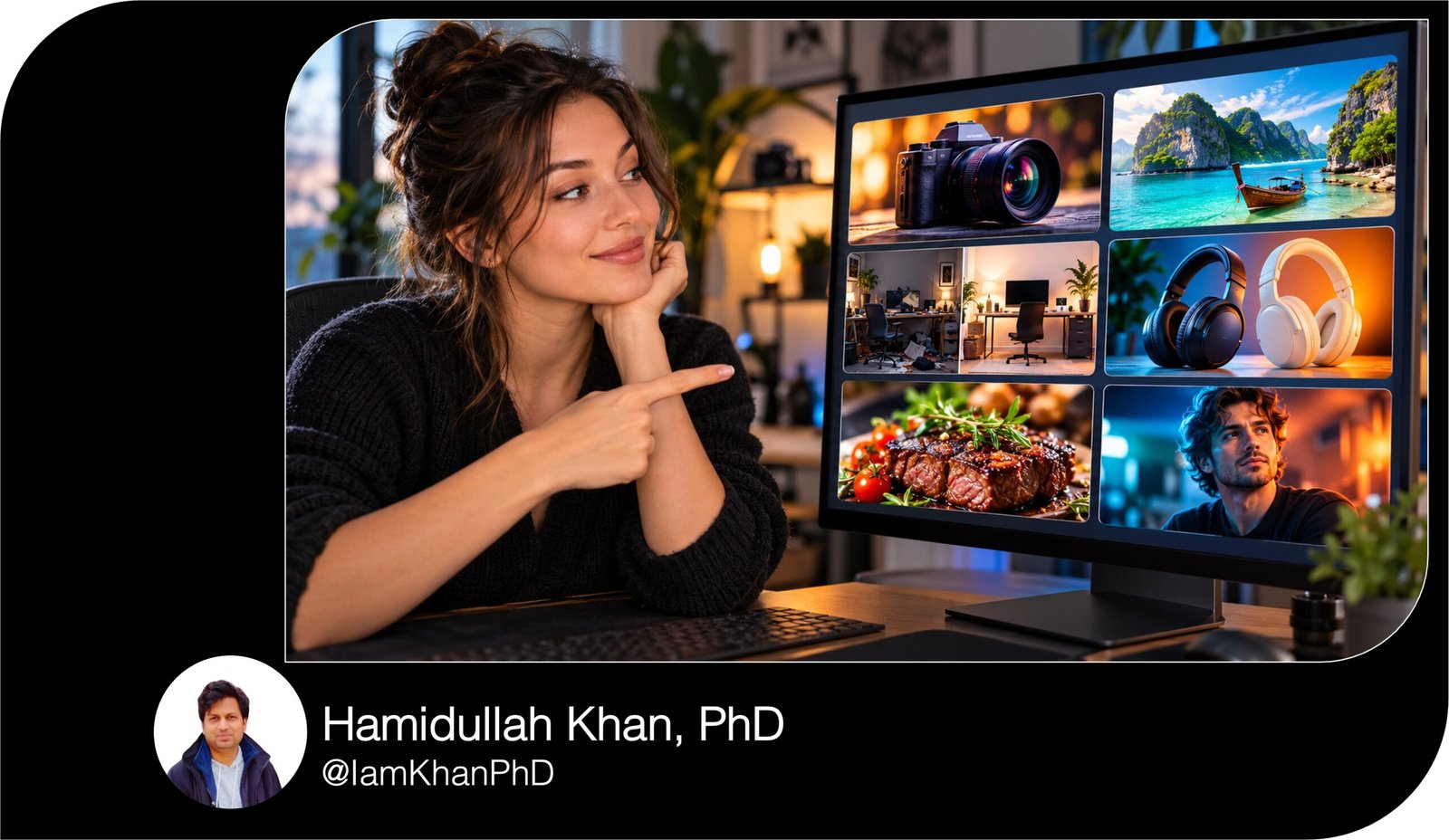
10 ChatGPT Thumbnail Prompts I Custom Prompt Templates
Create clear, attention-grabbing YouTube thumbnails with 10 detailed ChatGPT prompt templates. Customize the topic, headline, colors, objects, and photos to match your content. Includes prompts for tutorials, comparisons, reviews, transformations, and more, with clear layout instructions for beginners. This digital product contains prompt templates; finished thumbnail images are not included.
What this prompt pack does
- Guides ChatGPT to create 10 distinct thumbnail styles with specific layouts, subjects, lighting, and text placement.
- Helps you adapt each thumbnail to your video topic, audience, and visual branding.
- Keeps designs focused with short headlines, recognizable subjects, and clear instructions to reduce clutter.
Tips for this prompt pack
- Replace every bracketed placeholder with specific details; describe the exact object, action, or result you want shown.
- Keep thumbnail headlines short and upload your own photos or product images when appearance matters.
- Check spelling and preview the image at a small size. If generated lettering needs correction, request a version without text and add the headline in your design editor.
How to use the prompt pack
- Choose the template that matches your video and copy the complete prompt.
- Edit the bracketed fields, paste the prompt into ChatGPT, attach any reference images, and request image creation.
- Review the result, request specific changes, and download your preferred version. If image creation is unavailable in your chat, use the prompt in an image-generation tool.
10 AI Prompts for Work Productivity
Create Better Thumbnails: 10 Editable ChatGPT Prompts
Before using: Replace the text in [brackets], then paste the prompt into ChatGPT and request an image. These prompts use a landscape layout; change the dimensions for another platform. Upload your photo or product image when you want it included.
10 Copy-and-Paste AI Photo Prompt Bundle
1. Step-by-Step Tutorial Thumbnail
Create a thumbnail for my tutorial video: “[VIDEO TITLE].”
Details:
- Topic: [WHAT YOU ARE TEACHING]
- Audience: [BEGINNERS / SMALL BUSINESS OWNERS / STUDENTS / OTHER]
- Main tool or object: [APP, DEVICE, PRODUCT, OR TASK]
- Thumbnail headline: “[2–4 WORDS, SUCH AS: EDIT IN MINUTES]”
- Brand colors: [TWO COLORS]
Use a 1280 × 720 landscape canvas. Place a close-up of the main tool or object on the right, occupying roughly half the image. Show one clear action that represents the tutorial, such as a cursor selecting a button, a hand using a tool, or a finished project appearing on screen.
Place the headline on the left in large, bold lettering with strong contrast. Add a small “STEP BY STEP” label above it. Use one arrow to connect the headline area to the important action.
Keep the background simple, with subtle depth and generous space around the text. Avoid tiny interface labels, extra arrows, and decorative clutter. The topic and headline should remain understandable when the thumbnail is viewed at a small size.
10 Copy-and-Paste Gemini AI Miniature Image Prompts
2. Before-and-After Transformation Thumbnail
Create a before-and-after thumbnail for my video about “[TRANSFORMATION TOPIC].”
Use these details:
- Starting state: [DESCRIBE THE ACTUAL BEFORE RESULT]
- Finished state: [DESCRIBE THE ACTUAL AFTER RESULT]
- Main subject: [ROOM, DESIGN, PHOTO, WORKSPACE, PROJECT, OR OTHER]
- Headline: “[SHORT PHRASE, SUCH AS: LOOK AT THE DIFFERENCE]”
- Accent color: [COLOR]
Design a 1280 × 720 landscape image with two equal panels separated by a clean vertical divider. Show the starting state on the left and the finished state on the right. Use the same viewpoint, scale, and subject placement in both panels so viewers can immediately compare them.
Make the left side slightly muted and the right side brighter, while keeping both believable. Add small, readable “BEFORE” and “AFTER” labels in their upper corners.
Place the headline across the bottom on a solid contrasting strip. Add one small arrow across the divider to suggest the change.
If I upload reference images, base both panels on those images. Represent only the transformation described above; do not invent extra improvements. Keep important details visible above the headline strip.
10 Copy-and-Paste Gemini AI Prompts for Image Trends
3. Two-Option Comparison Thumbnail
Create a comparison thumbnail for my video: “[OPTION A] vs. [OPTION B]: [MAIN QUESTION].”
Details:
- Option A: [NAME AND VISUAL DESCRIPTION]
- Option B: [NAME AND VISUAL DESCRIPTION]
- Comparison focus: [PRICE / SPEED / EASE OF USE / QUALITY / OTHER]
- Headline: “[2–4 WORDS, SUCH AS: WHICH IS EASIER?]”
- Left color: [COLOR]
- Right color: [CONTRASTING COLOR]
Use a 1280 × 720 landscape canvas divided into two balanced sections. Place Option A on the left and Option B on the right, at the same size and visual importance. If I upload product images, preserve their recognizable shapes and appearance.
Place a bold “VS” badge in the center, with a thin diagonal divider behind it. Put each option’s short name directly beneath its image. Position the main headline across the top without covering either subject.
Use clean lighting and simple backgrounds. Make the comparison feel fair: do not make one option look broken, dirty, or inferior unless that condition is part of my video. Avoid tables, specifications, and small text. The viewer should recognize both choices immediately.
10 Copy-and-Paste Gemini AI Prompts for Couple Photos
4. Product Review Thumbnail
Create a product review thumbnail for my video about “[PRODUCT NAME].”
Details:
- Product type: [HEADPHONES / CAMERA / SOFTWARE / OTHER]
- Main viewer question: [IS IT WORTH THE PRICE? / DOES IT WORK? / OTHER]
- Headline: “[SHORT QUESTION, SUCH AS: WORTH IT?]”
- Product color: [COLOR]
- Background color: [COLOR]
- Presenter expression: [CURIOUS / IMPRESSED / UNSURE]
Use a 1280 × 720 landscape layout. Make the product the largest object, positioned slightly right of center with crisp detail and realistic lighting. Add a subtle shadow or glow to separate it from the background.
If I attach a presenter photo, place a close-up of that person on the left, looking toward the product. Preserve their recognizable facial features and use the expression specified above. If no photo is attached, use a closer product crop in that space.
Place the headline in the upper-left area with bold, readable lettering. Add one small question-mark badge near the product.
Do not invent star ratings, awards, prices, or performance claims. Avoid extra accessories unless I specify them. Keep the product and headline as the two strongest visual elements.
10 Gemini AI Portrait Prompts for Men I Suits, Travel, Fitness & More
5. “Top 5” or “Top 10” List Thumbnail
Create a thumbnail for my list video: “[NUMBER] Best [ITEM CATEGORY] for [AUDIENCE OR PURPOSE].”
Details:
- Number of items in the video: [NUMBER]
- Three representative items to show: [ITEM 1], [ITEM 2], [ITEM 3]
- Main benefit: [SAVE TIME / CREATE BETTER CONTENT / STAY ORGANIZED / OTHER]
- Headline: “[SHORT PHRASE, SUCH AS: TOOLS YOU NEED]”
- Brand colors: [TWO COLORS]
Use a 1280 × 720 landscape canvas. Place an oversized “[NUMBER]” on the left, with the headline directly beneath it. On the right, arrange the three representative items in a neat triangular composition: one large item in front and two slightly smaller items behind it.
Use consistent lighting, clean edges, and enough spacing to recognize each item. Add a subtle spotlight behind the items to guide attention.
Show only three representative items, even if the video includes more. Avoid a crowded grid, tiny captions, rankings, and extra badges. Do not invent recognizable brand logos; use uploaded references or simple category symbols where appropriate. Make the number the first thing viewers notice.
10 Copy-and-Paste AI Prompt Generators for Beginners
6. Common Mistakes Thumbnail
Create a thumbnail for my video explaining common mistakes in “[ACTIVITY OR TOPIC].”
Details:
- One specific mistake to illustrate: [DESCRIBE A VISIBLE MISTAKE]
- Correct approach: [DESCRIBE THE CORRECT ACTION]
- Main object or setting: [OBJECT OR SETTING]
- Headline: “[2–4 WORDS, SUCH AS: STOP DOING THIS]”
- Brand accent: [COLOR]
Use a 1280 × 720 landscape layout. Make the incorrect example the main subject on the right, large enough that the mistake is obvious. Place one red circle around the exact problem and add a small red “X” beside it.
In the lower-left corner, include a smaller inset showing the correct approach with a green check mark. Keep both examples at a similar angle so the difference is clear.
Place the headline in the upper-left area in bold lettering. Use a dark or neutral background so the subject, warning mark, and text stand out.
Focus on this single mistake. Avoid additional warning symbols, multiple circles, or invented consequences. If the mistake cannot be shown clearly in a small image, use a simple close-up illustration of the action.
10 AI Thumbnail Prompts for YouTube I Custom Prompt Pack
7. Challenge or Experiment Thumbnail
Create a thumbnail for my challenge video: “[CHALLENGE TITLE].”
Details:
- Challenge: [WHAT YOU ATTEMPTED]
- Duration: [TIME PERIOD]
- Main constraint: [BUDGET, RULE, OR LIMIT]
- Visible evidence: [COMPLETED PROJECT / TIMER / ITEMS USED / OTHER]
- Headline: “[SHORT PHRASE, SUCH AS: CAN I DO IT?]”
- Accent color: [COLOR]
Use a 1280 × 720 landscape canvas. Put the main evidence of the challenge in the center-right, large and clearly recognizable. Add a bold duration badge in the top-right corner using the exact time period I provided.
If I upload my photo, place me on the left with a focused or uncertain expression, looking toward the challenge object. Preserve my recognizable appearance. If no photo is provided, show the tools or materials used instead.
Position the headline in the upper-left area. Use energetic lighting and a simple background connected to the challenge setting.
Show no more than one extra badge for the constraint. Do not reveal or invent the outcome. Build curiosity through the challenge itself, without adding unsupported money figures, success claims, or exaggerated results.
10 Copy and Paste Gemini AI Prompts for Everyday Tasks
8. Educational Explainer Thumbnail
Create a thumbnail for my beginner-friendly explainer video: “[VIDEO TITLE].”
Details:
- Concept: [WHAT THE VIDEO EXPLAINS]
- Audience: [WHO NEEDS THE EXPLANATION]
- Visual metaphor: [A SIMPLE OBJECT OR SCENE THAT REPRESENTS THE CONCEPT]
- Main question: “[SHORT QUESTION, SUCH AS: HOW DOES IT WORK?]”
- Background color: [COLOR]
- Accent color: [COLOR]
Use a 1280 × 720 landscape canvas. Place one large visual metaphor on the right. For example, represent a workflow with a conveyor belt, stored information with an organized filing cabinet, or connections with a few linked objects. Use the metaphor I supplied and keep it relevant to the concept.
Place the main question on the left in large, bold lettering. Add one small inset or magnified detail that reveals the key mechanism, with a single arrow connecting it to the main object.
Use clean illustration or realistic 3D styling, with consistent lighting and minimal decoration. Avoid complicated diagrams, formulas, and technical labels. The thumbnail should communicate one clear question; it should not try to explain the entire lesson.
10 Gemini Thumbnail Prompts You Can Copy and Customize
9. Travel or Location Guide Thumbnail
Create a thumbnail for my travel video: “[DESTINATION]: [VIDEO ANGLE].”
Details:
- Destination: [CITY, REGION, OR COUNTRY]
- Main location to feature: [SPECIFIC LANDMARK OR PLACE]
- Video angle: [FIRST VISIT / FOOD GUIDE / WEEKEND PLAN / OTHER]
- Headline: “[SHORT PHRASE, SUCH AS: START HERE]”
- Mood: [ADVENTUROUS / RELAXED / COLORFUL / OTHER]
- Accent color: [COLOR]
Use a 1280 × 720 landscape layout. Make the main location the background, with a clear focal point and attractive natural lighting. Leave a less detailed area on the left for the headline.
Place the destination name in large text across the upper-left area, with the short headline below it. Add one small location-pin symbol near the focal point.
If I upload a travel photo of myself, place a clean cutout in the lower-right corner without hiding the landmark. If no photo is attached, keep the location as the main subject.
Use reference photos when provided. Preserve the location’s recognizable appearance. Avoid invented landmarks, crowded collages, transport schedules, or prices. Make the destination easy to identify at a glance.
10 AI YouTube Thumbnail Prompts I Custom Prompt Templates
10. Clean Thumbnail Without a Face
Create a clean thumbnail without a presenter or face for my video: “[VIDEO TITLE].”
Details:
- Topic: [VIDEO TOPIC]
- Main object: [ONE OBJECT THAT REPRESENTS THE TOPIC]
- Visible result or benefit: [WHAT THE VIEWER WILL LEARN OR CREATE]
- Headline: “[2–4 WORDS, SUCH AS: PLAN YOUR WEEK]”
- Background color: [COLOR]
- Accent color: [COLOR]
- Style: [REALISTIC PRODUCT PHOTO / FLAT ILLUSTRATION / CLEAN 3D]
Use a 1280 × 720 landscape canvas. Place the main object on the right, occupying approximately 55% of the image. Show the result through one supporting detail, such as a completed planner page, an organized folder, or a finished design beside the tool used to create it.
Place the headline on the left in oversized, bold lettering. Use generous empty space, a limited color palette, and a subtle shadow behind the object.
Do not include people, faces, hands, or decorative characters. Avoid dense screenshots and unreadable text inside the object. Keep the supporting detail smaller than the main subject. The finished thumbnail should communicate the topic clearly through one object, one result, and one headline.


About author








Add comment