
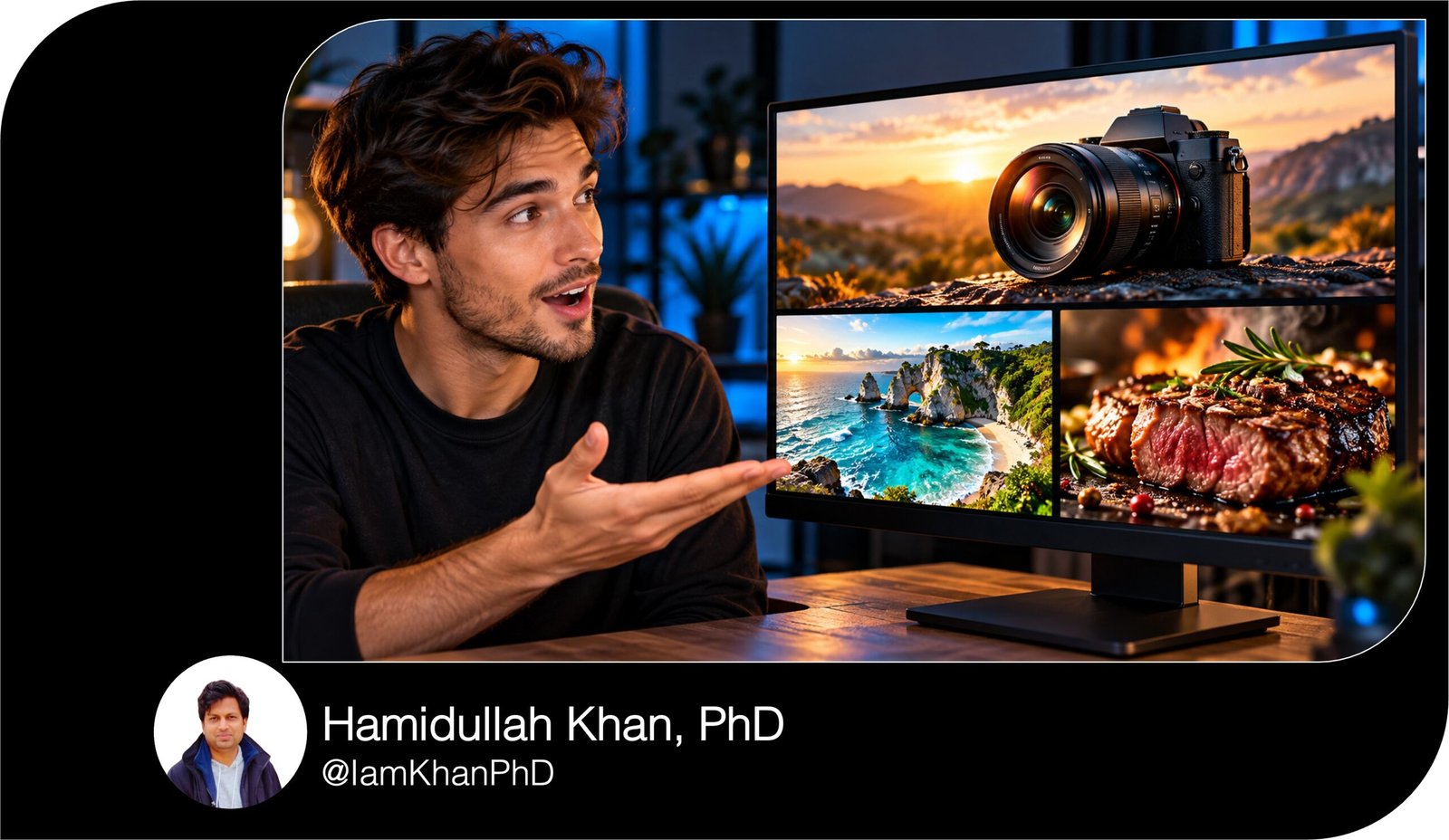
10 AI Thumbnail Prompts for YouTube I Custom Prompt Pack
Create thumbnails with a clear visual direction using 10 detailed, editable AI prompts. Customize the topic, colors, headline, objects, and mood to suit your content. Includes layouts for tutorials, comparisons, reviews, challenges, recipes, travel videos, and personal stories—written for beginners using an AI image-generation tool.
What this prompt pack does
- Gives you 10 distinct thumbnail layouts with clear instructions for composition, lighting, colors, and headline placement.
- Helps you customize each thumbnail to your video topic, audience, and visual style using editable placeholders.
- Provides visual constraints to reduce clutter and keep the thumbnail focused on your video’s actual content.
Tips for this prompt pack
- Use a short headline of 2–4 words where possible, and choose one main visual that communicates the video topic.
- Attach your own face, product, or location reference when the thumbnail needs to show a specific person or object accurately.
- Check the result at a small size; if the lettering is wrong, generate a text-free version and add the headline in your design editor.
How to use the prompt pack
- Choose the prompt that matches your video and replace every bracketed field with your own details.
- Paste the completed prompt into an AI tool that supports image generation, attach any relevant references, and request a 16:9 image.
- Review the image for accuracy and readability, request specific revisions, then export it for your video thumbnail.
10 AI Prompts for Work Productivity
10 Thumbnail Prompts You Can Customize for Your Videos
10 Copy-and-Paste AI Photo Prompt Bundle
1. Step-by-Step Tutorial Thumbnail
Example: “How to Remove a Photo Background”
Create a YouTube thumbnail for a beginner tutorial about [TASK]. The audience is [AUDIENCE], and the useful result shown in the video is [ACTUAL RESULT]. Use a clean instructional style with [PRIMARY COLOR] and [ACCENT COLOR].
Place a large, recognizable [MAIN OBJECT] on the right half, showing the finished result. Add one smaller visual of [STARTING STATE] below it, connected by a single thick arrow. Reserve the left third for the exact headline “[HEADLINE: 2–4 WORDS]” in bold lettering. Make the result the largest visual, followed by the headline, then the starting state.
Use a plain background, crisp edges, and clear separation between objects. Keep important content away from the outer edges and leave the lower-right corner free of essential details. Avoid tiny interface text, extra arrows, decorative icons, and invented software controls. Show a result that matches the actual tutorial. Generate one finished thumbnail.
10 Copy-and-Paste Gemini AI Miniature Image Prompts
2. Before-and-After Transformation Thumbnail
Example: “My Small Home Office Makeover”
Create a split-screen YouTube thumbnail showing the real transformation of [SUBJECT]. On the left, depict [BEFORE STATE]. On the right, depict [AFTER STATE]. Keep the camera angle, object scale, and setting consistent so the change is easy to compare.
Use muted [BEFORE COLOR] tones on the left and brighter [AFTER COLOR] tones on the right, without exaggerating the improvement. Separate the two halves with a clean vertical divider. Add the exact labels “BEFORE” and “AFTER” near the top of their respective sides. Place “[HEADLINE: 2–4 WORDS]” across a simple bottom-left banner without covering the key change.
If I attach reference photos, preserve the actual details of each state. Otherwise, create an illustrative scene based on my descriptions. Keep the main change visible at a small viewing size. Avoid extra objects, misleading transformations, and text in the lower-right corner. Generate one thumbnail.
10 Copy-and-Paste Gemini AI Prompts for Image Trends
3. This vs. That Comparison Thumbnail
Example: “Paper Planner vs. Digital Planner”
Create a balanced comparison thumbnail for a video comparing [OPTION A] and [OPTION B] for [SPECIFIC USE CASE]. The comparison focuses on [MAIN DIFFERENCE].
Place [OPTION A’S RECOGNIZABLE OBJECT] on the left against [COLOR A], and [OPTION B’S RECOGNIZABLE OBJECT] on the right against [COLOR B]. Give both objects equal size and equally clear lighting. Put a bold “VS” in the center, with breathing room around it. Add the exact headline “[HEADLINE: 2–4 WORDS]” at the top.
Represent the main difference visually through [VISIBLE COMPARISON DETAIL], rather than tiny specifications. If reference images are attached, use their product appearance accurately; otherwise, use generic representative objects without invented logos. Keep the layout symmetrical, uncluttered, and readable when small. Avoid winner badges, fake ratings, or performance claims that I have not supplied. Generate one thumbnail.
10 Copy-and-Paste Gemini AI Prompts for Couple Photos
4. Timed Challenge Thumbnail
Example: “I Learned Guitar for 7 Days”
Create a YouTube thumbnail for “[CHALLENGE] in [TIME LIMIT].” Show [MAIN SUBJECT OR OBJECT] in the foreground, occupying roughly half the image, with [VISIBLE CHALLENGE ACTIVITY] clearly visible.
Place one large timer or calendar graphic behind the subject, using only the exact text “[TIME LIMIT].” Reserve the opposite side for “[HEADLINE: 2–4 WORDS].” Use [BACKGROUND COLOR] with [ACCENT COLOR] for the timer and headline. Add directional lighting to create urgency while keeping the scene easy to understand.
If I attach my photo, preserve my recognizable features and use a natural [EXPRESSION] expression. Otherwise, use an anonymous person or an object-focused composition. Show [ACTUAL PROGRESS OR OUTCOME] only if the video documents it; if the result is undisclosed, show the challenge underway. Avoid fake completion badges, unrelated props, extra clocks, and overly dramatic facial distortion. Generate one thumbnail.
10 Gemini AI Portrait Prompts for Men I Suits, Travel, Fitness & More
5. Product Review Thumbnail
Example: “Is This Budget Microphone Worth It?”
Create a product-review thumbnail for [PRODUCT], aimed at [AUDIENCE] who care about [BUYING CONCERN]. Use a polished studio style with a [BACKGROUND COLOR] background and [ACCENT COLOR] highlights.
Make the product the largest element, positioned slightly right of center, with a three-quarter view and clear lighting. Show [TEST DETAIL] as one small supporting scene or prop on the left. Place the exact headline “[HEADLINE: 2–4 WORDS]” in the upper-left area.
Use the attached product photo to preserve its shape, finish, and visible features. If no photo is attached, create a generic [PRODUCT CATEGORY] illustration without brand marks. Include my verdict “[VERDICT: SHORT PHRASE OR NONE]” only when provided and accurate. Keep the product unobstructed and the lower-right corner clear. Avoid invented specifications, star ratings, awards, prices, or extra accessories. Generate one thumbnail.
10 Copy-and-Paste AI Prompt Generators for Beginners
6. Common Mistake Thumbnail
Example: “Fix This Beginner Microphone Mistake”
Create a thumbnail for a video about [MISTAKE] when [ACTIVITY]. Make the incorrect action “[VISIBLE ERROR]” immediately recognizable.
Place a large close-up of the error on the left, marked with one simple red X. On the right, show a smaller corrected example of “[CORRECT METHOD],” marked with one green check. Use a neutral [BACKGROUND COLOR] so the two actions remain easy to compare. Add the exact headline “[HEADLINE: 2–4 WORDS]” across the top.
Keep the same subject and viewing angle in both examples. Make the specific error visible through object position, spacing, or setup rather than written explanations. Use realistic lighting and a clean educational tone. Avoid danger symbols unless the video discusses a genuine hazard, and avoid making ordinary mistakes look catastrophic. Include no additional labels or decorative arrows. Keep important details out of the lower-right corner. Generate one thumbnail.
10 Copy and Paste Gemini AI Prompts for Everyday Tasks
7. Numbered Tips or Ideas Thumbnail
Example: “5 Simple Desk Upgrades”
Create a YouTube thumbnail for “[NUMBER] [TOPIC] for [AUDIENCE].” Make the number “[NUMBER]” the dominant text element on the left, using [ACCENT COLOR] against a [BACKGROUND COLOR] background.
On the right, arrange exactly three representative items from the video: [ITEM 1], [ITEM 2], and [ITEM 3]. Make [MOST COMPELLING ITEM] largest, with the other two slightly behind it. These items are previews of the list; do not imply that all [NUMBER] items are pictured.
Place the exact short headline “[HEADLINE: 2–3 WORDS]” beside or beneath the number. Use clear cutout shapes, soft shadows, and enough spacing to distinguish each object. Keep all three objects recognizable at a small viewing size. Do not add miniature captions, unrelated items, duplicated objects, or extra numbers. Leave the lower-right corner free of essential content. Generate one thumbnail.
10 ChatGPT Thumbnail Prompts I Custom Prompt Templates
8. Travel or Place Reveal Thumbnail
Example: “A Quiet Coastal Weekend Escape”
Create a cinematic travel thumbnail about [LOCATION], highlighting [ACTUAL FEATURE SHOWN IN THE VIDEO]. Use [TIME OF DAY] lighting and a [COLOR PALETTE] palette that suits the setting.
Make [LANDMARK OR DISTINCTIVE SCENE] the main visual, filling the center and right side. Place [FOREGROUND ELEMENT] along one edge to create depth without blocking the view. Reserve a calm area of sky, water, or wall in the upper-left for the exact headline “[HEADLINE: 2–4 WORDS].”
If I attach a location photo, preserve its geography and recognizable structures while improving framing and lighting. Without a reference, create a location-inspired illustration rather than claiming documentary accuracy. Include [PERSON: NONE OR DESCRIPTION] only if it supports the composition, keeping the landscape dominant. Avoid invented landmarks, unrealistic weather, excessive saturation, and unrelated travel icons. Keep essential details away from the lower-right corner. Generate one thumbnail.
10 Gemini Thumbnail Prompts You Can Copy and Customize
9. Recipe or Food Tutorial Thumbnail
Example: “Extra Crispy Potato Wedges”
Create an appetizing YouTube thumbnail for [DISH], emphasizing [KEY DETAIL THAT THE RECIPE ACTUALLY PRODUCES]. Use a close-up [CAMERA ANGLE: TOP-DOWN OR THREE-QUARTER] view.
Place the finished dish across the center-right, large enough to show texture clearly. Show one [ACTION: CUT PIECE, SPOONFUL, OR LIFTED PORTION] that reveals [INTERIOR OR TEXTURE DETAIL]. Use [PLATE STYLE] on a simple [BACKGROUND SURFACE], with soft side lighting and natural food colors.
Reserve the upper-left area for the exact headline “[HEADLINE: 2–4 WORDS]” in thick, contrasting lettering. Include no more than two supporting ingredients: [INGREDIENT 1] and [INGREDIENT 2], both actually used in the recipe. Keep props secondary to the food. Avoid artificial-looking shine, excessive steam, extra hands, duplicated utensils, and ingredients absent from the recipe. Keep the lower-right corner clear of essential text. Generate one thumbnail.
10 AI YouTube Thumbnail Prompts I Custom Prompt Templates
10. Personal Story or Turning Point Thumbnail
Example: “Why I Became a Full-Time Creator”
Create a YouTube thumbnail for my personal story about [STORY]. The central moment is [ACTUAL TURNING POINT], and the emotional tone is [EMOTION].
Place me on the right, framed from the chest up, looking toward [SYMBOLIC OBJECT] on the left. Use my attached photo to preserve my recognizable features; if no photo is attached, use an anonymous illustrative character. Give the subject a natural [EXPRESSION], avoiding exaggerated distress or surprise.
Use [BACKGROUND SETTING] with gentle background blur, and light the face and symbolic object clearly. Put the exact headline “[HEADLINE: 2–5 WORDS]” in the upper-left area. Make the object represent the actual story without suggesting events that did not happen. Keep the scene intimate and simple, with one subject and one supporting object. Avoid fake screenshots, fabricated earnings, extra symbols, and essential text in the lower-right corner. Generate one thumbnail.


About author







Add comment