
10 Best Roblox Thumbnail Generator Prompts
Create standout Roblox thumbnail artwork with 10 detailed, editable AI image prompts. Customize avatars, scenes, colors, and video themes using simple placeholders. Includes example edits, headline ideas, and beginner-friendly instructions for your next gaming video.
What This Prompt Does
- Guides your AI image tool through 10 specific Roblox thumbnail scenes, from obby jumps to avatar makeovers.
- Lets you customize characters, settings, lighting, and colors without writing a prompt from scratch.
- Creates artwork with space for your own headline, supported by a suggested headline for every scene.
Tips for This Prompt
- Match the scene and headline to what actually happens in your video; replace example rewards, items, and challenges with your own.
- Keep one clear focal point, use a short headline, and check whether the result is understandable at a small preview size.
- If a result needs fixing, change one instruction at a time—for example, “make the avatar larger” or “simplify the background.”
How to Use the Prompt
- Pick a scene that fits your video, copy its prompt, and replace every bracketed field using your details or the provided examples.
- Paste it into an AI image tool, select 16:9 landscape if available, and optionally attach an avatar reference if the tool supports images.
- Generate the artwork, add your headline in an image editor, and export a 1280 × 720 version for your video thumbnail.
10 Best Roblox Thumbnail Generator Prompts
Replace every [BRACKETED FIELD] with your own details. Each prompt includes example edits and a suggested headline.
These prompts generate the thumbnail artwork. Add the headline afterward in your image editor. Select 16:9 landscape in your AI image tool when available.
If your tool supports reference images, attach your avatar screenshot and add: “Use the attached avatar as the character reference. Preserve its outfit, hairstyle, accessories, and blocky proportions.”
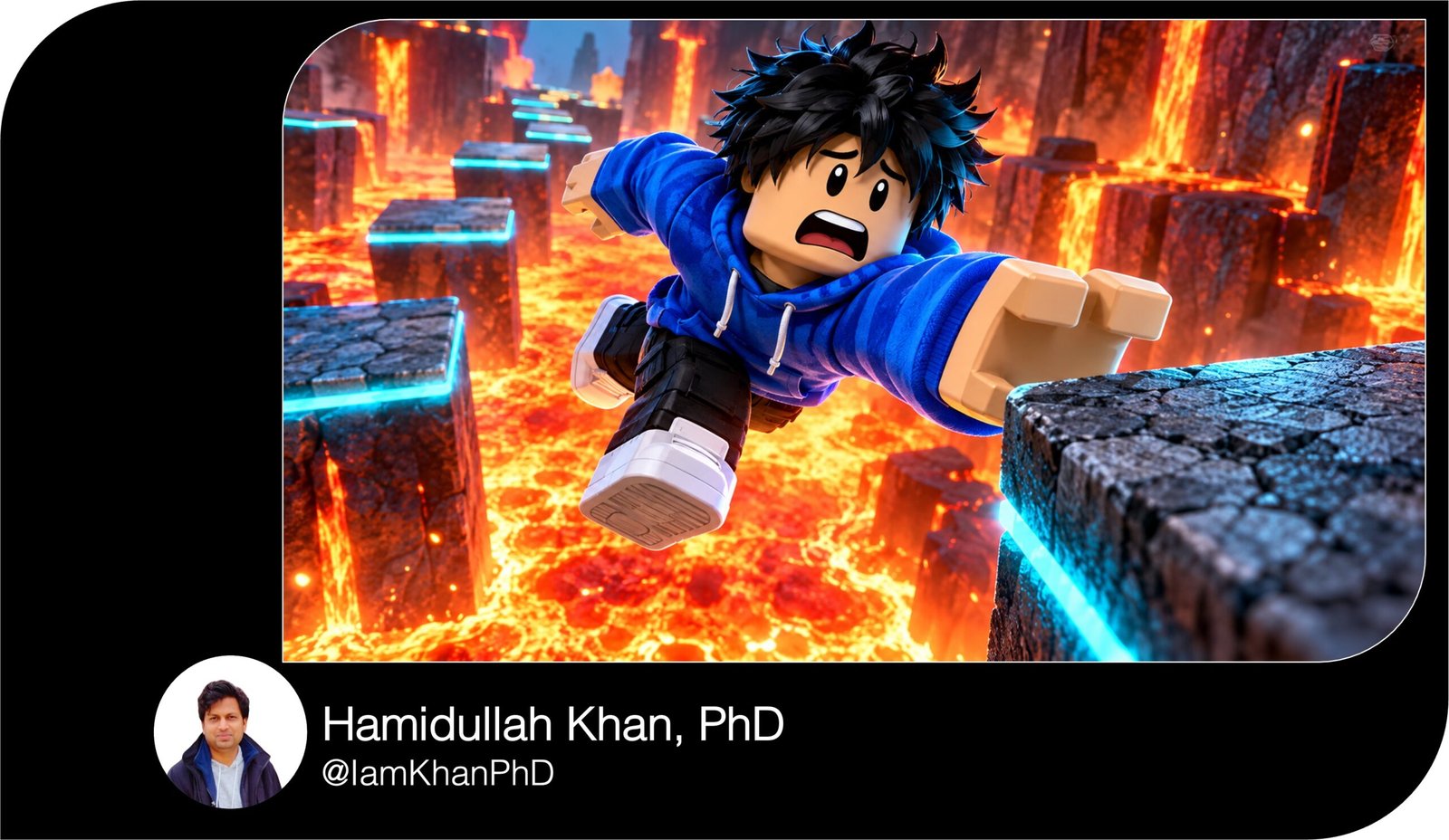
1. Impossible Obby: The Last Jump
Prompt
Create a 16:9 landscape thumbnail for a Roblox obstacle-course video. Show one blocky Roblox avatar with [AVATAR APPEARANCE] frozen mid-jump between two platforms above [HAZARD]. Place the avatar on the right half, large enough that its face and outfit are recognizable at small size. Its expression is determined but alarmed; its arms reach toward the next platform. Make the landing platform visibly narrow, with a clear gap beneath the avatar. Use a low camera angle and a diagonal trail of platforms leading into the distance. Keep [COURSE COLORS] on the platforms and use a contrasting background so the avatar stands out. Add bright edge lighting, crisp 3D surfaces, and a few sparks around the hazard. Reserve the upper-left quarter as a simple dark area for a headline. Keep the jump and landing point unobstructed. No text, logos, interface elements, watermarks, extra limbs, or extra foreground characters.
Example edits
- [AVATAR APPEARANCE]: Black spiky hair, blue hoodie, white shoes.
- [HAZARD]: Glowing orange lava.
- [COURSE COLORS]: Purple and cyan.
Suggested headline: ONE LAST JUMP!
2. Horror Escape: Something Is Behind Me
Prompt
Create a 16:9 landscape thumbnail for a Roblox horror escape video set in [LOCATION]. Put one blocky Roblox avatar wearing [AVATAR OUTFIT] in the left foreground, shown from the waist up, looking over its shoulder with a frightened expression. In the right background, reveal [MONSTER DESCRIPTION] emerging from a doorway. Make the monster’s silhouette clear while keeping the avatar brighter and sharper. Place a flashlight in the avatar’s hand, with its beam pointing toward the doorway to connect the two subjects visually. Use cool blue shadows, a red light behind the monster, and light fog near the floor. Include only two or three background details, such as a broken lamp and a tilted door. Leave the upper-center area uncluttered for a short headline. Use polished Roblox-style 3D graphics and readable faces. Keep the scene spooky and suitable for a general gaming audience, without blood or gore. No text, logos, watermarks, interface elements, or malformed hands.
Example edits
- [LOCATION]: Abandoned hotel corridor.
- [AVATAR OUTFIT]: Yellow jacket and black backpack.
- [MONSTER DESCRIPTION]: Tall shadow creature with two glowing white eyes.
Suggested headline: DON’T TURN AROUND!
3. Rare Pet Reveal: The Egg Finally Opens
Prompt
Create a 16:9 landscape thumbnail for a Roblox pet-hatching video. Make [PET DESCRIPTION] the main focal point in the center-right, emerging from a cracked [EGG DESIGN]. The pet should have a distinct silhouette, expressive eyes, and a friendly Roblox-style 3D appearance. Place one blocky avatar with [AVATAR APPEARANCE] in the left foreground, reacting with wide eyes and hands raised near its face. Make the pet slightly larger than the avatar’s head so viewers immediately understand the reveal. Use a bright burst of [GLOW COLOR] behind the pet, with a small number of sparkles and eggshell pieces surrounding it. Set the scene in a softly blurred hatching room; keep background pets and shop signs out of view. Reserve the upper-left area above the avatar for a headline. Use clean lighting and strong separation between the pet, egg, and background. No text, rarity labels, invented game statistics, logos, watermarks, extra pets, or interface elements.
Example edits
- [PET DESCRIPTION]: Tiny golden dragon with blue wings.
- [EGG DESIGN]: White egg with gold stars.
- [AVATAR APPEARANCE]: Pink hair and a white hoodie.
- [GLOW COLOR]: Warm gold.
Suggested headline: I FINALLY HATCHED IT!
4. Tycoon Upgrade: Starter Base to Mega Factory
Prompt
Create a 16:9 landscape thumbnail showing a Roblox tycoon transformation. Divide the scene diagonally into two connected halves. On the left, show [STARTER BASE] using muted colors and simple blocky construction. On the right, show [UPGRADED BASE] with taller structures, glowing machinery, and [UPGRADE COLORS]. Keep both bases at a matching camera angle so the improvement is easy to compare. Put one Roblox avatar wearing [AVATAR OUTFIT] near the bottom-center divider, gesturing toward the upgraded side with an excited expression. Use a clear visual progression from a small conveyor belt on the left to several organized production lines on the right. Keep foreground machinery simple enough to read at small size. Leave a clean strip across the upper portion for a headline. Use crisp stylized 3D rendering and brighter lighting on the upgraded base. No text, money amounts, currency symbols, logos, watermarks, interface elements, or duplicate avatars.
Example edits
- [STARTER BASE]: Wooden shed with one conveyor.
- [UPGRADED BASE]: Futuristic three-story robot factory.
- [UPGRADE COLORS]: Cyan and orange.
- [AVATAR OUTFIT]: Red jacket and black trousers.
Suggested headline: STARTER TO MEGA!
5. Roleplay Story: The Secret Room
Prompt
Create a 16:9 landscape thumbnail for a Roblox roleplay video about discovering a hidden room in [BUILDING TYPE]. Place one blocky avatar with [AVATAR APPEARANCE] on the left, shown from the waist up, pulling open [HIDDEN ENTRANCE]. On the right, reveal a compact secret room containing [ROOM FEATURE]. Make the avatar’s surprised face, the opening, and the main room feature the three clearly readable elements. Use warm everyday lighting outside the room and a contrasting [SECRET LIGHT COLOR] glow inside it. Frame the scene at the avatar’s eye level so viewers feel they are discovering the room together. Keep furniture outside the secret room minimal and slightly blurred. Add a narrow beam of light spilling through the entrance. Leave the upper-left corner above the avatar clear for a headline. Render polished Roblox-style 3D graphics. No text, game logos, fake interface buttons, watermarks, extra people, or clutter covering the entrance.
Example edits
- [BUILDING TYPE]: Modern suburban house.
- [AVATAR APPEARANCE]: Brown hair, green shirt, blue jeans.
- [HIDDEN ENTRANCE]: Bookshelf door.
- [ROOM FEATURE]: Glowing arcade setup.
- [SECRET LIGHT COLOR]: Purple.
Suggested headline: A ROOM BEHIND THIS?
6. Boss Battle: One Player, Giant Enemy
Prompt
Create a 16:9 landscape thumbnail for a Roblox boss-battle video. Place one blocky player avatar with [AVATAR APPEARANCE] in the lower-left foreground, facing [BOSS DESCRIPTION] on the right. Make the boss about three times the avatar’s visible height while keeping both silhouettes readable. Show the avatar preparing [PLAYER ABILITY], with one clear stream of energy aimed toward the boss. Capture the moment just before impact, rather than filling the scene with explosions. Set the battle in [ARENA], using a low camera angle, cracked ground, and a few floating debris pieces. Give the player’s ability [ABILITY COLOR] lighting and the boss a contrasting edge light. Leave a simple dark area at the upper-left for a headline. Keep the avatar’s face visible in a three-quarter view. Use sharp Roblox-style 3D rendering with strong depth. No text, health bars, damage numbers, logos, watermarks, extra fighters, gore, or tangled limbs.
Example edits
- [AVATAR APPEARANCE]: White hair and a black coat.
- [BOSS DESCRIPTION]: Giant stone guardian with orange cracks.
- [PLAYER ABILITY]: Glowing ice blast.
- [ARENA]: Ruined temple courtyard.
- [ABILITY COLOR]: Cyan.
Suggested headline: CAN I BEAT THIS?
7. Racing Finish: A Photo-Finish Showdown
Prompt
Create a 16:9 landscape thumbnail for a Roblox racing video featuring a close finish. Show exactly two cars: the player’s [PLAYER CAR] in the left foreground and [RIVAL CAR] slightly behind on the right. Angle both toward the viewer as they cross a black-and-white finish line. Make the player’s car larger through perspective and show a blocky Roblox driver wearing [DRIVER ACCESSORY] through its windshield. Set the race on [TRACK SETTING]. Use a camera just above road level, with motion blur on the road and distant scenery but crisp car bodies. Add a few tire sparks and a clear light trail behind each car. Use [ACCENT COLOR] to highlight the player’s car against the background. Leave the upper-left sky area simple for a headline. Keep the finish line visible and the cars separated. No text, real car badges, race positions, speed displays, watermarks, extra vehicles, or distorted wheels.
Example edits
- [PLAYER CAR]: Lime-green blocky sports car.
- [RIVAL CAR]: Black car with red stripes.
- [DRIVER ACCESSORY]: White racing helmet.
- [TRACK SETTING]: Neon city at night.
- [ACCENT COLOR]: Electric green.
Suggested headline: WON BY THIS MUCH!
8. Hidden Item Hunt: The Clue Everyone Missed
Prompt
Create a 16:9 landscape thumbnail for a Roblox hidden-item hunt. Set the scene in [MAP LOCATION] and place one blocky avatar with [AVATAR APPEARANCE] on the left, leaning forward and pointing toward [HIDDEN ITEM] on the right. Put the item inside [HIDING PLACE], partly concealed but still recognizable at thumbnail size. Make the avatar’s gaze and pointing arm lead directly to it. Give the item a restrained [ITEM GLOW COLOR] glow so it stands out without washing out its shape. Keep the location recognizable through two simple environmental details, with the rest softly blurred. Use a close camera framing to emphasize the discovery instead of showing the entire map. Reserve a clean upper-left area for a headline. Use bright, crisp Roblox-style 3D graphics and a curious expression on the avatar. No text, reward amounts, fake game labels, logos, watermarks, interface elements, extra items, arrows, or circles; keep room around the item for optional editor annotations.
Example edits
- [MAP LOCATION]: Forest cave entrance.
- [AVATAR APPEARANCE]: Orange beanie and navy hoodie.
- [HIDDEN ITEM]: Glowing crystal key.
- [HIDING PLACE]: Gap behind a mossy rock.
- [ITEM GLOW COLOR]: Turquoise.
Suggested headline: HIDDEN RIGHT HERE!
9. Avatar Makeover: Before and After
Prompt
Create a 16:9 landscape thumbnail for a Roblox avatar makeover video. Show two versions of the same avatar side by side, using matching blocky body proportions, face design, and camera angle. On the left, use [STARTER LOOK]; on the right, use [UPGRADED LOOK]. Show both avatars from the knees upward, with enough separation that every important accessory is visible. Give the left avatar a relaxed neutral pose and the right avatar a confident pose with one hand on its hip. Use a simple split background: [LEFT BACKGROUND COLOR] behind the starter look and [RIGHT BACKGROUND COLOR] behind the upgraded look. Light both clearly, adding a soft glow behind the upgraded version. Keep outfit textures crisp and the surrounding scene free of furniture or props. Leave a clean band across the top for labels added later. No text, prices, currency symbols, brand logos, watermarks, interface elements, extra characters, or altered faces between the two versions.
Example edits
- [STARTER LOOK]: Plain gray shirt, blue trousers, short brown hair.
- [UPGRADED LOOK]: Purple jacket, black cargo trousers, silver headphones.
- [LEFT BACKGROUND COLOR]: Pale gray.
- [RIGHT BACKGROUND COLOR]: Deep violet.
Suggested headline: MY AVATAR UPGRADE!
10. Noob vs. Pro: Same Challenge, Different Skill
Prompt
Create a 16:9 landscape thumbnail comparing a beginner and an experienced player attempting the same Roblox [CHALLENGE]. Divide the image into two equal vertical panels with matching obstacle designs and camera angles. In the left panel, show a blocky avatar wearing [BEGINNER OUTFIT] losing balance at [DIFFICULT SECTION], with a startled expression. In the right panel, show a blocky avatar wearing [PRO OUTFIT] successfully clearing that same section, with a focused expression. Make the contrast understandable through posture and progress; do not rely on written labels. Use [BEGINNER COLOR] for the left environment and [PRO COLOR] for the right, while keeping both scenes equally sharp. Include only the obstacles needed to explain the moment. Leave the upper fifth of each panel uncluttered for labels added afterward. Use vivid Roblox-style 3D rendering and readable faces. No text, scoreboards, fake rankings, logos, watermarks, extra players, or malformed limbs.
Example edits
- [CHALLENGE]: Spinning-beam obstacle course.
- [DIFFICULT SECTION]: Narrow beam above water.
- [BEGINNER OUTFIT]: Yellow shirt and blue trousers.
- [PRO OUTFIT]: Black outfit with cyan trim.
- [BEGINNER COLOR]: Warm orange.
- [PRO COLOR]: Cool blue.
Suggested headline: NOOB VS PRO
About author






Add comment