
10 AI Prompts for Eye-Catching Roblox Thumbnails
Create eye-catching Roblox thumbnails with 10 detailed, editable AI image prompts. Customize avatars, outfits, settings, lighting, and headline ideas for obby challenges, horror videos, pet reveals, racing, tycoons, and more. Designed for beginners who want a clear starting point for their thumbnail designs.
What this prompt pack does
- Provides 10 distinct thumbnail scenes with specific character placement, backgrounds, lighting, and visual effects.
- Lets you personalize each concept by replacing simple placeholders with your own video details.
- Creates a thumbnail image with space for a headline you can add in your preferred editor.
Tips for this prompt
- Use an avatar reference image when supported, and describe the outfit and accessories you want to keep.
- Choose the prompt that matches your video’s main moment, then focus on one clear action or reveal.
- Add a short headline afterward and preview the thumbnail at a small size to check readability.
How to use the prompt
- Copy one prompt and replace every [square-bracketed placeholder] with your chosen details.
- Paste it into your AI image tool, attach an optional avatar reference, and select a widescreen 16:9 image.
- Generate your image, adjust any details that need improvement, and add your headline before exporting.
10 AI Custom Roblox Thumbnail Generator Prompts
Create thumbnails for Roblox obstacle courses, horror adventures, pet reveals, tycoons, racing videos, and more.
Customize your prompts: Replace anything inside [square brackets] with your own details. If your image tool supports reference images, upload a screenshot of your Roblox avatar to help preserve its appearance. These prompts leave space for a headline you can add afterward.
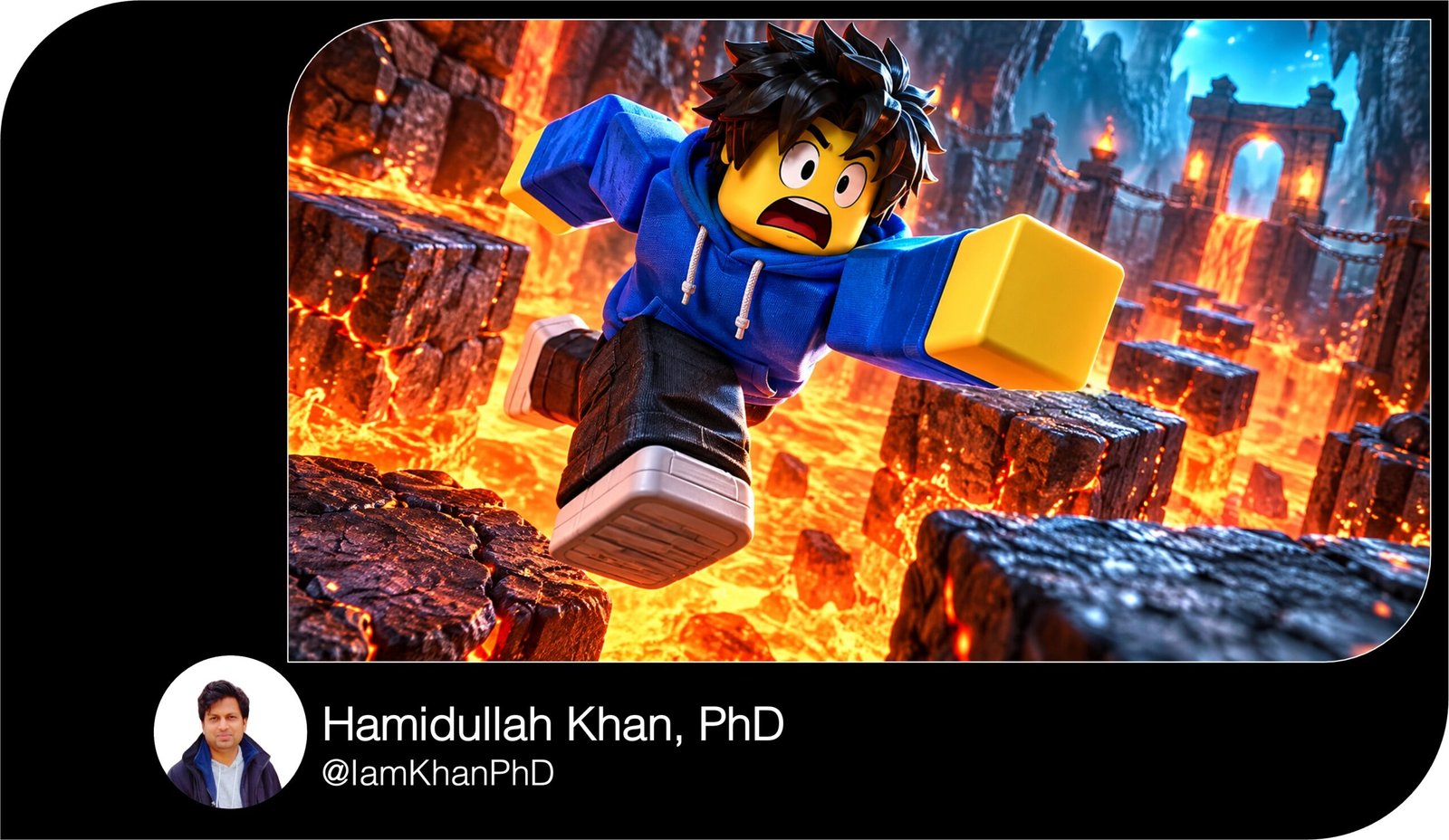
1. The Impossible Obby Jump
Create a widescreen 16:9 YouTube thumbnail for a Roblox video about [OBBY NAME OR CHALLENGE]. Show my Roblox avatar wearing [OUTFIT AND ACCESSORIES], frozen mid-jump between two floating platforms above a glowing lava pit. Place the avatar slightly right of center, large enough to clearly see its blocky face, with a shocked expression and arms stretched toward the next platform. Use a low camera angle so the gap looks enormous. The starting platform should appear at the bottom left, while the tiny landing platform sits at the right edge. Add orange lava light beneath the avatar and cool blue light around its outline. Include a few sparks and distant platforms, keeping the scene uncluttered. Leave the upper-left area clear for [SHORT HEADLINE, SUCH AS “IMPOSSIBLE JUMP!”]. Use crisp, colorful 3D game artwork. Do not generate text, logos, watermarks, or extra limbs.
2. Roblox Horror: Something Is Behind Me
Create a 16:9 Roblox horror thumbnail set inside [LOCATION: ABANDONED SCHOOL, DARK HOTEL, OR UNDERGROUND LAB]. Place my avatar, wearing [AVATAR OUTFIT], in the foreground on the left, holding a flashlight and looking back with a frightened expression. Behind the avatar, on the right, show [MONSTER DESCRIPTION] emerging from a doorway. Make the monster’s [EYE COLOR] eyes the brightest detail in the background. Use a close camera view, with the avatar’s head and upper body clearly visible. The flashlight beam should cut diagonally through light fog and reveal part of the monster. Use deep navy shadows, cold teal light, and a small red warning light near the doorway. Keep the scare suspenseful and suitable for a general audience, with no blood or gore. Leave the top center clear for [HEADLINE, SUCH AS “DON’T TURN AROUND!”]. Do not render text or watermarks.
3. The Rare Pet Reveal
Create a bright 16:9 Roblox pet-hatching thumbnail featuring [PET TYPE: CRYSTAL DRAGON, GOLDEN CAT, OR RAINBOW PHOENIX]. Place a cracked [EGG COLOR AND PATTERN] egg at the lower center, with the pet floating just above it. Make the pet the main focal point, with clearly visible eyes, a friendly expression, and a distinctive [FEATURE: CRYSTAL WINGS, GOLDEN HORNS, OR RAINBOW TAIL]. Position my Roblox avatar in [OUTFIT] on the right, reacting with wide eyes and raised hands. Use a colorful [SETTING: PET NURSERY, MAGICAL GARDEN, OR HATCHING ROOM] with softly blurred background props. Add a golden burst of light behind the pet, a few sparkles, and small eggshell pieces. Keep the pet’s silhouette easy to recognize at a small size. Leave the upper-left corner clear for [HEADLINE, SUCH AS “I HATCHED THIS!”]. No generated text, duplicate pets, logos, or watermarks.
4. From Empty Plot to Mega Tycoon
Create a 16:9 Roblox tycoon thumbnail showing a dramatic before-and-after transformation for [TYCOON THEME: RESTAURANT, FACTORY, MANSION, OR THEME PARK]. Divide the image into two connected halves with a diagonal boundary. On the left, show an empty plot with one small starter building, dull lighting, and only [STARTER ITEM]. On the right, show a huge upgraded [BUSINESS OR BUILDING] with [THREE DISTINCT UPGRADES], bright windows, and polished details. Place the same Roblox avatar wearing [OUTFIT] near the center, celebrating and pointing toward the upgraded side. Keep the avatar’s appearance consistent across the scene. Use muted gray-blue colors on the starter side and rich gold, green, and blue on the upgraded side. Make both stages readable without adding numbers or interface panels. Leave the top clear for [HEADLINE, SUCH AS “STARTER TO MEGA!”]. No rendered text, logos, or watermarks.
5. The Final 1v1 Showdown
Create a dynamic 16:9 Roblox thumbnail for a [GAME OR CHALLENGE NAME] 1v1 showdown. Put my avatar in [OUTFIT AND MAIN COLOR] on the left and the rival avatar in [RIVAL OUTFIT AND COLOR] on the right. Both characters should face inward, with determined expressions and clearly separated silhouettes. Give each character [GAME-APPROPRIATE EQUIPMENT: FOAM BLASTER, ENERGY SWORD, OR BOXING GLOVES]. Place them in a [ARENA DESCRIPTION], using a low camera angle and close framing. Add a bright energy flash between them to mark the confrontation, without hiding their faces or equipment. Light my avatar with blue highlights and the rival with orange highlights. Blur distant spectators or arena structures so the two players remain the focus. Leave a clear strip across the top for [HEADLINE, SUCH AS “FINAL SHOWDOWN!”]. Keep the action non-graphic. No generated text, scoreboards, logos, or watermarks.
6. The Last-Second Racing Win
Create a 16:9 Roblox racing thumbnail showing my [CAR TYPE AND COLOR] barely ahead of a rival’s [RIVAL CAR TYPE AND COLOR] near a finish-line arch. Use a low front three-quarter camera angle, with my car dominating the lower-left foreground and the rival close behind on the right. Show my Roblox avatar wearing [OUTFIT] clearly through the windshield or in an open cockpit. Set the race on [TRACK: NEON CITY, DESERT HIGHWAY, OR MOUNTAIN CIRCUIT]. Keep the cars and avatar sharp while adding motion blur to the road and distant scenery. Include tire smoke, a few sparks, and dramatic [SUNSET OR NIGHT] lighting. Make the finish-line arch visible in the upper-right background, with a simple checkered pattern and no lettering. Leave the upper-left area clear for [HEADLINE, SUCH AS “WON BY THIS MUCH!”]. No generated text, distorted wheels, logos, or watermarks.
7. I Found a Secret Room
Create a 16:9 Roblox discovery thumbnail inside [MAP LOCATION: CASTLE, SCHOOL, CITY HOUSE, OR SPACE STATION]. Show my Roblox avatar wearing [OUTFIT] on the left, pulling open a hidden door disguised as [BOOKSHELF, WALL PANEL, OR FLOOR HATCH]. On the right, reveal a secret room containing [MAIN DISCOVERY: GLOWING PORTAL, TREASURE CHEST, OR MYSTERY MACHINE]. Use an over-the-shoulder camera angle that still shows the avatar’s surprised face in profile. The ordinary room should have subdued, warm lighting, while the secret room casts vivid [PURPLE, GREEN, OR GOLD] light onto the avatar and doorway. Make the hidden entrance and main discovery immediately recognizable. Include only two or three supporting objects inside the secret room. Leave the top-left area clear for [HEADLINE, SUCH AS “SECRET ROOM FOUND!”]. No rendered text, interface elements, logos, or watermarks.
8. The Floor Is Lava Challenge
Create a high-energy 16:9 Roblox thumbnail for a floor-is-lava challenge in [SETTING: CLASSROOM, SHOPPING MALL, OR LIVING ROOM]. Place my avatar in [OUTFIT] at the center, balancing on a tiny [SAFE OBJECT: DESK, SOFA ARM, OR WOODEN CRATE] surrounded by glowing lava. Show two smaller avatars in the background jumping between raised objects, keeping my avatar as the clear main subject. Use a slightly elevated camera angle so viewers can understand the shrinking safe space. Give my avatar a panicked expression, with one foot slipping toward the edge and both arms reaching for balance. Use intense orange light from the lava and cooler blue light from windows above. Add a few floating embers, avoiding heavy smoke that hides the action. Leave the upper-right area clear for [HEADLINE, SUCH AS “ONE SAFE SPOT!”]. No generated text, injury, logos, or watermarks.
9. My Avatar’s Biggest Makeover
Create a polished 16:9 Roblox avatar makeover thumbnail with two versions of the same character standing side by side. On the left, show the original avatar wearing [STARTER OUTFIT, HAIR, AND ACCESSORIES]. On the right, show the upgraded avatar wearing [NEW OUTFIT, HAIRSTYLE, AND ACCESSORIES]. Preserve the same face and skin tone so the transformation feels consistent. Make the upgraded version slightly larger, striking a confident pose, while the original version looks surprised. Use a simple studio background transitioning from [MUTED COLOR] on the left to [BRIGHT COLOR] on the right. Add soft spotlights and a subtle glow around the upgraded outfit, with enough detail to distinguish each accessory. Keep both full-body silhouettes visible and separated. Leave the top center clear for [HEADLINE, SUCH AS “MY BIGGEST GLOW-UP!”]. No rendered text, additional characters, logos, or watermarks.
10. Tiny Player vs. Giant Boss
Create an epic 16:9 Roblox boss-battle thumbnail featuring my avatar in [OUTFIT] confronting [BOSS DESCRIPTION: GIANT STONE GOLEM, ROBOT KING, OR ICE DRAGON] inside [ARENA LOCATION]. Place my avatar in the lower-left foreground, holding [GAME-APPROPRIATE ITEM] and looking upward. The boss should dominate the right side, with its head, glowing eyes, and one massive hand or claw clearly visible. Use a low camera angle to emphasize the difference in size. Show the boss preparing [ATTACK: ENERGY BLAST, GROUND SLAM, OR ICE BREATH], with the effect beginning but not covering either character. Use [BOSS COLOR] lighting around the boss and a contrasting [AVATAR HIGHLIGHT COLOR] outline around my avatar. Add a few cracked floor tiles and floating particles. Leave the upper-left area clear for [HEADLINE, SUCH AS “CAN I BEAT THIS?”]. Keep the action non-graphic. No generated text, health bars, logos, or watermarks.

About author









Add comment