
10 Custom AI Prompts for Roblox YouTube Thumbnails
Create eye-catching Roblox YouTube thumbnail images with 10 detailed, editable AI prompts. This beginner-friendly prompt pack covers obby challenges, horror escapes, rare pet reveals, tycoon transformations, boss battles, and more. Customize the avatars, settings, colors, and featured items to match your videos. Includes suggested headlines and clear space for adding your own text.
What This Prompt Pack Does
- Gives you 10 distinct Roblox thumbnail concepts with specific compositions, character poses, lighting, and backgrounds.
- Lets you personalize each image by editing clearly marked fields for outfits, objects, locations, and colors.
- Creates thumbnail artwork with space for a short headline, making it easier to finish your design in an image editor.
Tips for This Prompt Pack
- Match the scene, featured item, and headline to something viewers will actually see in your video.
- If your image tool supports reference uploads, attach a clear screenshot of your avatar and ask it to match the outfit and appearance.
- Add headline text afterward, then preview the thumbnail at a small size to check that the face, main object, and words remain easy to see.
How to Use the Prompt Pack
- Choose the concept that fits your video and replace the bracketed fields with your own details.
- Paste the edited prompt into an AI image tool and choose a horizontal 16:9 image format when available.
- Generate the image, add your headline in an image editor, and export the finished thumbnail at 1280 × 720 pixels.
10 Editable AI Prompts for Roblox YouTube Thumbnails
Create thumbnails for Roblox obstacle courses, horror games, pet reveals, tycoons, challenges, and more.
Customize your prompt: Replace each bracketed field with your own details. For example, change [OUTFIT: a red hoodie and black pants] to a blue jacket and white pants. Keep the suggested details if you want a ready-to-use starting point.
Each prompt leaves room for a headline you can add afterward in your image editor.
1. Impossible Obby Challenge
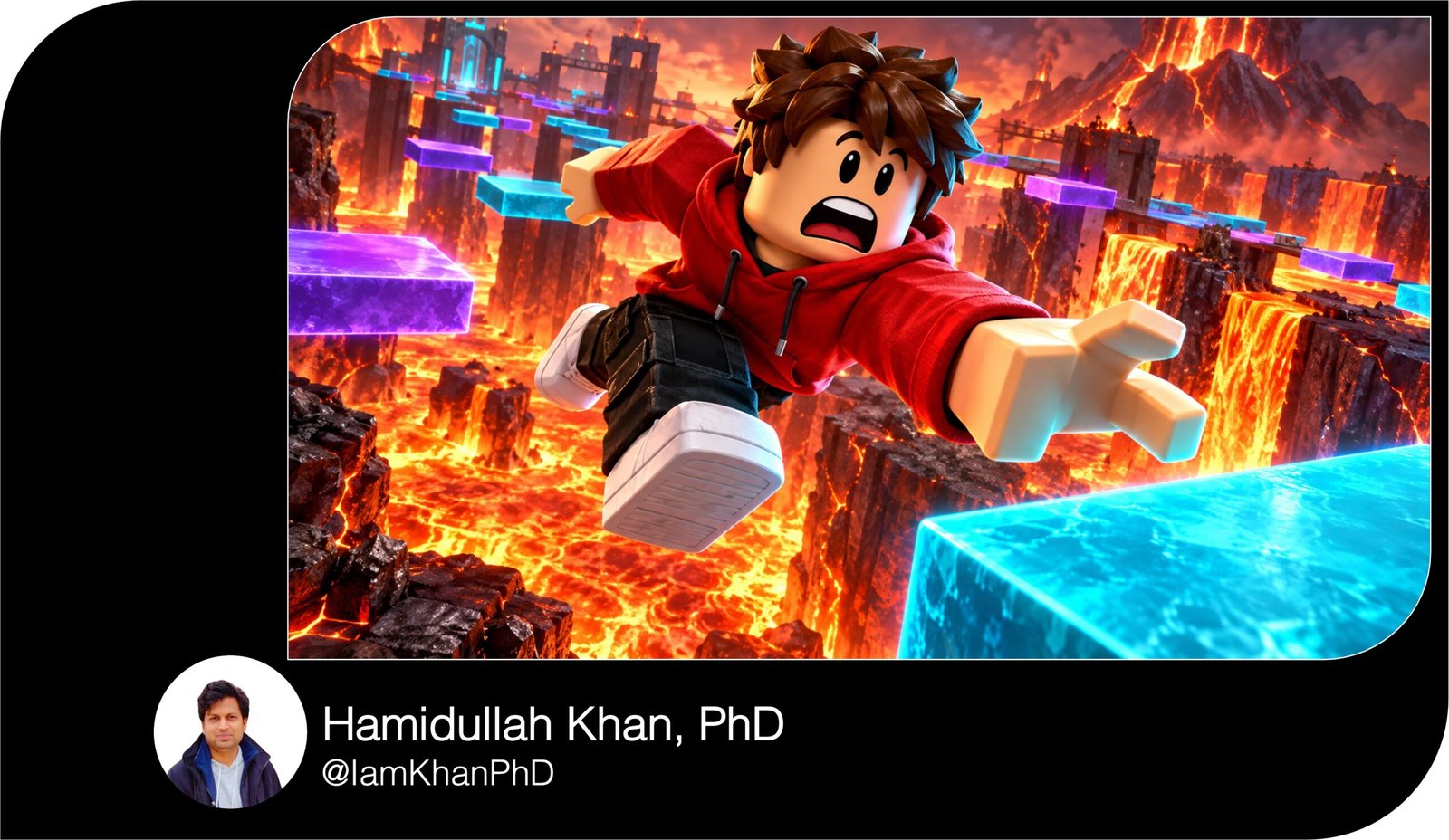
Create a Roblox YouTube thumbnail in a horizontal 16:9 layout, designed for 1280 × 720 pixels. Show one blocky Roblox avatar wearing [OUTFIT: a red hoodie, black pants, and white sneakers], frozen halfway through a desperate jump between two floating platforms. Position the avatar in the right half of the image, with arms stretched forward and a shocked facial expression.
Below the avatar, show [DANGER: glowing orange lava]. Place a broken platform behind them and a small safe landing platform just beyond their fingertips. Build the obstacle course from [PLATFORM COLORS: purple and cyan] blocks, with a distant finish flag in the upper-right background.
Use a close camera angle, dramatic perspective, bright lighting on the avatar, and warm lava light from below. Make the missed landing feel possible, with a clearly visible gap. Keep distant obstacles simple and slightly blurred.
Leave the upper-left quarter uncluttered for a headline. Use polished Roblox-style 3D game graphics, bold contrast, and crisp character edges. Do not generate text, watermarks, or extra characters.
Suggested headline: “IMPOSSIBLE JUMP!”
2. Noob vs. Pro Transformation
Create a Roblox YouTube thumbnail in a horizontal 16:9 layout, designed for 1280 × 720 pixels. Divide the image into two contrasting halves with a bright diagonal separator.
On the left, show a beginner Roblox avatar wearing [BEGINNER OUTFIT: a plain green shirt and blue pants], holding [STARTER ITEM: a small wooden sword]. Give the avatar a confused expression and place them in [BEGINNER LOCATION: a basic training area with one wooden dummy]. Use muted gray-blue lighting.
On the right, show the same avatar after upgrading, wearing [PRO OUTFIT: black armor with glowing gold trim], holding [UPGRADED ITEM: a large crystal sword]. Give them a confident pose, with the weapon angled toward the center. Place them in [PRO LOCATION: a glowing castle arena], using rich gold lighting and a few controlled spark effects.
Keep both avatars approximately the same size so the transformation is easy to compare. Show only the most important equipment differences. Leave a clear strip across the top for a headline. Use polished Roblox-style 3D graphics. Do not generate text or watermarks.
Suggested headline: “NOOB TO PRO”
3. Roblox Horror Escape
Create a Roblox horror-game YouTube thumbnail in a horizontal 16:9 layout, designed for 1280 × 720 pixels. Place a frightened blocky Roblox avatar wearing [OUTFIT: a yellow jacket and dark pants] in the foreground on the right. Show the avatar looking backward while gripping [PROP: a small flashlight].
Behind them, reveal [MONSTER: a tall shadow creature with glowing white eyes] emerging from [LOCATION: a dark hotel doorway]. Make the creature large enough to recognize instantly, but show only its head, shoulders, and one hand reaching around the doorframe.
Use cool blue corridor lighting, a narrow warm flashlight beam, and a red emergency light behind the monster. Keep the avatar’s face brightly lit and readable. Add slight motion blur to the background while keeping the face and monster’s eyes sharp.
Frame the scene tightly so the danger and reaction are immediately clear. Create suspense without blood or graphic injury. Leave the upper-left area dark and uncluttered for a headline. Use Roblox-style 3D graphics. Do not generate text, watermarks, or additional monsters.
Suggested headline: “DON’T LOOK BACK!”
4. Rare Pet Reveal
Create a Roblox pet-hatching YouTube thumbnail in a horizontal 16:9 layout, designed for 1280 × 720 pixels. Place one enormous [EGG DESIGN: purple egg with gold stars] near the center-right. Show the egg splitting open, with bright golden light escaping through the cracks.
Reveal one [RARE PET: tiny winged dragon with turquoise scales and oversized sparkling eyes] rising above the shell. Make the pet’s face fully visible and its silhouette easy to recognize. Position a blocky Roblox avatar wearing [OUTFIT: a white hoodie and purple headphones] in the lower-left foreground, looking toward the pet with wide eyes and raised hands.
Use [BACKGROUND: a colorful pet nursery] with softly blurred details. Add a small number of large sparkles around the pet, keeping the face clear. Use purple shadows and warm gold highlights to emphasize the reveal.
Make the pet and egg the main focus, with the avatar supporting the reaction. Leave the upper-left area clear for a headline. Use glossy Roblox-style 3D graphics. Do not generate text, rarity labels, watermarks, or extra pets.
Suggested headline: “I HATCHED THIS!”
5. Tiny Tycoon to Mega Empire
Create a Roblox tycoon YouTube thumbnail in a horizontal 16:9 layout, designed for 1280 × 720 pixels. Show a dramatic before-and-after view of [BUSINESS TYPE: a candy factory].
Use the left third for the starting business: one small machine, a short conveyor belt, and an almost empty building plot. Use the right two-thirds for the completed empire: a large colorful factory, stacked production floors, glowing conveyor belts, and [MAIN UPGRADE: a giant golden candy-making machine].
Place one Roblox avatar wearing [OUTFIT: a blue suit and gold sunglasses] near the lower center, gesturing toward the upgraded factory. Make the avatar large enough for the confident expression to remain visible.
Use dull, cool lighting on the starting area and bright, warm lighting on the completed factory. Keep the upgraded building’s silhouette clear instead of filling it with tiny machinery. Add one bold curved arrow connecting the small factory to the large one.
Leave open sky across the top-left for a headline. Use polished Roblox-style 3D graphics. Do not generate text, currency amounts, watermarks, or extra avatars.
Suggested headline: “TINY TO MEGA!”
6. Rising Lava Survival
Create a Roblox survival-challenge YouTube thumbnail in a horizontal 16:9 layout, designed for 1280 × 720 pixels. Show one blocky Roblox avatar wearing [OUTFIT: a lime-green hoodie and black shorts] balancing on the highest remaining [SAFE OBJECT: a narrow stone pillar].
Fill the lower half of the scene with [THREAT: rapidly rising orange lava]. Show partially submerged platforms behind the avatar to make the rising danger clear. Place one final safe platform in the upper-right background, close enough to suggest a difficult escape jump.
Use a low camera angle looking upward at the avatar. Give them a worried expression, bent knees, and arms spread for balance. Add a strong orange glow beneath their body and cool blue highlights around their head and shoulders.
Keep the avatar, pillar, and lava surface sharply defined. Use only a few embers, leaving the face unobstructed. Leave the upper-left sky clear for a headline. Use vibrant Roblox-style 3D graphics. Do not generate text, timers, watermarks, or extra characters.
Suggested headline: “LAVA IS RISING!”
7. Secret Room Discovery
Create a Roblox mystery-discovery YouTube thumbnail in a horizontal 16:9 layout, designed for 1280 × 720 pixels. Show a blocky Roblox avatar wearing [OUTFIT: a black hoodie and red cap] in the left foreground, turning toward the viewer with a surprised expression while pointing toward a hidden entrance.
Place the entrance in the right half of the image: [SECRET ENTRANCE: a bookshelf sliding sideways to reveal a glowing underground room]. Show enough of the ordinary surroundings to make the hidden doorway believable.
Inside the opening, reveal one main discovery: [SECRET OBJECT: a floating golden crystal above a stone pedestal]. Use vivid cyan light inside the secret room, contrasting with the warm, ordinary lighting outside. Let the cyan glow spill onto the avatar’s pointing hand.
Use a medium-close composition so the avatar’s face, open doorway, and secret object are all readable. Add one red arrow pointing directly at the hidden entrance. Leave the upper-left area clear for a headline. Use crisp Roblox-style 3D graphics. Do not generate text, watermarks, or additional secret objects.
Suggested headline: “SECRET ROOM FOUND!”
8. Giant Boss Battle
Create a Roblox boss-battle YouTube thumbnail in a horizontal 16:9 layout, designed for 1280 × 720 pixels. Place one small Roblox hero wearing [HERO OUTFIT: silver armor and a blue cape] in the lower-left foreground, facing [BOSS: a giant red-eyed stone golem with glowing orange cracks].
Position the boss across the right half of the image, towering over the hero. Make the boss’s face and one raised fist visible. Give the hero [WEAPON: a glowing blue sword], angled upward toward the boss, with the hero’s face shown in three-quarter view.
Set the battle in [ARENA: a ruined stone courtyard]. Use the hero, boss, and broken courtyard stones to create a clear sense of scale. Add a small burst of dust beneath the boss’s fist, but avoid covering either character.
Contrast cool blue light around the hero with warm orange light around the boss. Leave a dark, simple area in the upper-left for a headline. Use cinematic Roblox-style 3D graphics with crisp silhouettes. Do not generate text, health bars, damage numbers, watermarks, or extra fighters.
Suggested headline: “CAN I BEAT IT?”
9. Starter Home to Dream Mansion
Create a Roblox roleplay-building YouTube thumbnail in a horizontal 16:9 layout, designed for 1280 × 720 pixels. Show a clear home transformation using two buildings.
On the left, place [STARTER HOME: a tiny beige house with one window and a plain front door]. On the right, place [DREAM HOME: a modern white mansion with large glass windows, a rooftop terrace, and a blue swimming pool]. Keep the mansion’s main entrance and overall shape visible.
Place a Roblox avatar wearing [OUTFIT: a pink jacket, white pants, and round sunglasses] near the lower center, holding [PROP: a large golden house key] and smiling toward the mansion.
Use soft, muted lighting around the starter home and bright sunset lighting around the mansion. Add one curved arrow leading from the starter home to the mansion. Keep landscaping simple: one tree near the small house and two palms beside the pool.
Leave uncluttered sky across the upper-left for a headline. Use polished Roblox-style 3D graphics. Do not generate text, prices, watermarks, or extra vehicles.
Suggested headline: “MY DREAM HOUSE!”
10. New Update Reveal
Create a Roblox game-update YouTube thumbnail in a horizontal 16:9 layout, designed for 1280 × 720 pixels. Feature [NEW CONTENT: a giant ice dragon] prominently in the right half of the image. Make its defining features clear: [FEATURE DETAILS: translucent blue wings, glowing cyan eyes, and icy spikes along its back].
Place one Roblox avatar wearing [OUTFIT: an orange jacket and blue headphones] in the left foreground. Give the avatar an excited expression and a pointing gesture directed toward the new content.
Set the scene in [NEW LOCATION: a snowy mountain arena with a glowing ice portal]. Keep the environment simple, using the portal and one mountain silhouette to establish the setting. Use bright cyan light around the new content and a warm orange rim light on the avatar for separation.
Frame the dragon closely enough to show its face and wings without cutting off its main features. Add a few snow particles around the outer edges. Leave the upper-left area clear for a headline. Use polished Roblox-style 3D graphics. Do not generate text, update numbers, watermarks, or extra avatars.
Suggested headline: “NEW UPDATE!”


About author









Add comment