
10 AI Thumbnail Prompts for “Roblox Thumbnails Not Loading” Videos
Create thumbnails for videos about Roblox thumbnails not loading with 10 detailed, editable AI image prompts. Customize avatars, headlines, colors, and layouts to produce loading-spinner scenes, missing-image designs, and troubleshooting comparisons. Written for beginners using AI image tools.
What this prompt pack does
- Provides 10 distinct thumbnail concepts focused on Roblox thumbnail-loading problems.
- Guides the AI with specific layouts, expressions, interface elements, lighting, and text placement.
- Lets you personalize each design through clearly marked editable placeholders.
Tips for this prompt pack
- Use a headline of three to five words when possible so viewers can read it on mobile.
- Keep your avatar outfit and main colors consistent across your channel’s thumbnails.
- If the AI misspells your headline, generate the image without text and add it in Canva or another editor.
How to use the prompt pack
- Choose a prompt and replace the bracketed details with your own headline, colors, outfit, and game scene.
- Paste the edited prompt into your AI image tool and select a landscape 16:9 format.
- Generate the image, check the text and layout, then export it at 1280 × 720 pixels for your video thumbnail.
Roblox Thumbnails Not Loading: 10 Editable AI Thumbnail Prompts
These prompts create video thumbnails about Roblox game or avatar thumbnails failing to load. Each design uses loading symbols, missing image tiles, or troubleshooting visuals so viewers can recognize the topic quickly.
Editing guide: Replace anything in [square brackets] with your preferred details. Keep headlines short for better readability on mobile.
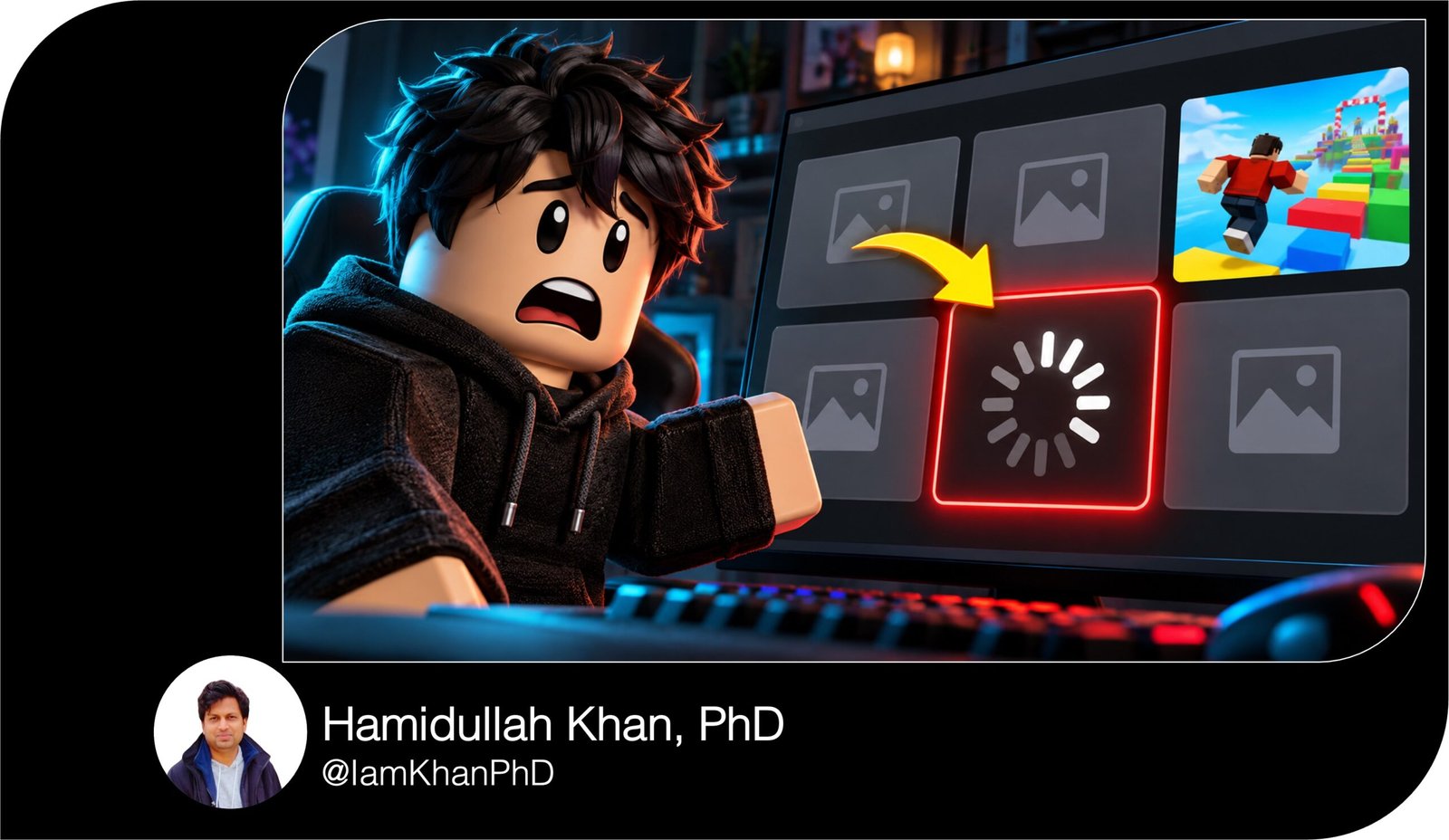
1. Shocked avatar beside missing thumbnails
Create a YouTube thumbnail about Roblox thumbnails not loading, in a 16:9 landscape format at 1280 × 720 pixels.
On the left third, show one Roblox-style blocky avatar wearing [AVATAR OUTFIT: a black hoodie with electric-blue trim]. Give the avatar wide eyes, raised eyebrows, and both hands beside its head in surprise. Angle its body toward the right.
On the right two-thirds, show a simplified game-browsing panel containing six large thumbnail cards arranged in two rows of three. Five cards should be dark gray with recognizable missing-image symbols. One card should contain a bright Roblox-style obstacle course, making the missing cards immediately noticeable.
Place a thick [ARROW COLOR: yellow] arrow pointing toward the center missing thumbnail. Add a red outline around that card.
Use a [BACKGROUND COLOR: deep navy] background with subtle blue light behind the avatar. Add the exact headline “[HEADLINE: WHY WON’T THEY LOAD?]” across the upper area in bold white lettering with a dark outline.
Keep the avatar, missing cards, and headline large. Avoid tiny interface labels, extra characters, watermarks, and decorative clutter.
2. Before-and-after loading comparison
Design a clear before-and-after YouTube thumbnail for a video about Roblox thumbnails not loading. Use a 16:9 canvas at 1280 × 720 pixels.
Divide the image vertically into two equal sections. The left section represents the loading problem: show a simplified Roblox-style browsing grid with four gray image placeholders, a central loading spinner, and dim red lighting. The right section represents the intended loaded appearance: show the same four cards displaying colorful blocky worlds, including [GAME SCENES: an obstacle course, a city, a racing track, and a fantasy island].
Keep the card sizes and positions identical on both sides so the difference is easy to understand.
Add a thick white divider and one curved [ARROW COLOR: yellow] arrow moving from left to right. Label the left side “[LEFT LABEL: NOT LOADING]” and the right side “[RIGHT LABEL: LOADED]” in large uppercase letters.
Place a small Roblox-style avatar wearing [AVATAR OUTFIT: a red jacket] near the bottom center, looking toward the loaded side.
Use strong red-versus-green contrast. Avoid detailed menus, small writing, or claims about a specific repair method.
3. Close-up of a stuck loading spinner
Create a dramatic close-up YouTube thumbnail showing a Roblox thumbnail stuck loading. Use 16:9 framing at 1280 × 720 pixels.
Make one oversized game thumbnail card the main subject, positioned slightly right of center and tilted by approximately five degrees. Inside the card, show a dark gray placeholder with a large white segmented loading spinner. The spinner must remain easy to recognize at small viewing sizes.
Behind the main card, place three smaller empty cards with softly blurred edges to suggest that several thumbnails are affected.
At the lower left, show the upper body of a Roblox-style avatar wearing [AVATAR OUTFIT: a purple sweatshirt]. Give it an impatient expression and have one blocky hand point directly at the spinner.
Use a [COLOR PALETTE: black, purple, and bright yellow] palette. Add a focused glow around the main card, keeping the background simple.
Place the exact headline “[HEADLINE: STILL LOADING?!]” in the upper-left area. Use thick yellow letters with a black outline.
Do not add a percentage counter, tiny error messages, multiple arrows, or extra loading symbols.
4. Mobile and desktop comparison
Generate a YouTube thumbnail for a Roblox troubleshooting video showing thumbnail-loading problems on mobile and desktop. Use a 16:9 layout at 1280 × 720 pixels.
Place a large smartphone on the left and a desktop monitor on the right. Angle both screens slightly toward the viewer. Make the phone large enough that its screen remains readable as a visual at thumbnail size.
Each screen should display a simplified Roblox-style game grid with three or four large gray thumbnail placeholders. Put a single white loading spinner over one card on each screen. Use minimal interface details and no small text.
Between the devices, place a Roblox-style avatar wearing [AVATAR OUTFIT: a green gaming headset and gray shirt]. Show a confused expression, with its arms spread outward.
Use a [BACKGROUND COLOR: dark charcoal] background, blue light behind the phone, and orange light behind the monitor.
Add the headline “[HEADLINE: THUMBNAILS MISSING?]” across the top in bold white letters. Place small, clear labels “[LEFT LABEL: MOBILE]” and “[RIGHT LABEL: PC]” beneath the devices.
Keep both screens unobstructed. Avoid brand logos, detailed browser controls, and unnecessary objects.
5. Refresh-button troubleshooting visual
Create an energetic YouTube thumbnail for a tutorial investigating Roblox thumbnails that will not load. Use a 16:9 canvas at 1280 × 720 pixels.
Place a simplified game-browsing window across the center and right side. Show six thumbnail tiles: four gray placeholders and two colorful Roblox-style game images. Keep the window clean, with only a narrow top bar.
In the upper-right corner of the window, feature an oversized circular refresh-arrow icon inside a [BUTTON COLOR: bright cyan] button. Make it a visual symbol rather than a detailed recreation of an actual interface.
Add a large white mouse cursor hovering over the refresh button. Place one thick yellow arrow from the lower center toward the button.
On the left, show a Roblox-style avatar wearing [AVATAR OUTFIT: a blue jacket], with one raised eyebrow and a focused expression.
Use a dark navy background with cyan edge lighting. Add the exact headline “[HEADLINE: WON’T LOAD? TRY THIS]” above the main window in bold white and yellow text.
Make the refresh icon and blank tiles the main visual clues. Avoid extra buttons, invented error codes, and small instructional text.
6. Investigating a missing thumbnail
Design a detective-themed YouTube thumbnail about investigating Roblox thumbnails not loading. Use 16:9 framing at 1280 × 720 pixels.
On the right, show a large simplified game grid with four gray thumbnail cards and two colorful loaded cards. Place an oversized magnifying glass over one gray card. Inside the lens, enlarge a crisp missing-image symbol so the viewer can immediately see what is being investigated.
On the left, show a Roblox-style blocky avatar wearing [AVATAR OUTFIT: a tan detective coat and dark hat]. Give it a thoughtful expression, with one hand beneath its chin and its gaze directed toward the magnifying glass.
Use a [COLOR PALETTE: midnight blue, warm gold, and white] palette. Add a subtle gold glow around the lens. Keep the background plain enough that the gray cards do not disappear into it.
Place the exact headline “[HEADLINE: WHAT’S CAUSING THIS?]” across the top in heavy white lettering. Emphasize “[EMPHASIZED WORD: THIS]” in gold.
Avoid crime-scene imagery, long captions, tiny menus, watermarks, and extra characters.
7. Waiting for thumbnails to appear
Create a humorous YouTube thumbnail about waiting for Roblox thumbnails to load. Use a 16:9 layout at 1280 × 720 pixels.
Place a large game-browsing panel on the right with six identical gray image placeholders. Put one clearly visible white loading spinner in the middle of the panel.
On the left, show a seated Roblox-style avatar wearing [AVATAR OUTFIT: a red hoodie and black pants]. The avatar should rest its cheek on one hand, with drooping eyelids and an exaggerated bored expression.
Next to the avatar, place a large analog clock with simple hands and no tiny numbers. Use the clock only to suggest waiting; do not display a specific elapsed time.
Use a [BACKGROUND COLOR: dark purple] background. Add a warm spotlight around the avatar and cooler blue lighting around the loading panel.
Add the exact headline “[HEADLINE: LOADING… FOREVER?]” across the top in thick yellow text with a dark outline.
Keep the mood playful and immediately understandable. Avoid additional props, detailed interface text, multiple clocks, or small speech bubbles.
8. “Is Roblox down?” investigation
Generate a YouTube thumbnail for a video asking whether a wider service issue could explain Roblox thumbnails not loading. Use 16:9 dimensions at 1280 × 720 pixels.
Place a large simplified Roblox-style browsing panel in the center. Fill it with six gray thumbnail placeholders and one prominent loading spinner.
Behind the panel, include a subtle network illustration: three simple server-shaped objects connected by glowing lines. Place one oversized orange question mark above the servers. Present this as a visual question, without labeling any server as offline or showing a confirmed outage.
On the lower left, show a Roblox-style avatar wearing [AVATAR OUTFIT: a black shirt and orange headphones]. Give it a concerned expression and have it look toward the question mark.
Use a [COLOR PALETTE: charcoal, orange, and white] palette. Keep the network illustration less prominent than the missing thumbnails.
Add the exact headline “[HEADLINE: IS ROBLOX DOWN?]” across the top in bold white letters, with “[HIGHLIGHT WORD: DOWN]” in orange.
Avoid fabricated status screenshots, dates, outage statistics, and small technical labels.
9. Clean thumbnail without an avatar
Create a clean, highly readable YouTube thumbnail about Roblox thumbnails not loading, with no characters. Use a 16:9 canvas at 1280 × 720 pixels.
Use a [BACKGROUND COLOR: deep navy] background. Position three oversized game thumbnail cards across the lower two-thirds of the image, with generous spacing between them.
The left card should show a gray missing-image symbol. The center card should show a large white loading spinner on a slightly darker gray background. The right card should show a colorful Roblox-style [GAME SCENE: obstacle course with rainbow platforms], demonstrating what a loaded thumbnail looks like.
Give the two problem cards thick red borders. Give the loaded card a thin green border. Keep the images simple and their silhouettes clear.
Place the exact headline “[HEADLINE: ROBLOX THUMBNAILS NOT LOADING?]” across the upper third, using two lines if necessary. Use bold white text and highlight “[HIGHLIGHT WORDS: NOT LOADING]” in yellow.
Add one short curved arrow pointing toward the center card. Avoid logos, characters, extra labels, browser details, and decorative patterns.
10. Digital glitch and missing-image design
Create a bold digital-glitch YouTube thumbnail about Roblox thumbnails failing to appear. Use a 16:9 composition at 1280 × 720 pixels.
On the right, show an oversized game thumbnail card containing a flat gray missing-image placeholder. Add restrained cyan and magenta glitch fragments along the card’s outer edges. Keep the missing-image symbol sharp and recognizable; do not distort the entire card.
Behind it, place three smaller empty thumbnail cards at slightly different angles to suggest a broken browsing experience.
On the left, show a Roblox-style avatar wearing [AVATAR OUTFIT: a white jacket with neon-pink details]. Give it a startled expression and have it reach toward the missing thumbnail.
Use a [BACKGROUND COLOR: near-black] background with a faint digital grid. Add cyan rim lighting around the avatar and a magenta glow behind the cards.
Place the exact headline “[HEADLINE: WHERE DID THEY GO?]” across the upper-left area in thick white text. Add a small red label “[SECONDARY LABEL: NOT LOADING]” beneath the main card.
Avoid excessive distortion, unreadable lettering, fake error codes, and visual clutter.


About author










Add comment