
10 Roblox UGC Thumbnail Prompts You Can Customize
Create eye-catching Roblox UGC promotional thumbnails with 10 detailed, editable AI image prompts. Customize accessory details, colors, backgrounds, layouts, and headlines for item launches, avatar makeovers, comparisons, collection reveals, and tutorials. Includes beginner-friendly instructions and reference-image guidance.
What This Prompt Pack Does
- Helps you generate promotional thumbnails for Roblox UGC accessories, including crowns, hair, hats, visors, wings, and backpacks.
- Provides 10 distinct layouts with specific camera angles, lighting directions, headline areas, and instructions to preserve item details.
- Lets you personalize each concept with your accessory, brand colors, and message.
Tips for This Prompt Pack
- Upload clear item screenshots or renders, and compare the generated result with the real accessory before posting.
- Keep headlines to 2–4 words; for accurate spelling and editable lettering, add your headline in a design editor afterward.
- Check the thumbnail at phone size, then simplify backgrounds or enlarge the item if its shape is hard to recognize.
How to Use the Prompt Pack
- Choose a prompt that matches your post, then replace every bracketed field with your details and preferred aspect ratio.
- Paste it into an AI image tool; upload the references if supported, and select the matching image shape.
- Review item accuracy, request corrections, add your final headline if needed, and export for your chosen platform.
10 Editable AI Thumbnail Prompts for Roblox UGC
Create promotional thumbnails for Roblox UGC—user-generated content—including hats, hair, wings, bags, and accessory collections.
Editing guide: Replace the bracketed fields with your details. For example, change [ITEM NAME: Crystal Crown] to Midnight Crown. The text after each colon gives you a suggested starting value.
Upload a clear screenshot or render whenever a prompt asks for a reference image. Without a reference, treat the generated accessory as a design concept.
For editable headlines: Replace any headline instruction with: “Leave the headline area empty. I will add the text in my design editor.”
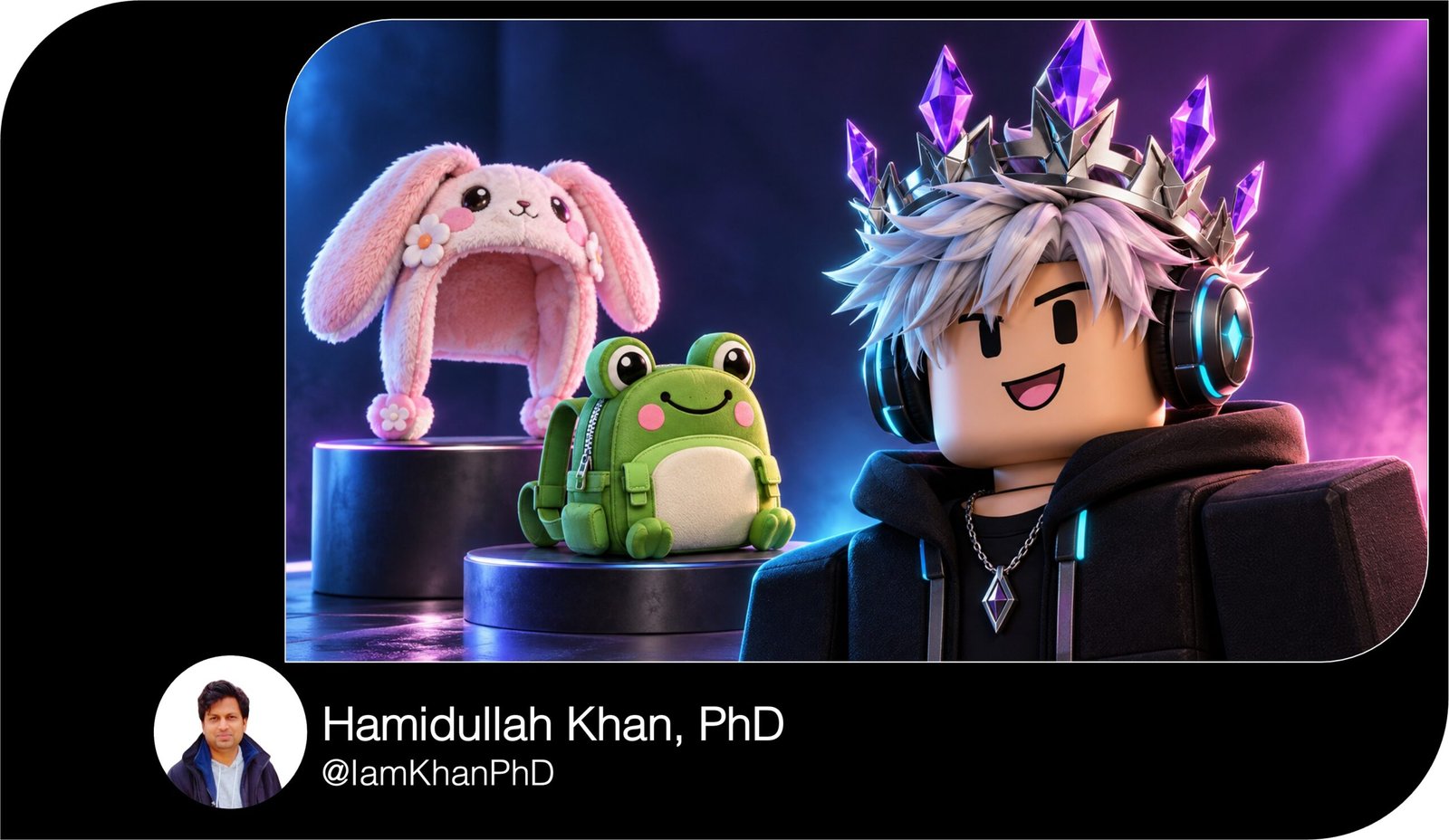
1. New UGC Item Launch — Crystal Crown
Best for: Announcing one new accessory.
Prompt:
Create a Roblox UGC launch thumbnail in [ASPECT RATIO: 16:9]. Feature [ITEM NAME: Crystal Crown], a [ITEM DESCRIPTION: silver crown with five purple crystal points]. Use the uploaded item image as the visual reference; preserve its silhouette, point count, colors, and proportions.
Position a blocky Roblox-style avatar on the right, shown from the shoulders up at a slight three-quarter angle, wearing the crown at its correct size. Keep the full crown inside the frame and make it the clearest detail.
Use a [BACKGROUND: deep violet gradient] with a soft spotlight behind the head. Add cool edge lighting and controlled crystal reflections without inventing extra jewels.
Reserve the left third for the exact headline “[HEADLINE: NEW CROWN]” in large white letters with a dark outline. Keep essential content 8% away from the edges. Avoid extra accessories, official logos, tiny captions, cropped crown tips, and excessive sparkles.
2. Avatar Before and After — Hair Makeover
Best for: Showing how a hair accessory changes an avatar’s appearance.
Prompt:
Design a Roblox UGC makeover thumbnail in [ASPECT RATIO: 16:9] with two equal panels. Show the same blocky avatar, face, outfit, camera angle, and lighting on both sides.
On the left, show [BEFORE LOOK: the avatar without a hair accessory]. On the right, add [HAIR NAME: Soft Pink Twin Buns], described as [HAIR DETAILS: pastel pink hair with two round buns and short front bangs]. Match the uploaded hair reference, especially the bun placement, color, and hairline.
Use a neutral gray background on the left and [AFTER BACKGROUND: peach-pink gradient] on the right. Frame both avatars from chest to head with enough space above the hair.
Place a simple arrow between the panels without covering either face. Add the exact headline “[HEADLINE: HAIR GLOW UP]” across the top in bold lettering. Keep the improvement focused on the hair. Avoid changing the avatar’s body, outfit, expression, or face between panels.
3. Cute Accessory Showcase — Plush Bunny Hat
Best for: Promoting playful, pastel UGC accessories.
Prompt:
Create a cute Roblox UGC thumbnail in [ASPECT RATIO: 1:1] for [ITEM NAME: Strawberry Bunny Hat], a [ITEM DESCRIPTION: soft pink plush hat with two upright bunny ears and a small strawberry patch].
Use the uploaded reference to preserve the exact ear shape, patch placement, and pink tone. Show a friendly blocky avatar from the chest up, centered slightly left, wearing the hat naturally. Make the hat large enough to read clearly on a phone, with both ears fully visible.
Use a [COLOR PALETTE: blush pink, cream, and mint] background with three large, softly blurred decorative shapes. Light the scene like a bright toy photography setup, with soft shadows and visible plush texture.
Reserve the upper-right area for “[HEADLINE: BUNNY HAT]” in chunky cream lettering with a raspberry outline. Keep decorations separate from the item. Avoid realistic human skin, extra ears, duplicate patches, crowded stickers, and small text.
4. Dark Fantasy Showcase — Obsidian Crown
Best for: Dramatic crowns, horns, and gothic accessories.
Prompt:
Generate a dramatic Roblox UGC promotional thumbnail in [ASPECT RATIO: 16:9]. Showcase [ITEM NAME: Obsidian Crown], described as [ITEM DETAILS: matte black crown with six angular spikes and a central red gem]. Use the uploaded item reference and preserve its actual spike count, gem shape, and material.
Place a blocky avatar on the right, framed from shoulders upward and turned slightly toward the center. Keep the crown upright, fully visible, and clearly separated from the hair.
Use a [BACKGROUND: charcoal stone archway] softly blurred behind the avatar. Add a red backlight and soft white light from the front so the black crown remains readable. Keep haze behind the subject and away from the item.
Place “[HEADLINE: DARK CROWN]” on the left in large ivory letters with a subtle red shadow. Avoid adding skulls, flames, extra horns, glowing eyes, or effects absent from the reference.
5. Neon Tech Showcase — Cyber Visor
Best for: Visors, headphones, and futuristic face accessories.
Prompt:
Make a Roblox UGC thumbnail in [ASPECT RATIO: 16:9] featuring [ITEM NAME: Neon Cyber Visor], a [ITEM DESCRIPTION: black wraparound visor with a thin cyan illuminated strip].
Use the uploaded reference to maintain the visor’s real thickness, lens color, and side pieces. Position the blocky avatar’s head and upper torso on the left at a three-quarter angle that clearly shows how the visor fits across the face.
Use [BACKGROUND: a dark navy futuristic corridor] with a few blurred cyan light bars leading toward the subject. Add magenta edge lighting on the opposite side for contrast while keeping the product color accurate.
Reserve the right third for “[HEADLINE: CYBER VISOR]” in two bold lines. Place a clean dark panel behind the words. Keep the visor sharp and surrounding lights subdued. Avoid invented interface screens, extra lenses, duplicate headphones, excessive lens flare, and effects that hide the accessory.
6. Wings Reveal — Back Accessory Fit
Best for: Showing wing shape, attachment, and scale.
Prompt:
Create a Roblox UGC wings showcase in [ASPECT RATIO: 16:9]. Feature [ITEM NAME: Ice Dragon Wings], described as [WING DETAILS: symmetrical pale-blue wings with three pointed sections on each side].
Use the uploaded item reference to preserve the actual span, number of sections, texture, and attachment position. Show a blocky avatar from behind at a slight three-quarter angle, with the head, torso, and wing attachment visible.
Position the avatar slightly right of center and keep both wing tips inside the frame. The wings should occupy about two-thirds of the image width without exaggerating their size relative to the avatar.
Use a [BACKGROUND: deep blue cloudy sky] with soft white lighting that separates the wing edges from the background. Reserve the upper-left corner for “[HEADLINE: ICE WINGS]” in bold white letters. Avoid front-facing poses that hide the attachment, extra wing pairs, invented feathers, cropped tips, and sparkles covering the silhouette.
7. Everyday Accessory Showcase — Mini Backpack
Best for: Bags, shoulder accessories, and small wearable items.
Prompt:
Design a Roblox UGC accessory thumbnail in [ASPECT RATIO: 1:1] for [ITEM NAME: Mini Frog Backpack], a [ITEM DESCRIPTION: small green backpack with a frog-face flap and yellow zipper].
Use the uploaded reference to preserve the bag’s size, face details, zipper color, and strap layout. Place a blocky avatar on the left, shown from the waist upward in a rear three-quarter view so the backpack is clearly visible. Keep the outfit simple: [OUTFIT: cream shirt and dark green trousers].
On the right, include one enlarged product inset showing the same backpack from the front. Clearly separate the inset from the avatar so it reads as a close-up.
Use a [BACKGROUND: warm cream studio backdrop] with soft shadows. Add “[HEADLINE: FROG BACKPACK]” across the top in dark green lettering. Avoid extra compartments, floating straps, a second bag on the avatar, busy scenery, and an inset that changes the design.
8. Color Variant Comparison — Pick Your Favorite
Best for: Comparing two existing colors of one UGC item.
Prompt:
Create a Roblox UGC color comparison thumbnail in [ASPECT RATIO: 16:9]. Compare [ITEM NAME: Star Headphones] in [COLOR A: lavender] and [COLOR B: black].
Use the uploaded references for both variants; preserve the matching headphone shape and each variant’s actual colors. Show two copies of the same blocky avatar with identical faces, outfits, poses, crop, and lighting.
Place the lavender version on the left against a pale lavender background and the black version on the right against a medium blue-gray background. Frame both from shoulders upward and keep the headbands fully visible.
Add a clean vertical divider between the panels. Place “[HEADLINE: WHICH COLOR?]” at the top in large white letters with a dark outline. Leave space below each avatar for labels added later. Give both products equal emphasis. Avoid different product shapes, unequal avatar sizes, invented color options, prices, and popularity claims.
9. Matching UGC Collection — Three-Item Drop
Best for: Promoting coordinated accessories together.
Prompt:
Produce a Roblox UGC collection thumbnail in [ASPECT RATIO: 16:9] featuring exactly three items: [ITEM 1: Moon Crown], [ITEM 2: Crescent Earrings], and [ITEM 3: Star Shoulder Bag].
Use the uploaded references to preserve each design, color, and material. Follow a [COLLECTION PALETTE: silver, midnight blue, and pale gold].
Place one blocky avatar on the left wearing all three items at their normal size and attachment positions. Use a waist-up view that keeps the earrings and bag visible. On the right, arrange three distinct product cutouts in a tidy vertical stack, each with equal spacing and a soft shadow.
Use a smooth midnight-blue background with a gentle spotlight behind the avatar. Place “[HEADLINE: MOON COLLECTION]” across the top. Keep each accessory identifiable at small size. Avoid adding a fourth item, overlapping cutouts, changing designs between views, or badges that imply rarity or official status.
10. UGC Thumbnail Tutorial — Sketch to Showcase
Best for: A tutorial video or post about presenting a UGC design.
Prompt:
Create a Roblox UGC tutorial thumbnail in [ASPECT RATIO: 16:9] about showcasing [ITEM NAME: Golden Star Crown]. Use the uploaded reference for the finished accessory.
Build a three-part composition: on the left, show a monochrome line sketch of that same crown on a plain sheet; in the center, show the finished crown as a large product render; on the right, show a blocky Roblox-style avatar wearing it. Preserve the same star count, band shape, and proportions across all three views.
Use [BACKGROUND: a light blue studio gradient], strong outlines, and consistent soft lighting. Add one broad arrow from the sketch toward the finished item, keeping it behind the main crown.
Reserve the top quarter for “[HEADLINE: UGC THUMBNAIL GUIDE]” in large navy lettering. Make the three stages easy to distinguish. Avoid fake software interfaces, unreadable menus, invented tool logos, extra accessories, and claims that an image automatically creates a usable 3D asset.


About author








Add comment