
10 Free Editable Roblox Thumbnail Maker Prompts
Create Roblox gaming thumbnail concepts with 10 detailed, editable AI prompts. Customize avatars, scenes, colors, and headlines for obbies, horror, roleplay, tycoons, pets, racing, boss battles, makeovers, updates, and tutorials. Each prompt includes a clear layout and suggested edits, making it easy for beginners to get started.
What this prompt pack does
- Gives you 10 specific thumbnail layouts with character poses, camera angles, lighting, and headline space.
- Lets you personalize each concept by replacing clearly labeled details, with example values included.
- Helps you generate a consistent Roblox visual style across different video topics.
Tips for this prompt pack
- Keep headlines to 2–4 words and check the finished thumbnail at phone-screen size.
- Attach a clear avatar screenshot when your tool supports image references, and reuse the same avatar description.
- If generated text is misspelled, request the blank headline area and add the wording afterward in an image editor.
How to use the prompt pack
- Choose the prompt that matches your video and replace every bracketed field using your own details or the suggested edits.
- Paste the completed prompt into your AI image generator, attach an optional reference, and select a 16:9 landscape format.
- Generate the image, review the avatar and scene, then add or correct the headline and export at your platform’s required size.
10 Free Editable Roblox Thumbnail Maker Prompts
Replace the [bracketed details] before using each prompt. Suggested edits are included so beginners can get started quickly. Choose 16:9 landscape in your image generator when available.
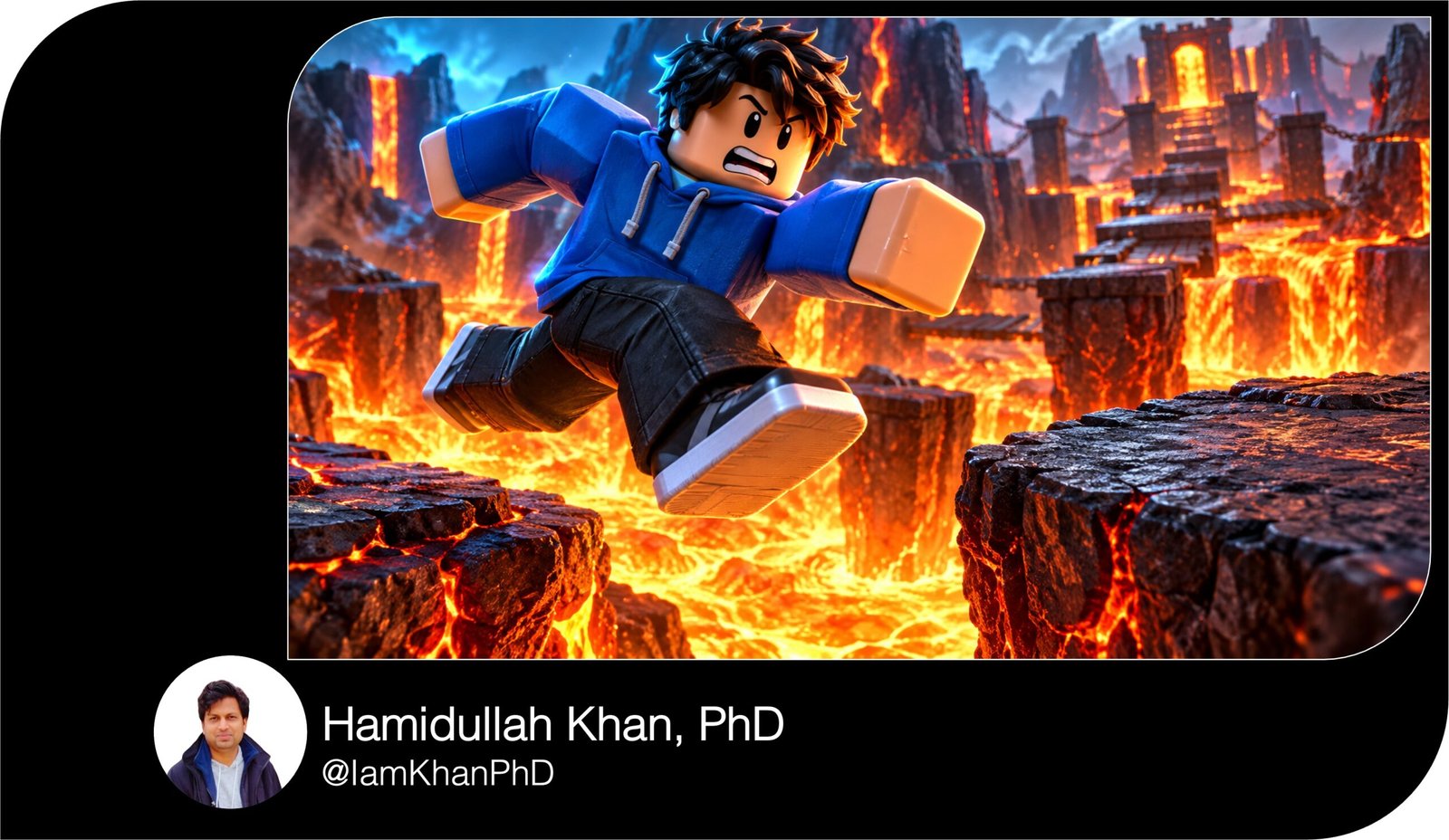
1. Lava Obby — “One Jump Left”
Create a Roblox gaming video thumbnail in a 16:9 landscape layout, aiming for 1280 × 720 pixels. Show one blocky Roblox avatar with [AVATAR OUTFIT AND HAIR] jumping from a cracked platform toward the final safe platform above a bright lava pool.
Place the avatar in the left half, large enough for its face and pose to read on a phone. Use a front three-quarter camera angle: arms lifted, legs apart, expression determined and worried. Place the landing platform in the center-right, with a visible gap that makes the challenge immediately clear.
Add orange light from the lava beneath the avatar and a cool [ACCENT COLOR] outline around its silhouette. Keep distant obstacles simple and slightly blurred.
Leave the upper-right quarter clear for “[HEADLINE].” If adding text, use bold white letters with a dark outline and spell only that headline. Otherwise leave that space blank.
Preserve Roblox block proportions. Avoid extra limbs, crowded platforms, tiny interface text, and watermarks.
Suggested edits:
[AVATAR OUTFIT AND HAIR] = blue hoodie, black trousers, short black hair
[ACCENT COLOR] = cyan
[HEADLINE] = ONE JUMP LEFT
2. Horror Escape — “Don’t Look Back”
Create a 16:9 Roblox horror thumbnail, aiming for 1280 × 720 pixels. Show a blocky avatar wearing [AVATAR OUTFIT] running toward the camera through [LOCATION].
Put the avatar in the right foreground with a frightened face, one arm reaching forward and the other holding a flashlight. Behind it on the left, show [MONSTER DESCRIPTION] emerging from a doorway. Make the monster recognizable as a threat without covering the avatar.
Use a low camera angle, a strong white flashlight beam, and [WARNING LIGHT COLOR] lighting from the corridor behind. Keep the avatar’s face brightly lit, with deep shadows around the background. Add light fog near the floor and motion blur behind the running character while keeping its face sharp.
Reserve the upper-left strip for “[HEADLINE]” in bold, readable lettering, or leave it empty for manual text.
Keep the scene suspenseful and suitable for a general gaming audience. Avoid gore, realistic injuries, extra characters, interface clutter, and watermarks.
Suggested edits:
[AVATAR OUTFIT] = yellow jacket and black jeans
[LOCATION] = abandoned school corridor
[MONSTER DESCRIPTION] = tall shadow creature with glowing eyes
[WARNING LIGHT COLOR] = red
[HEADLINE] = DON’T LOOK BACK
3. Roleplay Mystery — “Secret Room”
Create a 16:9 Roblox roleplay mystery thumbnail, aiming for 1280 × 720 pixels, featuring a secret room inside [HOUSE OR BUILDING TYPE].
Position a blocky avatar with [AVATAR APPEARANCE] on the left, shown from the waist up with a surprised expression, pointing toward an open hidden wall panel on the right. Show [SECRET ROOM CONTENTS] clearly through the opening.
Use a warm, ordinary room in the foreground and a contrasting [SECRET GLOW COLOR] glow inside the secret room so the discovery stands out. Make the hidden entrance the second-largest visual element after the avatar. Add one thick arrow pointing directly at the entrance without covering it.
Leave a clean band at the top for “[HEADLINE].” Render only that text if requested, or leave the band blank.
Use smooth 3D Roblox styling, block-shaped hands, and a simple background. Avoid multiple arrows, scattered question marks, tiny props, branded logos, and watermarks. Depict the secret actually shown in the video.
Suggested edits:
[HOUSE OR BUILDING TYPE] = modern suburban house
[AVATAR APPEARANCE] = white hoodie and brown hair
[SECRET ROOM CONTENTS] = glowing control desk and two monitors
[SECRET GLOW COLOR] = turquoise
[HEADLINE] = SECRET ROOM!
4. Tycoon Progress — “Noob to Pro”
Create a Roblox tycoon progress thumbnail in 16:9 landscape, aiming for 1280 × 720 pixels. Use a clear diagonal split to compare [STARTER BUILD] on the left with [UPGRADED BUILD] on the right.
Show the same avatar design, [AVATAR APPEARANCE], on both sides. On the left, make the avatar smaller with a disappointed expression beside the basic build. On the right, show it larger in a confident pose beside the upgraded build. Preserve its face, hair, and core outfit across both versions.
Use muted gray-blue lighting on the starter side and bright [UPGRADE COLOR] lighting on the upgraded side. Keep each building’s overall shape easy to recognize and omit tiny machinery details.
Add one broad arrow across the middle pointing toward the upgrade. Reserve the top center for “[HEADLINE]” in large outlined lettering, or leave it blank for later editing.
Keep Roblox block geometry consistent. Avoid fake currency counters, invented reward badges, extra comparison panels, and watermarks.
Suggested edits:
[STARTER BUILD] = small wooden workshop
[UPGRADED BUILD] = three-level futuristic factory
[AVATAR APPEARANCE] = red shirt, black trousers, blond hair
[UPGRADE COLOR] = gold
[HEADLINE] = NOOB TO PRO
5. Pet Reveal — “What Hatched?”
Create a 16:9 Roblox pet-hatching video thumbnail, aiming for 1280 × 720 pixels. Place a large [EGG DESIGN] in the center foreground, cracked open with [GLOW COLOR] light shining through.
Show [PET DESCRIPTION] emerging from the egg, with its face and defining feature fully visible. Position one blocky avatar wearing [AVATAR OUTFIT] on the left, waist-up, leaning toward the egg with wide eyes and an excited expression.
Use a simple [BACKGROUND SETTING] behind them, softened so the avatar, egg, and pet remain the three main subjects. Add a few large sparkles around the shell. Light the pet’s face clearly and give the egg a bright outline.
Leave the upper-right area for “[HEADLINE]” in two short lines, or leave it empty for manual text.
Keep the pet playful and stylized, with Roblox-compatible 3D shapes. Avoid extra pets, fake rarity labels, invented drop-rate numbers, cluttered menus, excessive particles, and watermarks.
Suggested edits:
[EGG DESIGN] = purple egg with gold stars
[GLOW COLOR] = warm yellow
[PET DESCRIPTION] = small winged blue dragon with oversized eyes
[AVATAR OUTFIT] = green hoodie
[BACKGROUND SETTING] = colorful hatchery
[HEADLINE] = WHAT HATCHED?
6. Racing Finish — “Photo Finish”
Create a Roblox racing thumbnail in 16:9 landscape, aiming for 1280 × 720 pixels. Show [MAIN VEHICLE] driven by a blocky avatar wearing [AVATAR OUTFIT] narrowly ahead of [RIVAL VEHICLE] near a checkered finish line on [TRACK SETTING].
Place the main vehicle in the lower-left foreground and the rival in the center-right, slightly behind. Use a low front three-quarter camera angle that shows both the main vehicle’s shape and the driver’s face. Angle the road toward the finish line to guide the viewer through the image.
Keep the main vehicle sharp, with motion blur on the road edges and a small amount of tire smoke behind it. Use [MAIN COLOR] for the main vehicle and a contrasting color for the rival.
Reserve the upper-left sky area for “[HEADLINE],” or leave that space blank.
Make the close finish readable without speed counters or crowded spectators. Preserve blocky Roblox styling. Avoid realistic human drivers, impossible wheels, extra cars, logos, and watermarks.
Suggested edits:
[MAIN VEHICLE] = blue sports car
[RIVAL VEHICLE] = orange racing buggy
[AVATAR OUTFIT] = white racing jacket
[TRACK SETTING] = neon city circuit at dusk
[MAIN COLOR] = electric blue
[HEADLINE] = PHOTO FINISH!
7. Boss Battle — “Can I Win?”
Create a 16:9 Roblox boss-battle thumbnail, aiming for 1280 × 720 pixels. Show one blocky player avatar with [AVATAR APPEARANCE] in the left foreground, facing [BOSS DESCRIPTION] in the right midground inside [ARENA].
The player holds [WEAPON OR ABILITY], shown clearly without blocking the face. Make the boss roughly three times the player’s visible height, but keep both silhouettes separate. Use a low camera angle to emphasize the challenge.
Add a bright [ABILITY COLOR] effect around the player’s weapon and contrasting [BOSS LIGHT COLOR] light around the boss. Freeze the moment just before an attack, with a small burst of energy between them.
Keep the arena simple: one floor surface and a few background shapes. Reserve the top-left area for “[HEADLINE],” or leave it blank.
Use stylized, non-graphic action with clear Roblox proportions. Avoid blood, multiple bosses, overlapping limbs, fake damage numbers, detailed HUD elements, and watermarks.
Suggested edits:
[AVATAR APPEARANCE] = black jacket and silver hair
[BOSS DESCRIPTION] = giant armored stone guardian
[ARENA] = circular ancient temple
[WEAPON OR ABILITY] = glowing energy sword
[ABILITY COLOR] = blue
[BOSS LIGHT COLOR] = orange
[HEADLINE] = CAN I WIN?
8. Avatar Makeover — “New Look”
Create a Roblox avatar makeover thumbnail in 16:9 landscape, aiming for 1280 × 720 pixels. Use two balanced side-by-side panels showing the same blocky avatar before and after an outfit change.
The left version wears [STARTER OUTFIT]; the right version wears [NEW OUTFIT]. Preserve [IDENTITY DETAILS] across both versions so the transformation reads as one character.
Frame each avatar from the knees upward, with the upgraded version slightly larger. Give the left avatar a neutral stance and the right avatar a confident pose. Use a plain [LEFT BACKGROUND COLOR] background on the left and [RIGHT BACKGROUND COLOR] on the right, with soft studio lighting and a bright outline around the new outfit.
Add a single arrow between the panels. Leave the top band clear for “[HEADLINE],” or leave it blank for later text.
Make clothing shapes and accessories easy to see at small size. Avoid changing the avatar’s body type, excessive accessories, fake prices, brand logos, and watermarks.
Suggested edits:
[STARTER OUTFIT] = plain gray shirt and blue trousers
[NEW OUTFIT] = purple streetwear jacket, black trousers, white sneakers
[IDENTITY DETAILS] = smiling face and short brown hair
[LEFT BACKGROUND COLOR] = pale gray
[RIGHT BACKGROUND COLOR] = violet
[HEADLINE] = NEW LOOK!
9. Update Reveal — “New Map”
Create a 16:9 Roblox game-update thumbnail, aiming for 1280 × 720 pixels, focused on [FEATURE ACTUALLY IN THE UPDATE]. If supplied, use the attached gameplay screenshot as the source for the feature’s appearance and layout.
Show one blocky avatar with [AVATAR APPEARANCE] in the left foreground, turning toward the feature with an excited expression and one open hand presenting it. Put the feature in the center-right, large enough to recognize immediately.
Use a slightly elevated three-quarter view if it is a location, or a close-up if it is an item. Add [HIGHLIGHT COLOR] light around the feature while preserving its actual shape and colors. Simplify unrelated scenery and keep the avatar’s face sharp.
Reserve the top-right area for “[HEADLINE],” or leave it empty for manual text.
Create a polished Roblox 3D look with one clear reveal. Avoid invented features, unsupported release dates, fake official badges, multiple arrows, interface clutter, and watermarks.
Suggested edits:
[FEATURE ACTUALLY IN THE UPDATE] = new floating island shown in the video
[AVATAR APPEARANCE] = orange hoodie and black hair
[HIGHLIGHT COLOR] = cyan
[HEADLINE] = NEW MAP!
10. Beginner Tutorial — “Start Here”
Create a beginner-friendly Roblox tutorial thumbnail in a 16:9 landscape layout, aiming for 1280 × 720 pixels, about [SPECIFIC SKILL].
Show a blocky avatar with [AVATAR APPEARANCE] on the right, waist-up, looking toward [MAIN TUTORIAL OBJECT OR ACTION] on the left. Make the tutorial object large and easy to identify. If an attached gameplay screenshot is available, use it for the relevant object’s appearance and remove distracting menus from the composition.
Give the avatar an encouraging smile and a clear pointing gesture toward [EXACT DETAIL TO HIGHLIGHT]. Add one thick circle around that detail without hiding it.
Use a clean [BACKGROUND COLOR] background, bright even lighting, and strong contrast between the object and its surroundings. Leave the upper-left area for “[HEADLINE],” using large readable lettering if requested, or keep it blank.
Use only one visual teaching point. Preserve Roblox block proportions. Avoid tiny instructions, fake clickable buttons, extra hands, clutter, and watermarks.
Suggested edits:
[SPECIFIC SKILL] = timing jumps across moving platforms
[AVATAR APPEARANCE] = blue shirt and brown hair
[MAIN TUTORIAL OBJECT OR ACTION] = two moving platforms separated by a gap
[EXACT DETAIL TO HIGHLIGHT] = landing edge of the next platform
[BACKGROUND COLOR] = sky blue
[HEADLINE] = START HERE
About author






Add comment