
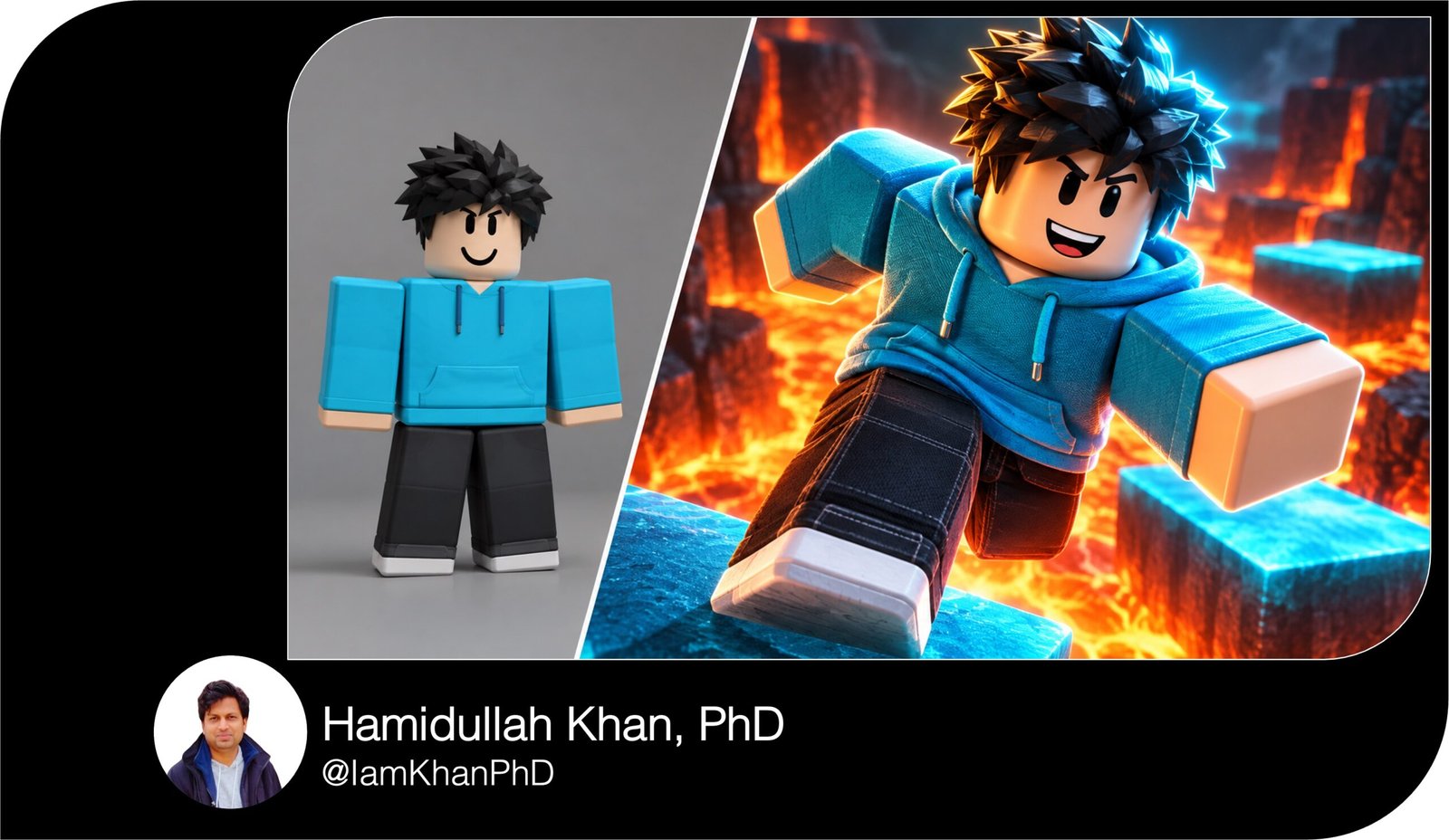
10 Roblox Thumbnail Plugin Prompts You Can Copy and Customize
Create Roblox thumbnails with 10 detailed, editable AI image prompts. Customize avatars, game settings, camera angles, lighting, and headline space for plugin tutorials, obby challenges, horror reveals, tycoon transformations, pet hatches, and more. Includes suggested headlines and beginner-friendly instructions. This digital product contains prompts, not a Roblox Studio plugin.
What this prompt pack does
- Provides 10 specific thumbnail concepts with clear instructions for character placement, backgrounds, and lighting.
- Lets you personalize each scene using editable fields for avatars, outfits, maps, props, and colors.
- Helps you plan readable thumbnail images with room for a short headline added after generation.
Tips for this prompt pack
- Attach your own avatar render or game screenshot when your AI image tool supports references, and ask it to preserve those details.
- Keep each thumbnail focused on one main moment, then preview it at a small size to check that the subject stays clear.
- Generate the artwork without text; add a short, high-contrast headline in an image editor afterward.
How to use the prompt pack
- Choose a scene and replace every bracketed example with your own details; remove the brackets before submitting.
- Paste the complete prompt into an AI image-generation tool and attach your reference images if available.
- Generate the image, request corrections to unclear details, then add your headline and export at the size your destination requires.
Roblox Thumbnail Maker: 10 Editable AI Prompts
Each prompt uses a 16:9 landscape layout for video thumbnails. For a square image, replace “16:9 landscape” with “1:1 square” and ask the AI to rearrange the composition without cropping the main subject.
1. Roblox Thumbnail Maker Plugin Tutorial
Customize: Plugin name, avatar, outfit, preview scene, background colors.
Prompt:
Create a 16:9 landscape thumbnail for a beginner tutorial about [PLUGIN NAME: your thumbnail maker plugin]. Use the attached avatar render, if supplied, as the character reference; preserve its blocky proportions, face, hairstyle, and outfit. Otherwise, use [AVATAR: a smiling blocky character with black spiky hair] wearing [OUTFIT: a cyan hoodie and dark trousers]. Place the avatar on the left, waist-up, pointing toward a large floating thumbnail preview on the right. Inside the preview, show [PREVIEW SCENE: the same avatar jumping across glowing lava platforms]. Make the preview look polished and easy to understand, with no invented software interface. Use [BACKGROUND COLORS: deep navy and electric cyan], a soft spotlight behind the avatar, and bright edges separating it from the background. Keep the upper middle area clear for a headline. Limit the scene to one presenter, one preview, and a simple background. No generated text, logos, watermarks, or extra fingers.
Suggested headline: MAKE THIS THUMBNAIL
2. Last-Second Lava Obby Jump
Customize: Avatar, outfit, platforms, obstacle, danger below.
Prompt:
Create a 16:9 landscape Roblox-style thumbnail showing one clear moment of danger in [OBBY SETTING: a lava tower obstacle course]. Show [AVATAR: a blocky character with brown hair] wearing [OUTFIT: a red jacket and white trainers], frozen halfway through a jump between two [PLATFORMS: bright cyan platforms]. Put the avatar in the right-center foreground, large enough for its worried face to remain visible when the image is small. Use a low camera angle so the gap appears dramatic. Show [DANGER BELOW: glowing orange lava] beneath the platforms and one recognizable [OBSTACLE: rotating red laser bar] behind the avatar. Light the character with warm orange light from below and cool cyan light from the platform. Keep the upper-left quarter dark and uncluttered for a headline. Use only two main platforms and one obstacle. No text, UI, gore, extra limbs, or overlapping body parts.
Suggested headline: ONE JUMP LEFT!
3. Horror Game Door Reveal
Customize: Game name, avatar, location, monster, lighting.
Prompt:
Create a 16:9 landscape thumbnail for [GAME NAME: Midnight Hallway], a Roblox horror experience. Place [AVATAR: a blocky character wearing a yellow raincoat] in the left foreground, shoulders turned toward the camera, face showing surprise. The avatar holds a small flashlight aimed toward [LOCATION: a half-open door at the end of a hotel corridor] on the right. Behind the door, reveal only the eyes and upper silhouette of [MONSTER: a tall shadow creature with two pale blue eyes]. Make the flashlight beam connect the avatar and the door so the viewer immediately understands the threat. Use deep blue shadows, one warm ceiling light, and subtle mist near the floor. Keep the avatar’s face bright and the monster mysterious. Leave the top-center strip clear for a short headline. No blood, gore, tiny background figures, text, fake game UI, or watermarks.
Suggested headline: DON’T OPEN IT!
4. Starter Base to Mega Tycoon
Customize: Tycoon theme, starter build, upgraded build, avatar, accent colors.
Prompt:
Create a 16:9 landscape Roblox tycoon thumbnail showing a clear before-and-after transformation for [TYCOON THEME: a futuristic factory]. Divide the image vertically into two equal scenes viewed from the same camera angle. On the left, show [STARTER BUILD: a small wooden platform with one basic conveyor] under muted gray daylight. On the right, show [UPGRADED BUILD: a three-story neon factory with glass walls and glowing machines] under bright golden evening light. Place the same [AVATAR: a blocky character in green overalls] in both scenes, small on the left and larger on the right with a proud pose. Keep the factory shapes simple and recognizable. Use [ACCENT COLORS: emerald green and gold] on the upgraded side. Leave a clear band along the top for labels added later. Make the progress obvious through scale, materials, and lighting. No currency counters, fabricated earnings, text, logos, or crowded machinery.
Suggested headline: STARTER → MEGA BASE
5. Rare Pet Egg Hatch
Customize: Egg design, pet species, pet colors, avatar, location.
Prompt:
Create a 16:9 landscape Roblox pet-game thumbnail capturing the instant a pet appears from [EGG: a purple crystal egg with gold seams]. Put the cracked egg in the lower center and [PET: a small winged dragon with turquoise scales and gold horns] emerging above it. The pet should be the largest focal point, with friendly eyes and a recognizable silhouette. Place [AVATAR: a blocky character in a white hoodie] on the right, hands lifted in surprise and eyes directed at the pet. Use [LOCATION: a simple pastel hatchery] as a softly blurred background. Add a circular golden glow behind the pet, several large sparkles, and a few shell pieces close to the egg. Leave the upper-left area clear for a headline. Preserve any attached pet reference’s main colors and markings. No duplicate pets, loot odds, rarity labels, text, UI, watermarks, or excessive particles.
Suggested headline: LOOK WHAT HATCHED!
6. Simulator Power-Up Moment
Customize: Simulator theme, avatar, upgraded tool, target, power effect.
Prompt:
Create a 16:9 landscape Roblox simulator thumbnail showing a dramatic upgrade in [SIMULATOR THEME: a mining simulator]. Put [AVATAR: a blocky character wearing a blue explorer outfit] in the left-center foreground, holding [UPGRADED TOOL: a glowing purple crystal pickaxe] diagonally across the image. Show the tool striking one [TARGET: oversized gold ore block] on the right. Capture the instant of impact with three or four large fragments and [POWER EFFECT: a bright violet energy arc]. Use a simple cave background with dark stone shapes and warm light behind the ore. Make the avatar’s face, tool, and target easy to distinguish. Use crisp edges on the foreground and softer detail in the cave. Leave the upper-right corner clear for a headline. Keep the avatar’s blocky hands attached naturally to the tool. No damage numbers, progress bars, unsupported multiplier claims, text, or tiny particle clutter.
Suggested headline: NEW POWER UNLOCKED
7. New Map Update Reveal
Customize: Game name, avatar, map, signature landmark, lighting colors.
Prompt:
Create a 16:9 landscape thumbnail announcing a new map in [GAME NAME: Skybound Adventures]. Show [AVATAR: a blocky character with a red backpack] in the lower-left foreground, turned three-quarters toward [NEW MAP: a floating island city]. Use [SIGNATURE LANDMARK: a giant crystal castle connected by suspended bridges] as the dominant subject on the right, filling roughly half the image. Place the camera just behind and slightly beside the avatar so the viewer feels they are discovering the location together. Use [LIGHTING PALETTE: lavender sky, cyan crystals, and warm golden windows]. Add soft clouds beneath the islands to communicate height, but keep the castle outline sharp. Leave the upper-left sky clear for a headline. If a map screenshot is attached, preserve its actual landmark shapes and materials. No unrelated buildings, dates, fake patch notes, text, UI, or watermarks.
Suggested headline: NEW MAP REVEAL
8. Basic Render to Polished Thumbnail
Customize: Avatar, prop, background, accent colors.
Prompt:
Create a 16:9 landscape comparison thumbnail for a Roblox thumbnail-making tutorial. Divide the image into two equal panels using a clean vertical boundary. In both panels, show exactly the same [AVATAR: a blocky character in a black jacket] holding [PROP: a blue toy sword], with the same pose, camera angle, proportions, and expression. The left panel should resemble a basic render: flat gray background, even lighting, and low visual separation. The right panel should look polished: [BACKGROUND: a simple futuristic arena], [ACCENT COLORS: blue and orange], a bright edge light behind the avatar, clear shadows, and strong separation from the background. Change presentation quality without changing the avatar’s identity or adding accessories. Keep a clear strip at the top of each panel for labels added later. Use an attached avatar reference if available. No generated labels, fake plugin controls, logos, watermarks, or inconsistent character details.
Suggested headline: BASIC → POLISHED
9. Hidden Room Behind the Wall
Customize: Avatar, entrance, secret location, reward.
Prompt:
Create a 16:9 landscape Roblox exploration thumbnail revealing [SECRET LOCATION: a hidden treasure room] behind [ENTRANCE: a sliding stone wall in an ordinary cave]. Put [AVATAR: a blocky explorer with a tan hat] in the left foreground, one hand pushing the wall open and the other held close to the body. On the right, show a narrow opening revealing one large [SECRET REWARD: golden chest with a glowing blue crystal on top]. Use cool gray light in the ordinary cave and warm golden light spilling through the opening onto the avatar’s face. Arrange the wall edge so it naturally points toward the reward. Keep the chest clearly visible, but leave part of the room concealed to create curiosity. Reserve the upper-left corner for a headline. Avoid additional rooms, multiple chests, unnecessary arrows, invented reward values, text, UI, watermarks, and malformed hands.
Suggested headline: WHAT’S BEHIND THIS?
10. One Rule, One Big Challenge
Customize: Challenge rule, avatar, obstacle, finish marker, color scheme.
Prompt:
Create a 16:9 landscape Roblox challenge thumbnail for [CHALLENGE RULE: completing an obby without jumping]. Show [AVATAR: a blocky character with pink hair and a purple hoodie] balancing on [OBSTACLE: a very narrow zigzag walkway] in the center-right foreground, arms extended and feet visibly touching the walkway. Make the pose communicate the challenge rule; do not show the avatar airborne. Place [FINISH MARKER: a large glowing green finish portal] in the distance on the left, connected to the avatar by one clearly visible route. Use [COLOR SCHEME: magenta platforms, dark blue surroundings, and lime green finish lights]. Add depth through smaller distant platforms while keeping the foreground avatar sharp and large. Leave the upper-right area clear for a headline. Make the scene playful and tense. No disconnected routes, fake completion badges, timers, text, UI, watermarks, or extra limbs.
Suggested headline: CAN I DO THIS?

About author









Add comment