
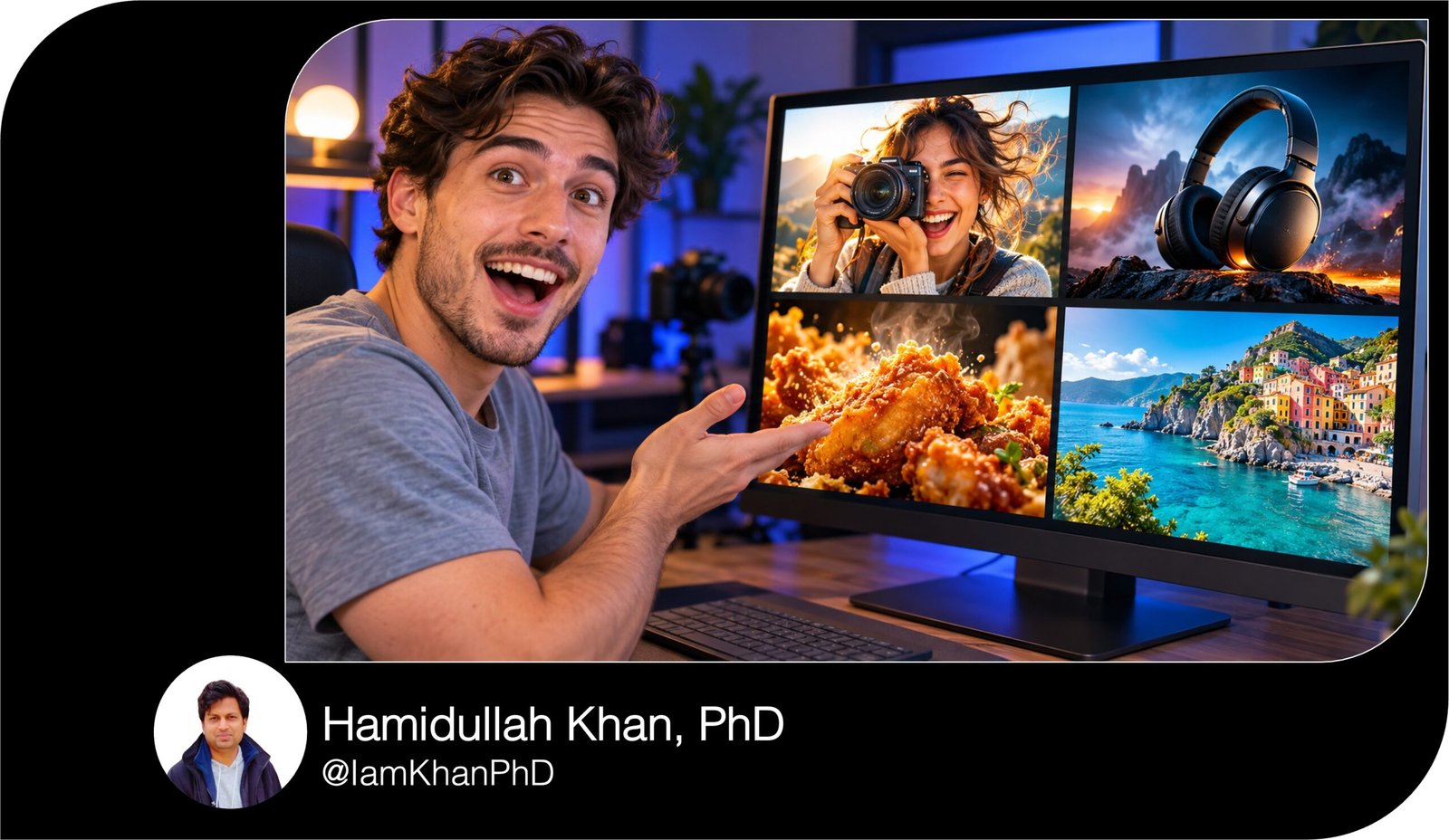
10 AI Prompts for YouTube Thumbnails I Editable Templates
Create YouTube thumbnail images with 10 detailed, editable AI prompts. Each template includes a specific layout, subject placement, lighting, colors, and headline instructions. Customize prompts for tutorials, reviews, challenges, transformations, food, travel, and more—without starting from a blank page.
What this prompt pack does
- Guides AI image tools to create 10 distinct thumbnail styles for different video formats.
- Provides detailed instructions for composition, lighting, backgrounds, and readable headlines.
- Lets you personalize each design with your topic, portrait, product, colors, and text.
Tips for this prompt
- Use a short headline—ideally two to five words—and make sure the image reflects your actual video.
- Attach your own portrait, product photo, or example image when your AI tool supports references.
- Preview the result at a small size. If the headline is misspelled, generate the image without text and add it in your image editor.
How to use the prompt
- Choose the template that matches your video and replace every bracketed field with your details.
- Paste the completed prompt into an AI image tool, select a 16:9 canvas when available, and attach any reference images.
- Generate the thumbnail, check the text and visual details, then refine and export your preferred version.
10 AI Prompts for YouTube Thumbnails
These prompts cover 10 different video formats, with specific layouts, lighting, colors, and editable details.
Before you start: Replace everything inside [square brackets] with your own information. The examples show what to enter. Paste the finished prompt into an AI tool that generates images. If your tool supports reference images, attach your portrait or product photo when needed.
1. “I Tried It for 7 Days” Challenge Thumbnail
Best for: learning a skill, trying a routine, or testing a habit.
Create a YouTube thumbnail for a video about [CHALLENGE, e.g., learning to draw for 7 days]. Use a landscape 16:9 composition, ideally 1280 × 720 pixels.
Place [PERSON DESCRIPTION, e.g., a young creator wearing a bright orange hoodie] on the right, shown from the chest up with an expression of [EMOTION, e.g., surprised pride]. If I attach a portrait, preserve that person’s facial features.
On the left, show one large object representing the challenge: [OBJECT, e.g., an open sketchbook displaying a finished pencil portrait]. Make the object recognizable at a small size. Add a small calendar-style badge near the top reading “[DURATION, e.g., 7 DAYS].”
Use a dark navy background, warm light on the face, and a subtle yellow glow behind the main object. Add the exact headline “[HEADLINE, e.g., I ACTUALLY DID IT]” in large, bold white lettering at the upper left.
Keep the face, object, and headline separate. Leave the lower-right corner clear. Do not add extra text, scattered props, or tiny details.
2. Beginner Tutorial Thumbnail
Best for: software walkthroughs, AI tutorials, and practical how-to videos.
Create a clean YouTube thumbnail for a beginner tutorial about [TASK, e.g., removing a photo background with an AI tool]. Use a landscape 16:9 composition, ideally 1280 × 720 pixels.
Build the thumbnail around a large demonstration panel in the center-left. Show [STARTING STATE, e.g., a portrait with a busy room behind the person] transitioning into [FINISHED STATE, e.g., the same portrait with the background removed]. Use one thick arrow to show the direction of the change.
If I attach example images or a screenshot, use those as the visual reference. Otherwise, create a simplified illustration of the process without inventing detailed software menus.
Place [HOST DESCRIPTION, e.g., a smiling creator in a blue shirt] on the right, pointing toward the finished result. Use a pale gray background with teal accents and crisp, even lighting.
Add the exact headline “[HEADLINE, e.g., REMOVE IT FAST]” across the upper left in bold dark lettering. Keep the demonstration large and uncluttered. Leave the lower-right corner clear and include no additional labels or paragraphs.
3. Before-and-After Transformation Thumbnail
Best for: room makeovers, desk setups, art projects, and restoration videos.
Create a YouTube thumbnail showing a before-and-after transformation of [SUBJECT, e.g., a small home-office desk setup]. Use a landscape 16:9 composition, ideally 1280 × 720 pixels.
Divide the image into two equal sections with a narrow vertical separator. On the left, show [BEFORE DETAILS, e.g., tangled cables, uneven lighting, and a crowded desktop]. On the right, show [AFTER DETAILS, e.g., organized cables, a clean wooden desk, and warm lighting].
Use matching camera angles and recognizable shared objects so both sides clearly show the same space or item. If I attach before-and-after photos, preserve their actual differences.
Give the left side muted colors and flatter lighting. Give the right side brighter, inviting lighting while keeping textures realistic. Add a single arrow crossing the divider toward the finished side.
Place “BEFORE” above the left section and “AFTER” above the right in bold, readable lettering. Add no other text. Keep the most meaningful changes visible and leave the lower-right corner free of important details.
4. Two-Product Comparison Thumbnail
Best for: comparing gadgets, software tools, cameras, or accessories.
Create a YouTube thumbnail comparing [PRODUCT A, e.g., a compact entry-level microphone] with [PRODUCT B, e.g., a larger studio microphone]. Use a landscape 16:9 composition, ideally 1280 × 720 pixels.
Place Product A on the left and Product B on the right. Make both products equally prominent, with clean silhouettes and enough space around them. If I attach product photos, preserve their shapes, colors, and visible features.
Use an electric blue background behind Product A and a warm orange background behind Product B. Separate the sides with a diagonal division. Place a bold white “VS” at the center.
Add the exact headline “[HEADLINE, e.g., WHICH SOUNDS BETTER?]” across the top in large white lettering with a dark outline. Use sharp studio lighting, realistic material textures, and subtle shadows beneath both products.
Include [DISTINGUISHING DETAIL, e.g., a USB cable beside Product A and an XLR cable beside Product B] only if it accurately represents the comparison. Do not add winner badges, invented ratings, or extra products. Leave the lower-right corner clear.
5. Honest Product Review Thumbnail
Best for: unboxings, gadget reviews, and “is it worth it?” videos.
Create a YouTube thumbnail for a review of [PRODUCT, e.g., foldable wireless headphones]. Use a landscape 16:9 composition, ideally 1280 × 720 pixels.
Make the product the dominant subject on the left, taking up approximately half the image. Show it at a three-quarter angle so [KEY FEATURE, e.g., the folding hinges and padded ear cups] is easy to see. If I attach a product photo, reproduce the actual design rather than inventing features.
Place [REVIEWER DESCRIPTION, e.g., a creator in a black T-shirt] on the right with a [EXPRESSION, e.g., curious, slightly skeptical] expression. If I attach a portrait, preserve the person’s identity.
Use a charcoal background with a soft [ACCENT COLOR, e.g., purple] spotlight behind the product. Add realistic reflections, crisp edges, and gentle rim lighting around the reviewer.
Place the exact headline “[HEADLINE, e.g., WORTH THE MONEY?]” at the upper left in bold white text. Keep the product unobstructed. Include no fake price tags, ratings, or endorsement badges. Leave the lower-right corner clear.
6. Recipe or Food Reveal Thumbnail
Best for: recipes, food experiments, and cooking tutorials.
Create an appetizing YouTube thumbnail for a video about making [DISH, e.g., crispy garlic potatoes]. Use a landscape 16:9 composition, ideally 1280 × 720 pixels.
Place the finished dish across the center and right, photographed close up at a three-quarter angle. Emphasize [VISIBLE FOOD DETAILS, e.g., golden edges, glossy garlic butter, and chopped parsley]. Show one [ACTION, e.g., fork lifting a potato piece] near the center to reveal the food’s texture.
Use [SERVING SURFACE, e.g., a matte cream plate on a dark wooden table]. Keep the background softly blurred with only [SUPPORTING INGREDIENTS, e.g., garlic cloves and parsley] visible. Use warm side lighting that makes the food look freshly prepared without artificial neon colors.
Reserve clean space on the upper left for the exact headline “[HEADLINE, e.g., SO CRISPY!]” in large cream lettering with a dark outline.
Make the food fill most of the frame. Do not add a collage of dishes, unrelated ingredients, extra hands, or text over the food’s main texture. Leave the lower-right corner clear.
7. Travel Destination Reveal Thumbnail
Best for: travel vlogs, destination guides, and local discoveries.
Create a YouTube thumbnail for a travel video about [DESTINATION, e.g., a coastal village in southern Italy]. Use a landscape 16:9 composition, ideally 1280 × 720 pixels.
Make [MAIN SCENE, e.g., colorful waterfront buildings beside clear turquoise water] the dominant background. Use a wide view with a clear foreground, middle distance, and horizon. If I attach a location photo, preserve the actual setting and recognizable landmarks.
Place [TRAVELER DESCRIPTION, e.g., a creator wearing a linen shirt and carrying a small backpack] on the left, shown from the waist up and looking toward the destination with [EXPRESSION, e.g., delighted surprise].
Use [LIGHTING, e.g., warm late-afternoon sunlight], natural colors, and enough contrast to separate the traveler from the scenery.
Place the exact headline “[HEADLINE, e.g., THIS PLACE IS REAL]” in large white lettering across open sky at the upper right. Keep the destination’s main feature visible. Do not combine landmarks from different places or add unrelated airplanes, flags, or map pins. Leave the lower-right corner clear.
8. Common Mistake or Warning Thumbnail
Best for: photography tips, creator advice, and troubleshooting videos.
Create a YouTube thumbnail for a video explaining [MISTAKE, e.g., placing a bright window behind you during video calls]. Use a landscape 16:9 composition, ideally 1280 × 720 pixels.
On the left, show a large, clear example of the mistake: [INCORRECT SETUP, e.g., a person’s face appearing too dark because a bright window is directly behind them]. Add one bold red X near the problem without covering the face.
On the right, show a smaller corrected example: [CORRECT SETUP, e.g., the same person facing the window with their face evenly lit]. Add one green check mark.
Use matching subjects and camera angles so the difference is immediately understandable. Set both examples against a dark gray background with simple red and green accents.
Add the exact headline “[HEADLINE, e.g., FIX YOUR LIGHTING]” across the top in large white lettering. Make the mistake obvious through the image itself. Avoid extra arrows, tiny explanations, dramatic danger imagery, or additional examples. Leave the lower-right corner clear.
9. Numbered List or Resource Roundup Thumbnail
Best for: tool lists, creator resources, gear roundups, and productivity videos.
Create a YouTube thumbnail for a roundup of [NUMBER, e.g., 5] [ITEM CATEGORY, e.g., AI tools for content creators]. Use a landscape 16:9 composition, ideally 1280 × 720 pixels.
Place an oversized “[NUMBER, e.g., 5]” on the left, occupying roughly one-third of the image height. Use bold white lettering with a thick [ACCENT COLOR, e.g., lime green] outline.
On the right, arrange exactly three large visual symbols representing the video’s main categories: [SYMBOL ONE, e.g., a microphone for voice tools], [SYMBOL TWO, e.g., a picture frame for image tools], and [SYMBOL THREE, e.g., a film clapperboard for video tools]. Keep the symbols distinct, recognizable, and separated by generous space.
Use a deep purple background with subtle lighting behind the symbols. Add the exact headline “[HEADLINE, e.g., CREATE FASTER]” beside or below the number in bold white text.
Use realistic 3D objects with consistent lighting. Do not include small app menus, invented logos, or a crowded grid of every item. Keep the lower-right corner clear.
10. Explainer or “How It Works” Thumbnail
Best for: science videos, technology explanations, and educational content.
Create a YouTube thumbnail explaining [TOPIC, e.g., how noise-canceling headphones work]. Use a landscape 16:9 composition, ideally 1280 × 720 pixels.
Place one large [MAIN OBJECT, e.g., pair of over-ear headphones] in the center-right. Add a simplified visual illustration of [CORE MECHANISM, e.g., incoming orange sound waves meeting opposing blue waves near the ear cup]. Show one obvious interaction rather than a complex technical diagram.
If I attach a reference image, preserve the object’s appearance. Use the visual mechanism as a conceptual illustration and avoid adding invented internal components.
Set the scene against a dark navy background. Use crisp lighting on the object and two contrasting colors to distinguish [PROCESS A, e.g., incoming sound] from [PROCESS B, e.g., opposing sound].
Place the exact headline “[HEADLINE, e.g., HOW DOES IT WORK?]” on the upper left in large white lettering. Keep the object and interaction readable at a small size. Include no equations, tiny labels, or extra decorative objects. Leave the lower-right corner clear.


About author







Add comment